
Element Display Conditions
Display conditions decide whether a single element renders. Show a "members only" panel
to logged-in visitors, hide an empty-looking section when its custom field is blank,
run a banner only during a date range — the element stays in your layout and Oxygen
decides per request whether to output it.
This is the element-level counterpart to template conditions:
template conditions choose which template renders, display conditions choose which
elements inside it render. Both draw from the same catalog of conditions.
Setting a condition
- Select the element and open the Conditions tab in the properties panel.
- Under Only Show Element If, click Edit Conditions.
- Click Add Condition and build the rule: a condition, an operand, and a value.
- Click Apply Conditions, then save.
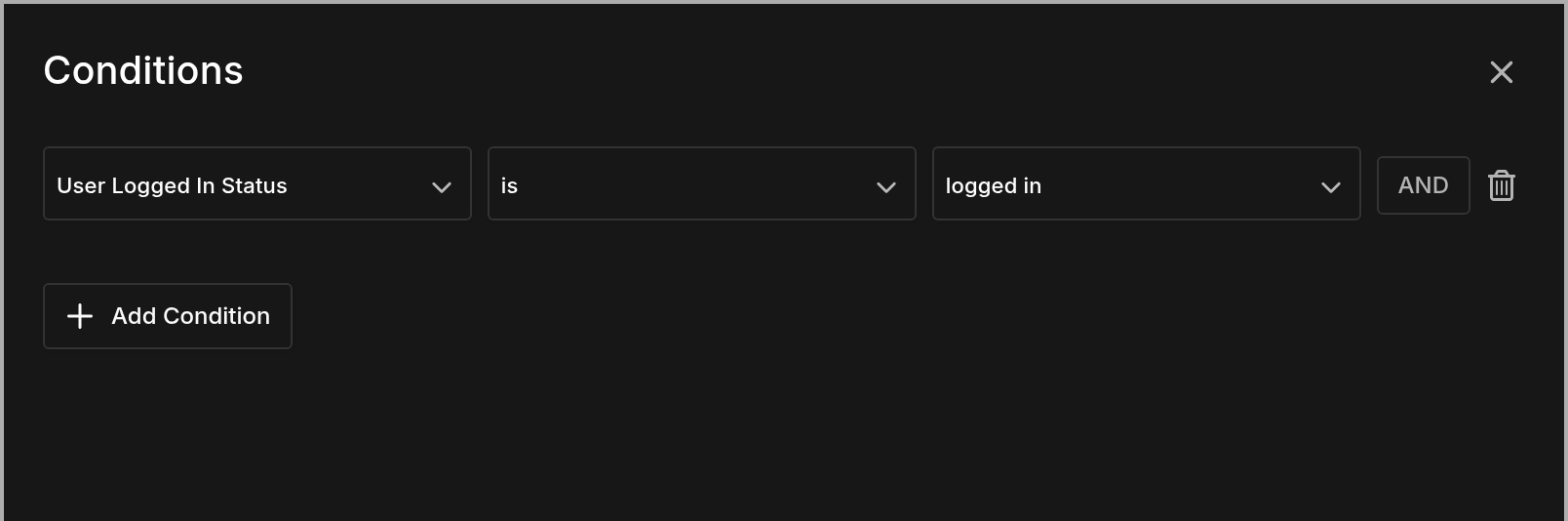
The element now renders only when the rule passes. With no conditions set, the element
always renders.
AND and OR
Each rule row has an AND button that adds another rule to the same group — every
rule in a group must pass. The Add Condition button below starts a new group, and
groups are joined with OR: the element shows if any one group passes in full.
What you can test
The condition list is the same one templates use, minus the ones that only make sense
for template targeting, and it adapts to what you're editing — on a page you get Page
and Page Parent, on a post you get Post and Post Parent. On a standard
install it covers:
- The current content — Post/Page (a specific item), its parent, post ID, post
status, comment count, author, whether it has a featured image. - The visitor — logged-in status, user role, registration date.
- Date and time — current date, time, day of week, month, plus the post's own
published or modified date. - Where they came from — referrer URL and referrer type.
- Dynamic Data — test any dynamic data value:
is / is not / contains / does not contain / is empty / is not empty. This is how you
hide a block when its custom field is empty. - Custom PHP — for logic the built-in conditions can't express.
- Environment — browser, operating system, and which builder created the content.
Preview versus published
Two more controls sit in the same tab:
- Visible — a plain on/off switch for the element, independent of conditions. Turn
it off and the element renders nowhere, which is the same setting the eye icon in the
Structure panel toggles. - In-Builder Preview — Always Show or Always Hide, controlling how the
element appears on the builder canvas while you work. Conditions are evaluated for
real visitors, so an element that's conditionally hidden would otherwise be awkward to
select and style; this decides what you see while editing without affecting the
published page.
Conditions hide the element, not just its appearance
A failed condition means the element is never rendered — its markup isn't in the page
source at all. That makes display conditions suitable for content you don't want
everyone to receive, unlike hiding something with CSS, which still ships the markup.
Note that this is per element: hiding a container hides everything inside it.