
The Fastest Way to Import WooCommerce Variable Products from Google Sheets

The last size I added to a WooCommerce variable product went in through Google Sheets, and I never opened the product editor to do it. I typed one more row into the sheet and ran the same import again. When I refreshed the product page, the new size was already in the dropdown with its own price.
Keeping a store’s variations in a sheet pays off in moments like that. WP All Import reads the sheet straight from its link and matches each row to the WooCommerce product it belongs to, so a new row becomes a new variation the next time the import runs. Getting there takes some setup in the sheet and one change in the import settings, and I’ll go through both using a small catalog of hiking socks.
Prepare the Google Sheet Before You Share the Import Link
Everything in this section happens in Google Sheets before you import anything into WooCommerce. Each setting keeps the sheet holding exactly what you meant to type, in the order the import needs.
Format SKU and Attribute Columns as Plain Text
Google Sheets reads some entries as numbers or dates and stores them that way. A SKU typed as 0042 is saved as the number 42, because a leading zero doesn’t change a number’s value. In a US-locale sheet, a size like 9-11 turns into a date. The cell can still show 9-11 while the formula bar shows 9/11/2026.
The cell reads 9-11, but the formula bar shows a date.
The cell and the formula bar both hold the size you typed.
Plain text stops both. Select the SKU, parent SKU and attribute columns, then click Format › Number › Plain text. Do this before typing, since the setting only applies to entries made after it. For my socks, that meant the SKU, Parent SKU, Size and Color columns.
WP All Import copies each SKU into WooCommerce exactly as the sheet holds it, so a code that loses its zeros in Google Sheets loses them in your store too.
Add Dropdowns to Attribute Columns
In WooCommerce, each variation’s attribute values must match those listed on its parent variable product. A dropdown keeps them matching because editors pick each value from a list instead of typing it.
To add one, select the attribute cells on your variation rows, then click Data › Data validation › Add rule and enter each value as an option. Leave the parent rows out, because their cells hold the full list, such as 6-8|9-11|12-14, which isn’t a single option.
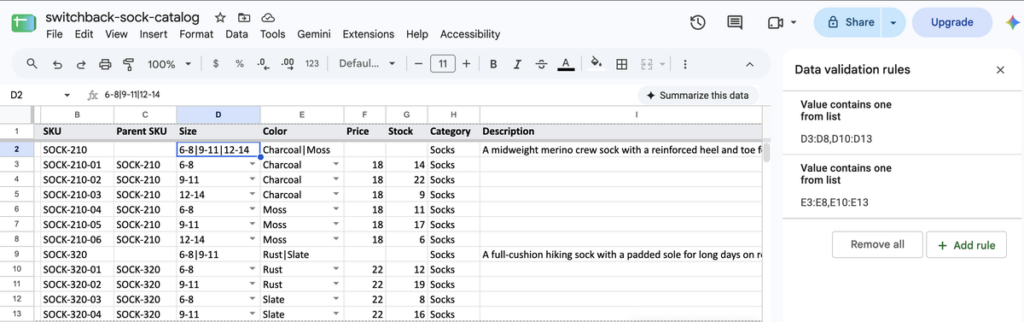
On my sheet, the Size dropdown offers the three sock sizes, and the Color dropdown offers the four sock colors.
Sort with a Filter View Instead of the Sheet
WP All Import links each variation row to a parent product that comes before it in the sheet, so every variable product’s parent row needs to sit above its variations. Sorting the whole sheet by price or name moves the rows for everyone and can lift a variation above its parent before the next import.
A filter view lets you sort without moving anything. Click Data › Create filter view, then sort or filter inside it.

Only your view changes, and the rows the import reads stay in their original order.
Import the Variable Products Straight from the Google Sheet’s Link
To import WooCommerce variable products, you need the WooCommerce Import Add-On, which comes with the WooCommerce Import Package and most other WP All Import packages.
Step 1: Share the Sheet with Anyone Who Has the Link
In Google Sheets, click Share, set General access to Anyone with the link with Viewer access, and click Copy link. WP All Import reads the sheet from outside your Google account, so a sheet left on Restricted can’t be read.
The copied link ends in /edit?usp=sharing, which opens the sheet in Google’s editor. Replace that ending with /export?format=csv, and the same link downloads the sheet’s first tab as a CSV file instead. This guide to importing WooCommerce products from Google Sheets explains the link change step by step.
Step 2: Load the Sheet Through Download from URL
Go to All Import › New Import and click Set up automatically at the top of the page. Open the Download from URL tab, paste the edited link and click Download. On the next screen, pick WooCommerce and then Products, leave Add Setup Instructions empty, and click Start Automatic Setup.
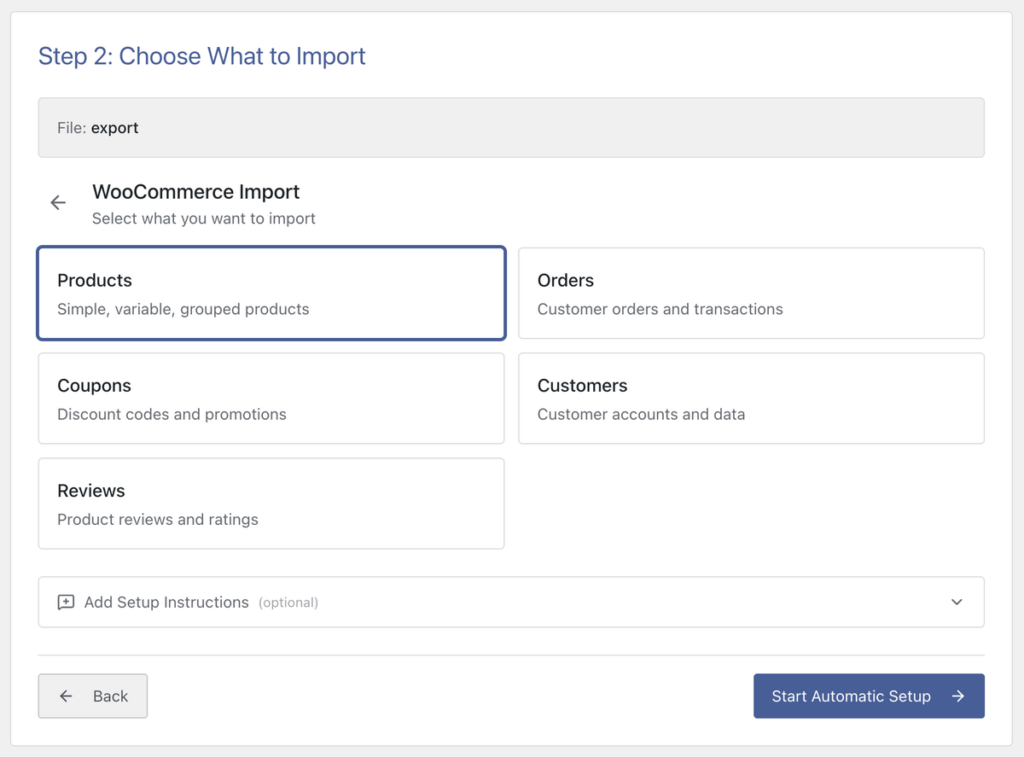
WP All Import downloads the Google Sheet from that link every time the import runs, so the sheet never has to be saved to your computer.
Step 3: Check the Parent Link and Attribute Rows
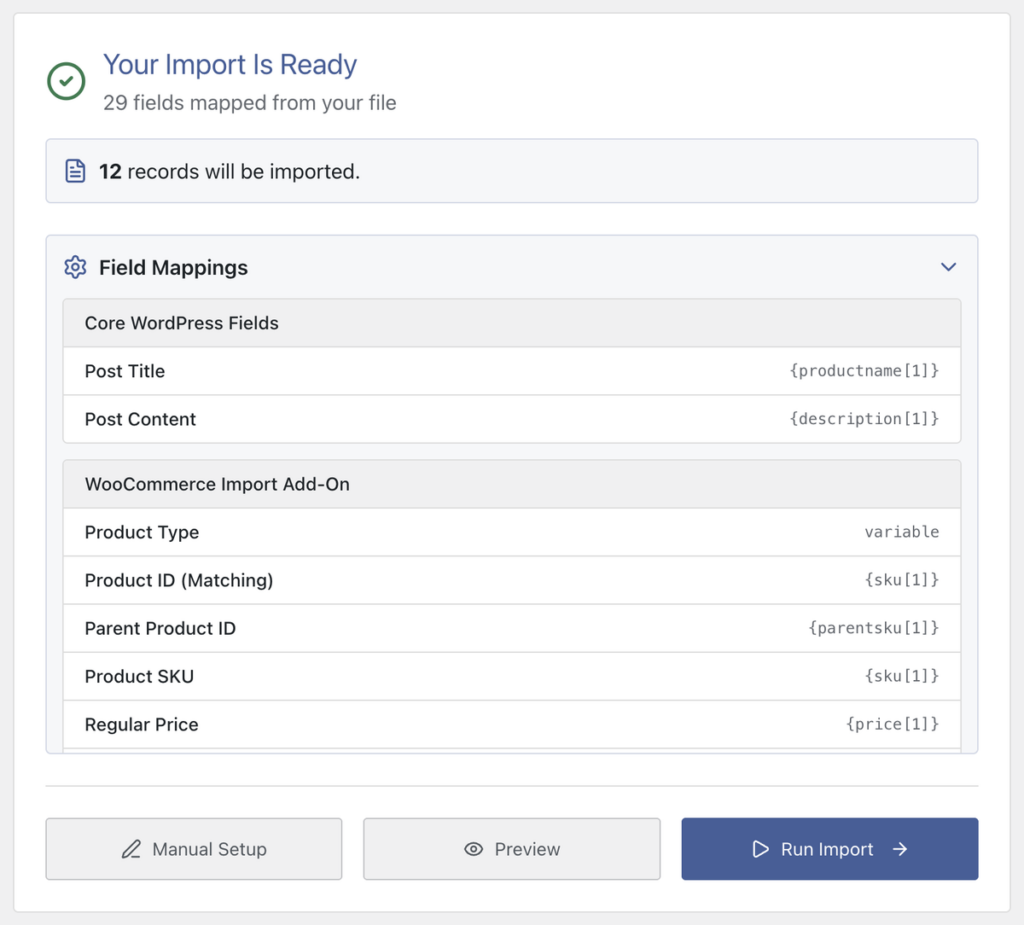
The Your Import Is Ready screen shows how many records Automatic Setup found. That number should match the rows in your sheet, counting each variable product’s parent row and all of its variations. Mine read 12, which is two parent socks and ten variations.
Under Field Mappings, Product Type should say variable, and Parent Product ID should point to your parent SKU column. WP All Import’s Automatic Setup links each variation row to its parent product through that column, with no setup notes needed.
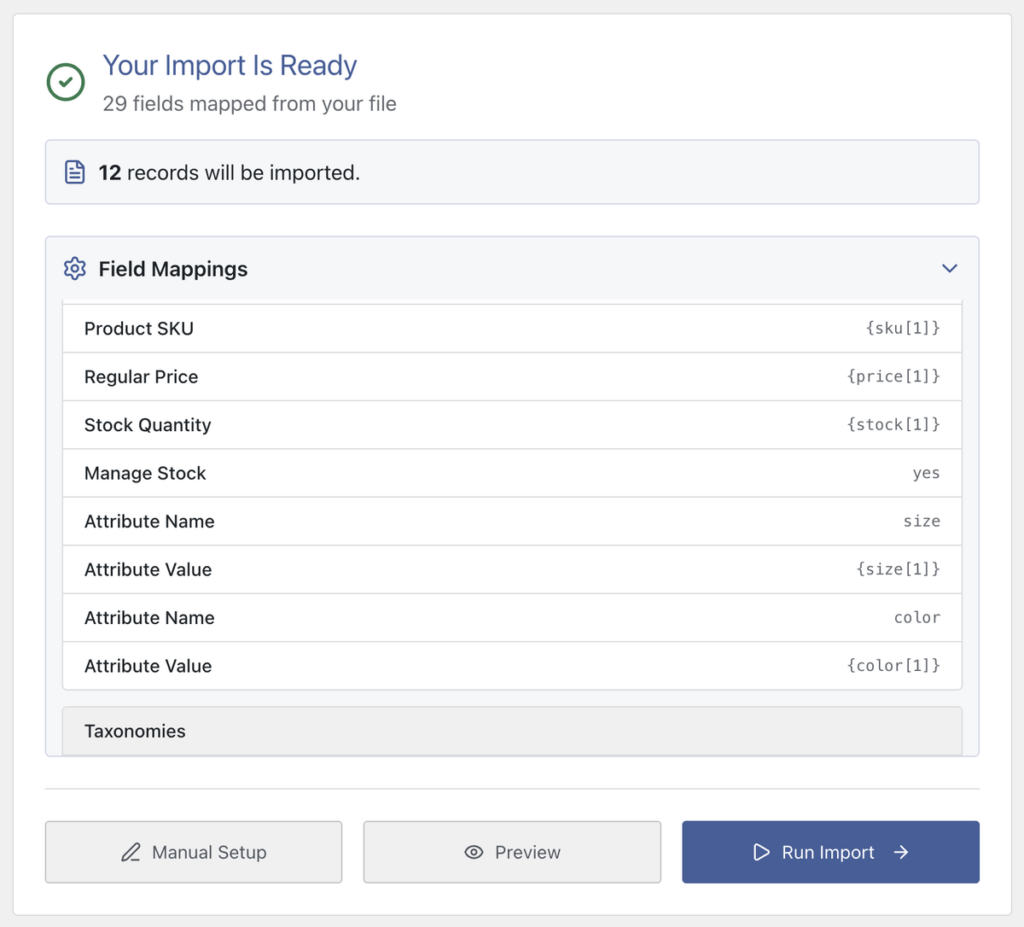
Further down, each attribute column should have its own Attribute Name and Attribute Value pair. My sheet has one pair for size and one for color.
Step 4: Run the Import and Compare a Product Page with the Sheet
WP All Import matches each row to the product it created through a unique key, which should stay the same when the sheet changes. Automatic Setup suggested a key made from the SKU, size and color. A parent row’s size cell holds the whole list of sizes, so that key would change as soon as you add a size. A key made from the SKU alone stays the same.
Click Manual Setup, scroll to the bottom of the mapping screen and click Continue to Import Settings. In the Unique Identifier box, replace the suggested key with your SKU column.
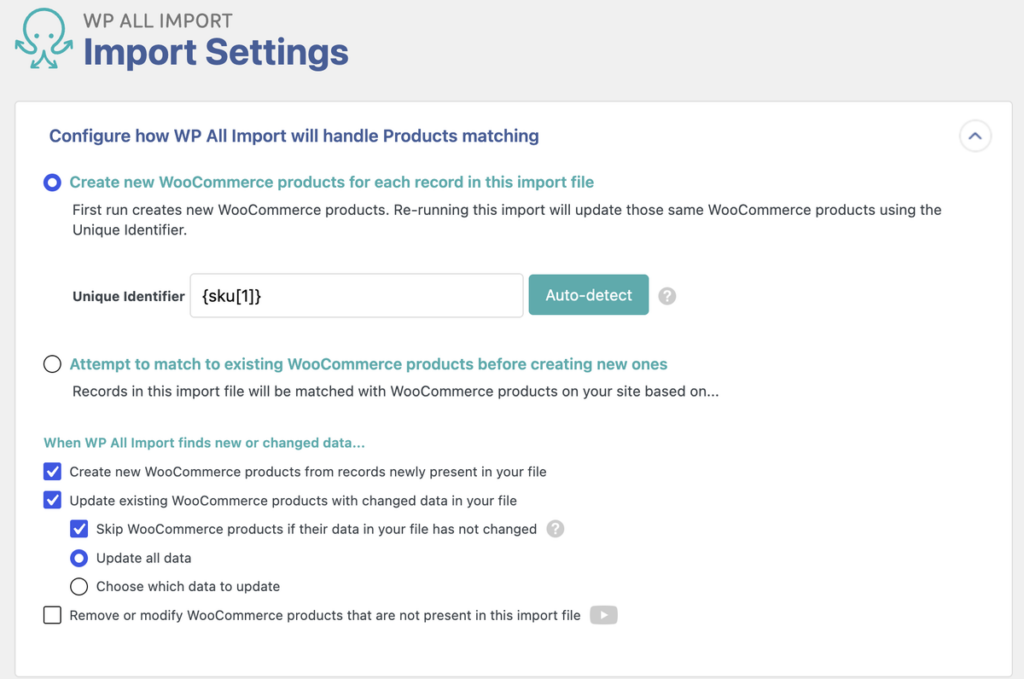
With the SKU as its unique key, WP All Import matches every row of the Google Sheet to the same WooCommerce product on each run, even after a parent row’s size list changes.
Step 5: Run the Import and Compare a Product Page with the Sheet
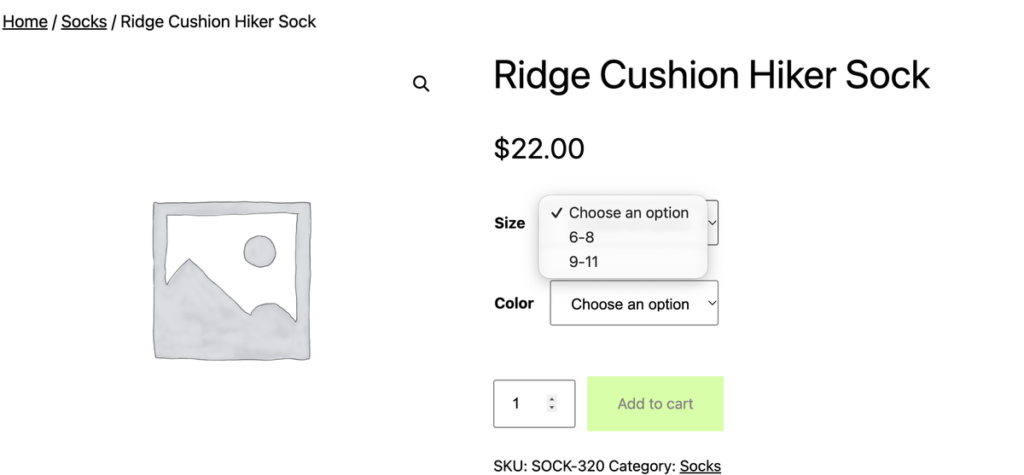
Click Confirm & Run Import. Once it finishes, open one of the new variable products and compare it with its rows in the sheet. The Variations tab should list one variation for each variation row, and the product page should offer the same sizes and colors.
For one of my socks, that meant four variations and a Size dropdown showing 6-8 and 9-11, exactly as they’re typed in the sheet.
Adding a New Variation Without Starting Over
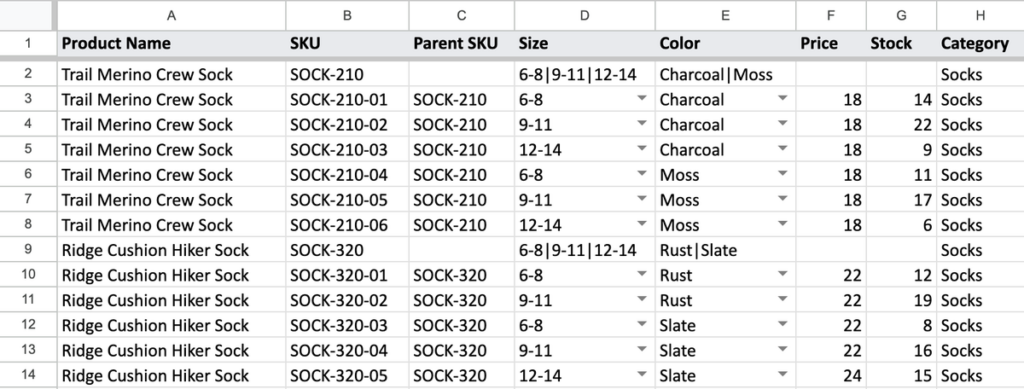
Adding a variation in Google Sheets requires adding a new variation row in the sheet, plus any new value in the parent row’s list for that attribute.
The quickest way to add the row is to copy an existing variation of the same product and change what’s different, such as its SKU and the attribute value that’s new. Copying brings the row’s dropdowns along. If the new value isn’t in the dropdown yet, add it to the rule under Data › Data validation first. For my socks, I added a 12-14 size to the cushioned hiking sock by copying its Slate 9-11 row and picking 12-14 from the Size dropdown.
The parent row’s list can be updated manually, or a formula can build it from the variation rows below.
Parent row, cell D9 (my Size column)
D10:DThe attribute column, from the row below the parentC10:CThe parent SKU columnB9The parent’s own SKU
6-8|9-11|12-14Change the column letters and row numbers to match your sheet.
Put the formula in a cell set to Automatic rather than Plain text, because Google Sheets shows a formula in a Plain text cell as ordinary text.
Back in WP All Import, go to All Import › Manage Imports, click Run Import next to the import, then Confirm & Run Import. Re-running a WP All Import import adds each new variation row from the Google Sheet to its existing WooCommerce variable product and skips the rows that haven’t changed.
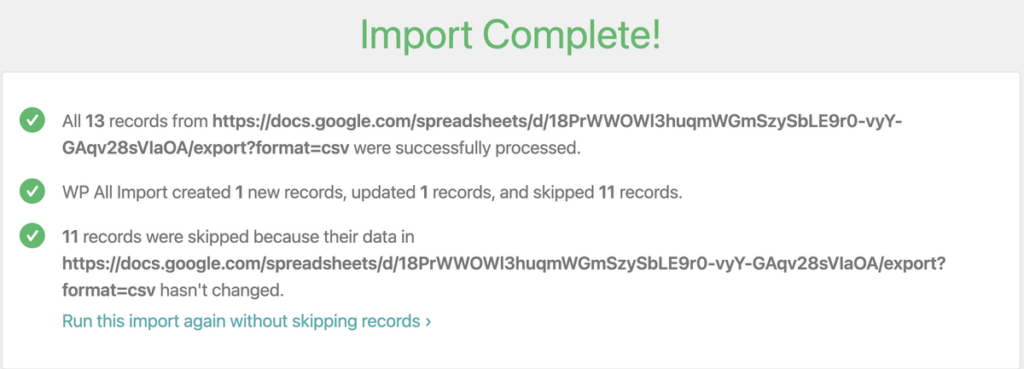
My re-run created one record, the new variation, and updated the parent whose size list had changed. The other 11 rows were skipped. On the WooCommerce product page, the Size dropdown now offered 12-14, and the price range read 22.00–24.00.
If you’d rather not click Run Import each time, the same import can run on a schedule.
Final Thoughts
I judge an import by its second run more than its first. The first run of my sock sheet created both variable products with all their variations. The run that added a new variation is the one that convinced me, though, because nothing in WooCommerce needed fixing afterward.
WP All Import imports WooCommerce variable products from Google Sheets without a download step, and the same import keeps those products in step with the sheet on every later run. It’s the tool I’d pick for any store that already keeps its catalog in a sheet, as long as the import uses the SKU as its key.
Common Questions About Importing WooCommerce Variable Products from Google Sheets
How do I stop Google Sheets from changing numbers to dates?
To stop Google Sheets from changing numbers to dates, format the cells as Plain text before you type in them. Select the cells or columns, then click Format › Number › Plain text. Entries such as 9-11 or 0042 then stay exactly as typed. For a single cell, typing an apostrophe before the value, as in ‘9-11, has the same effect. In a sheet you plan to import into WooCommerce, the SKU and attribute columns are the ones to set first.
Does a Google Sheet have to be public to import it into WooCommerce?
No. You don’t have to publish a Google Sheet to import it into WooCommerce. WP All Import only needs General access set to Anyone with the link with Viewer access. Anyone who has that link can view the sheet, so share it only with the people and tools that need it.
What columns does a Google Sheet need for WooCommerce variable products?
- Product name
- SKU, unique on every row
- Parent SKU, blank on parent rows and filled in on variation rows
- One column per attribute, with the full list of values on the parent row
- Regular price
- Stock quantity
How do I add a variation to an existing variable product in WooCommerce?
You can add a variation to an existing WooCommerce variable product with WP All Import by adding a row to the Google Sheet and re-running the same import.
- Make sure the import uses the SKU as its Unique Identifier.
- Copy an existing variation row of the same product.
- Change the copy’s SKU and the attribute value that’s new.
- Add any new value to the parent row’s list for that attribute.
- Go to All Import › Manage Imports and click Run Import next to the import.
- Click Confirm & Run Import, then check the product’s Variations tab.
How many variations can a WooCommerce product have?
A WooCommerce variable product doesn’t have a hard limit on how many variations it can have. The limit most people run into comes from the Generate variations button in the product editor, which creates up to 50 variations per run. WP All Import creates one variation for each variation row in the sheet, so a larger product doesn’t need repeated clicks. Very large products still depend on what your server can handle.
Further Reading
- The 3 Best Plugins to Import WooCommerce Products from Google Sheets
- The Fastest Way to Import WooCommerce Variable Products from CSV
- How To Import Attributes for WooCommerce Variable Products
- How to Use a WooCommerce Product Import Template (CSV & Excel Guide)
Get Oxygen
Build it your way with Oxygen.
Not per year, not per site, not per seat. 60 day money back guarantee.