
Blog
The 3 Best Plugins to Import WooCommerce Products from Google Sheets

Most guides on how to import WooCommerce products from Google Sheets stop once the first batch shows up in the store. The harder moment, however, comes later, when someone edits a few prices in the sheet, and the store needs those changes without gaining a second copy of every product.
The three plugins I review in this article all import WooCommerce products from Google Sheets. I compared them on that second import as closely as the first, looking at how each plugin reaches the sheet and what it does with existing products when the data changes.
Quick Comparison
All three plugins I review in this article import WooCommerce products from Google Sheets, so the first import alone doesn’t separate them. The differences show up on the next one, so I tested each plugin’s second import as closely as its first, looking at how it reaches the sheet and what it does to existing products when the data changes.
| Plugin | How It Reads the Sheet | Setup Before the First Import | Updates Existing Products By |
|---|---|---|---|
| WP All Import | Google Sheets sharing link | Paste the link; Automatic Setup maps the fields | SKU or any unique field |
| WP Ultimate CSV Importer | CSV export link through Upload from URL | Manual field mapping, including product status | SKU |
| WPSyncSheets For WooCommerce | Connected spreadsheet through Google API | One-click Google connection; sheet columns follow the plugin’s layout | WooCommerce product ID |
I built one Google Sheet for this test, a small coffee-gear catalog of simple products plus one variable product with two sizes. Every row had its own SKU, image URL, nested categories and tags. WP All Import and WP Ultimate CSV Importer each imported that sheet into the same WooCommerce store, then imported it again after I’d edited it. I compared the plugins on four points.
Getting the sheet in: Whether the plugin read the Google Sheet from its regular sharing link, or needed a CSV export link or an API connection first.
Field mapping: How many columns matched WooCommerce product fields on their own, and how many I had to map by hand.
Product data: Whether prices, stock, images, nested categories and tags arrived intact, and whether the variations attached to their parent product.
Re-imports: Whether edited rows updated the existing products and whether a new row came in as a new product, without duplicates in either case.
WPSyncSheets imports only through its own Google API connection and a sheet layout it generates, so I assessed its insert and update workflow against the plugin’s documentation.
The 3 Best Plugins to Import WooCommerce Products from Google Sheets
1. WP All Import
⭐
Rating: 4.7/5 Stars (based on 1,966 reviews on WordPress.org)
💰
Pricing: From $169/yr (WooCommerce Import Package)
🎯
Best For: Stores that update their WooCommerce catalog from a Google Sheet on a regular basis
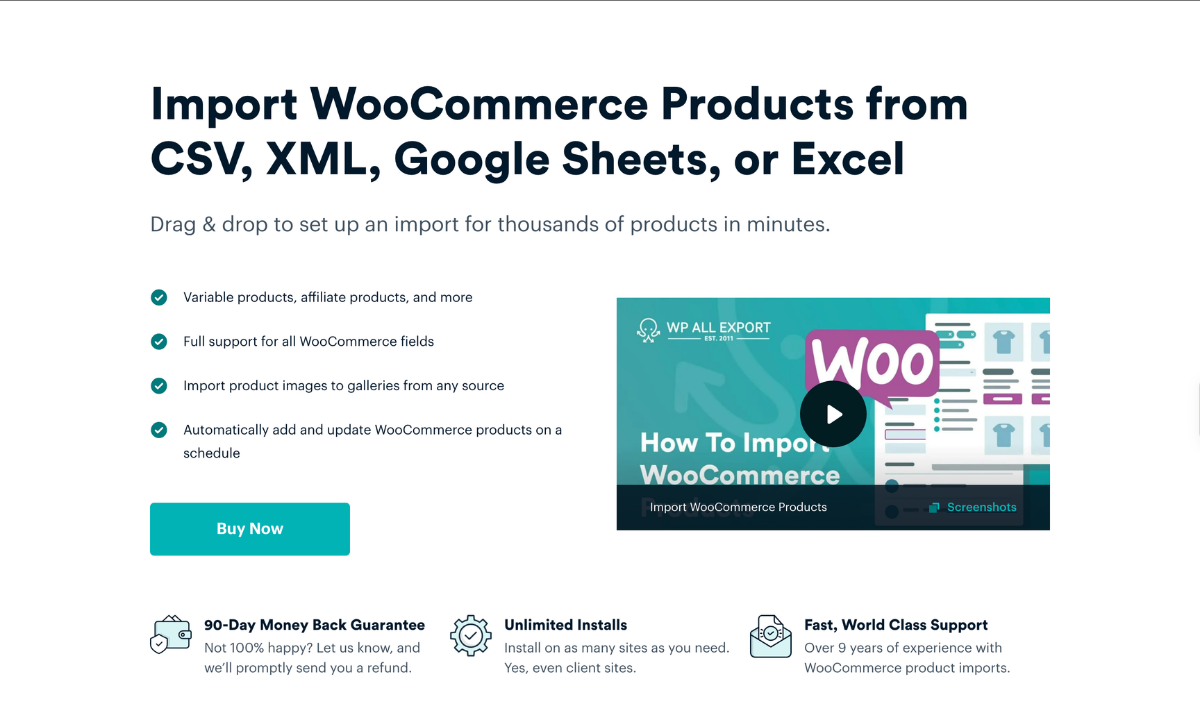
WP All Import is a WordPress import plugin that imports WooCommerce products from Google Sheets, CSV, XML, and Excel files. Paste a Google Sheets link into Automatic Setup, and WP All Import maps the sheet’s columns to WooCommerce product fields, including prices, stock, images, nested categories and attributes.
WP All Import updates existing WooCommerce products by matching each row to its SKU, so a re-import keeps the store in step with the sheet instead of adding duplicates. Every standard product type is supported, including variable products and subscriptions, and values such as prices can be modified during the import without editing the sheet.
My Experience Using WP All Import
I pasted the sheet’s regular sharing link, the one ending in /edit, into Download from URL in Automatic Setup. WP All Import pulled the sheet in as a CSV file without any changes to the link. Before I touched a single setting, Automatic Setup had mapped 34 fields from the coffee-gear sheet and recognized that the three Ethiopia coffee bean rows belonged to one variable product. WP All Import reads the column names in a Google Sheet and matches them to WooCommerce product fields by itself, so the sheet doesn’t need a special template.
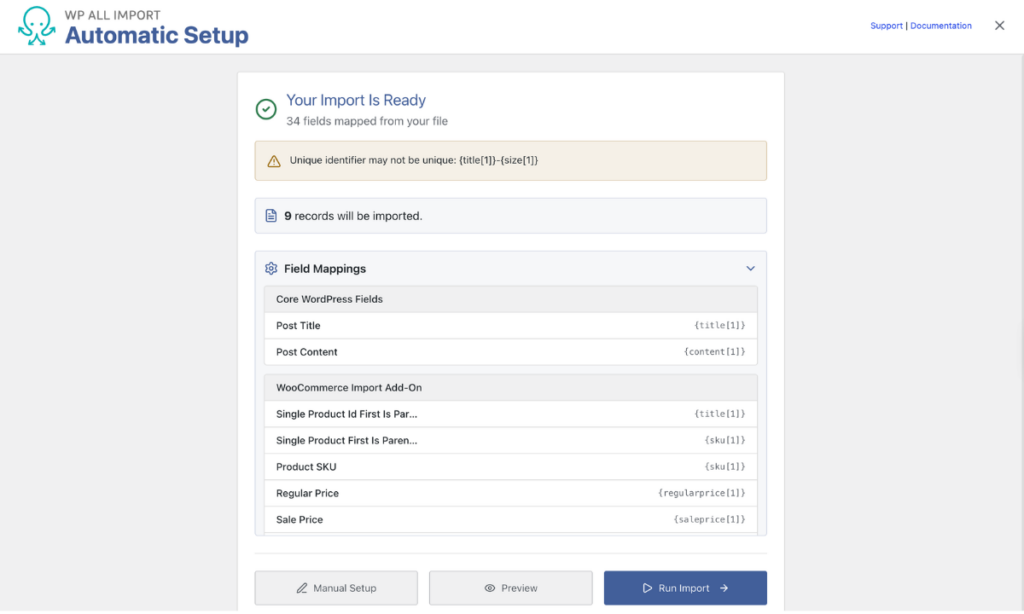
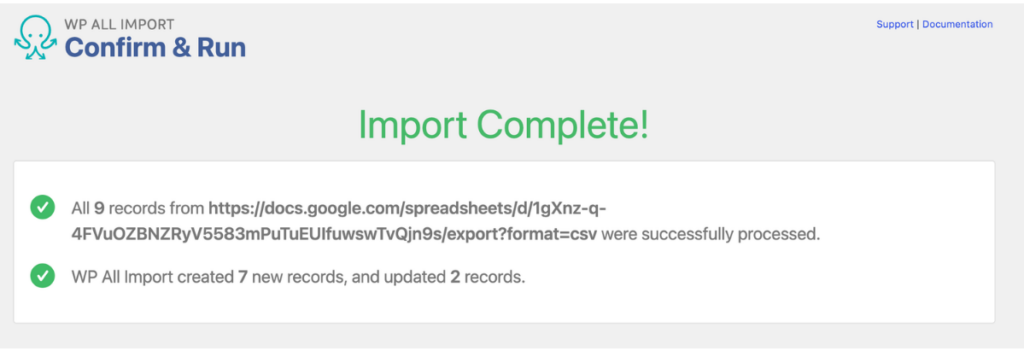
Run Import processed all nine records in one go. It created the six simple products and the coffee-bean parent, then attached the 250g and 1kg rows to that parent as variations. Prices, stock, images, nested categories and tags all landed where they belonged.
Before you copy the link
Share Before You Paste
Set the Google Sheet’s General access to Anyone with the link (Viewer). A restricted sheet stays private to your Google account, so no importer can read it.
General access:
Restricted
→
✓ Anyone with the link
For the second run, I edited rows in a test sheet and imported it again. The edited products updated in place, the new rows came in as new products, and nothing was duplicated. WP All Import matches each row to an existing WooCommerce product by SKU and saves every import’s link and mappings, so the next update from Google Sheets is one click on Run Import.
What I Liked
- WP All Import accepted the sheet’s regular sharing link exactly as Google gave it, so there was no URL editing before the import.
- Automatic Setup spotted that three rows in my sheet were one variable product with two sizes, and it built the parent and variations without a template.
- Category paths written as text, like “Coffee Gear>Grinders,” became nested WooCommerce categories during the import, including parents that didn’t exist yet.
- Image URLs in the sheet download straight into the Media Library. On later imports, WP All Import can reuse images already there by filename instead of downloading duplicates.
- Switching to Manual Setup keeps every mapping Automatic Setup made, so adjusting one field doesn’t mean rebuilding the whole import.
- The same importer reads CSV, XML, JSON and Excel files, which helps when a supplier stops sharing a Google Sheet and sends a feed instead.
What I Didn’t Like
- The sheet has to be viewable by anyone with its link, so a product list that must stay private won’t work as a direct import source.
- Full variable product support is part of the paid WooCommerce Import Add-On.
- Variations group cleanly when each variation row repeats its parent product’s title, so a sheet that lists sizes another way needs some reshaping first.
Pricing
WP All Import has a free version on WordPress.org that can import a Google Sheet from its link. For WooCommerce stores, the WooCommerce Import Package costs $169 per year and adds the Pro importer with the WooCommerce Import Add-On. If you also need exports, the WooCommerce Pro Package costs $199 per year. Every package covers unlimited sites and comes with a 90-day money-back guarantee.
Recommended For
WP All Import is an ideal choice for stores whose Google Sheets catalog includes variable products and nested categories, since Automatic Setup turns those rows into complete WooCommerce products without a custom template.
2. WP Ultimate CSV Importer
⭐
Rating: 4.4/5 Stars (based on 593 reviews on WordPress.org)
💰
Pricing: Free; Pro from $199 (one-time)
🎯
Best For: Simple-product imports from a published Google Sheet
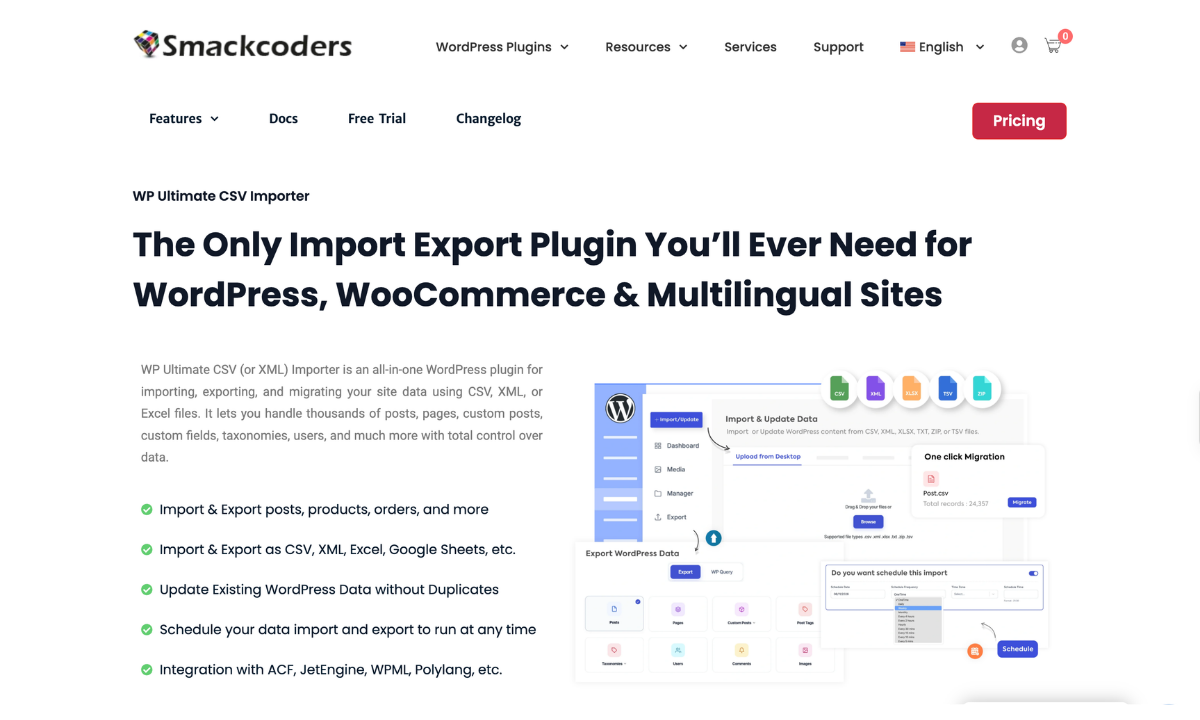
WP Ultimate CSV Importer reads Google Sheets data only through a CSV link pasted into Upload from URL. Columns are mapped manually in Advanced Mode or Drag & Drop Mode, under WordPress Core Fields. Updating existing products and scheduling imports are part of the paid Pro version.
My Experience Using WP Ultimate CSV Importer
I loaded the sheet through Upload from URL. The plugin needed the /export?format=csv version of the link and didn’t accept the regular sharing link. Every field in Advanced Mode started on “–select–,” so I moved to Drag & Drop Mode and placed each column into its field one at a time. The fields are grouped under WordPress Core Fields rather than laid out like WooCommerce’s product screen, so mapping took longer than I expected.
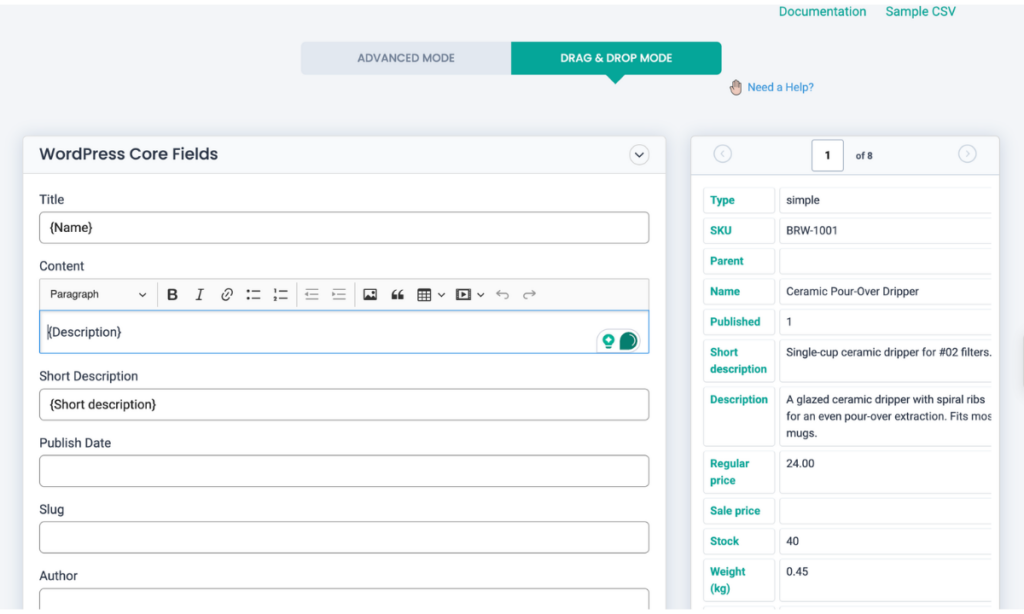
My first run stopped at 0%, yet the screen still showed “Import Completed!” A second run with five simple products finished in 18 seconds with images attached. Product status isn’t mapped by default, so those products stayed out of the WooCommerce product list until I set Status to publish.
The update pass worked once I selected Update Content and set records to match by SKU. The edited prices and stock came through, and the one product I’d added to the sheet was created as a new product in the same run.
What I Liked
- Updates match existing products by SKU, and new rows are inserted during the same run.
- Field mappings save as a template that can be reused on the next import.
- A rollback backup can be switched on before an import starts.
- The import summary links each record to its product page and its edit screen, which makes spot checks quick.
What I Didn’t Like
- The regular Google Sheets sharing link isn’t accepted. The sheet has to be loaded through its CSV export link.
- No fields are mapped automatically, and the mapping screen is organized around WordPress Core Fields rather than WooCommerce’s product layout.
- Product status isn’t mapped by default, so imported products stay out of the WooCommerce product list until Status is set.
- A run that imports nothing can still end on an “Import Completed!” message.
Pricing
The free version of WP Ultimate CSV Importer is on WordPress.org. Pro is a one-time purchase starting at $199, and the All-in-One Premium pack costs $299. Licenses cover unlimited domains.
Recommended For
Stores with a short list of simple products that are comfortable setting up every field mapping themselves.
3. WPSyncSheets For WooCommerce
⭐
Rating: 5/5 Stars (based on 27 reviews on WordPress.org)
💰
Pricing: Free Lite version (export only); Pro from $59/yr
🎯
Best For: Stores already syncing WooCommerce data to Google Sheets
WPSyncSheets For WooCommerce imports products only from the Google spreadsheet it’s connected to, and only in its Pro version. The free Lite version exports store data to Google Sheets. Imports run through Insert, Update and Delete columns that the plugin adds to the sheet. Each row to be processed needs a 1 typed into the matching column.
My Experience Using WPSyncSheets For WooCommerce
The import with WPSyncSheets For WooCommerce starts with a Google connection. Clicking Connect with Google opens a sign-in where you approve access to Google Drive and Google Sheets, and the plugin then links itself to a spreadsheet.
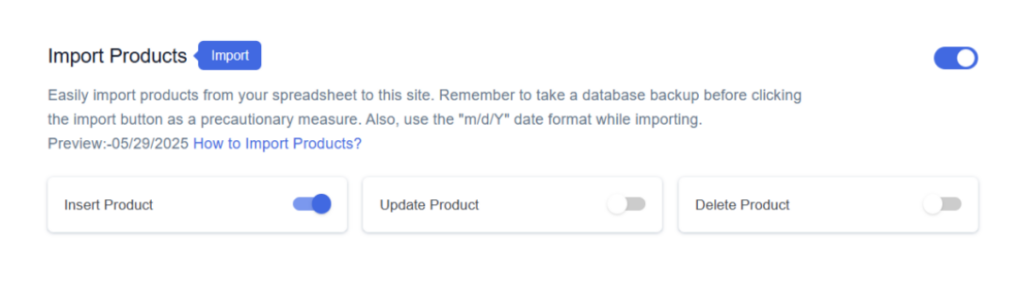
Turning on Import Products under Product Settings adds Insert, Update and Delete columns to that spreadsheet. A new product needs a blank Product ID and a 1 in the Insert column. Clicking Import Product and then Proceed processes every marked row. For variable products, the parent row is set to variable and each variation row points to the parent’s Product ID. The attributes have to exist in WooCommerce before the import runs.
Updates go through the same sheet. You edit the values in a product’s row and type a 1 in its Update column, and the plugin matches that row to the product with the same WooCommerce ID in column A. A product added during the same round needs its own row with a 1 in the Insert column. Running Import Product again applies both changes, and the Schedule Auto Import option can repeat that run on a timer.
What I Liked
- Products can be inserted, updated or deleted from the same spreadsheet.
- ACF field data imports alongside product data in Pro.
- Pro includes a scheduled auto-import option.
- Newer versions connect to Google with one click instead of API credentials.
What I Didn’t Like
- The free Lite version doesn’t import products at all.
- Updates match on the WooCommerce Product ID, so the sheet has to carry each product’s ID rather than its SKU.
- An existing Google Sheet can’t be imported as it is. Columns must follow the plugin’s fixed layout and are read by position.
- Every row to import needs a 1 typed into the Insert or Update column manually.
Pricing
WPSyncSheets Lite For WooCommerce is free on WordPress.org and exports store data only. Importing needs WPSyncSheets For WooCommerce Pro, which WPSyncSheets lists at $59 per year for a single site.
Recommended For
Stores that already send WooCommerce data out to Google Sheets and want to push occasional product changes back from that same spreadsheet.
Which Plugin Should You Use to Import WooCommerce Products from Google Sheets?
WP All Import is the plugin I’d use to import WooCommerce products from Google Sheets. It reads a Google Sheet from its regular sharing link and maps the columns to WooCommerce product fields through Automatic Setup. On my coffee-gear sheet, that included grouping three rows into one variable product with both of its sizes attached.
For a sheet that keeps changing, the second import matters more than the first. WP All Import updates existing WooCommerce products by SKU and adds new rows as new products in the same run. Each import is saved with its link and mappings, so bringing the store back in line with the sheet only takes running it again.
The other two plugins can bring Google Sheets data into WooCommerce, but they ask for more preparation. WP Ultimate CSV Importer needs the sheet’s CSV export link and manual field mapping. WPSyncSheets imports only from its own connected sheet, with every row flagged by hand. If your product catalog lives in a Google Sheet that changes every week, start with WP All Import.
Common Questions About Importing WooCommerce Products from Google Sheets
How to import products from Google Sheets to WooCommerce?
WP All Import imports products from Google Sheets to WooCommerce using the sheet’s sharing link and Automatic Setup.
- Set the Google Sheet’s General access to Anyone with the link.
- In WordPress, go to All Import › New Import and choose Set up automatically.
- Open the Download from URL tab, paste the sheet’s link and click Download.
- Check the mapped fields on the Your Import Is Ready screen.
- Click Run Import.
Can WooCommerce import directly from a Google Sheet?
No. WooCommerce’s built-in product importer only accepts a CSV file uploaded from your computer, so a Google Sheet has to be downloaded first. WP All Import skips that step by importing WooCommerce products straight from the Google Sheets link.
How do I update WooCommerce prices from a Google Sheet?
To update WooCommerce prices from a Google Sheet, edit the prices in the sheet and run the same WP All Import import again. WP All Import matches each row to its existing product by SKU, and you can set it to update only the price fields. Descriptions and images edited in WooCommerce stay as they are.
What columns does a Google Sheet need for a WooCommerce product import?
- Product name
- A unique SKU for every product and variation
- Regular price, plus sale price where needed
- Stock quantity
- Categories, with “>” between parent and child levels
- Publicly accessible image URLs
Can I import variable products from Google Sheets into WooCommerce?
Yes. WP All Import imports variable products from Google Sheets when each variation has its own row that repeats the parent product’s title and details. That lets Automatic Setup group the variations under one parent product. Full variable product support comes with the paid WooCommerce Import Add-On.
Is it possible to import WooCommerce products from Google Sheets for free?
Yes. The free version of WP All Import imports WooCommerce products from a Google Sheets link. Variable products and scheduled imports need the paid WooCommerce Import Package.
Further Reading
Get Oxygen
Build it your way with Oxygen.
$199.50
once — unlimited sites, no renewal
Not per year, not per site, not per seat. 60 day money back guarantee.