
The Fastest Way to Import WooCommerce Products from Google Sheets

I tried a few ways to import WooCommerce products from Google Sheets before I settled on the one I share in this guide. The slowest method meant downloading the sheet as a CSV and matching its columns in WooCommerce’s built-in importer. That importer only accepts a file from my computer or one already on the server.
The fastest route needs one edited link and WP All Import. WP All Import reads product data directly from a Google Sheets URL, and its Automatic Setup maps the sheet’s columns to WooCommerce product fields without any dragging on my part. These are the three steps I follow.
Where the Time Goes in a Typical Google Sheets Import
Google Sheets has no direct line into WooCommerce, so the usual way to import products from a sheet is to use a downloaded file. I export the sheet as a CSV, open WooCommerce’s product importer, upload the file and check the Column mapping screen for any headers WooCommerce doesn’t recognize. Then I run the import.
Each step takes a minute or two. The real cost is that I have to go through the whole routine again every time someone edits the sheet, because the CSV on my computer no longer matches the sheet as soon as a price changes.
- Download the sheet as a CSV
- Go to Products › All Products › Import
- Choose the downloaded file
- Check the Column mapping screen
- Run the importer
- Copy the sheet’s CSV link
- Paste it into WP All Import
- Click Run Import
WP All Import eliminates the download step from that routine. It fetches the Google Sheets link again on every run, so that each import picks up the sheet’s latest rows without a new file.
My Three-Step Route from Google Sheets to WooCommerce
The first step happens in Google Sheets and the other two happen in WP All Import. I don’t download a single file along the way.

Step 1: Turn Your Share Link into a CSV Link
Every Google Sheet has a share link, and one small edit turns it into a CSV file that WP All Import can read.
- Click Share at the top right of the sheet.
- Under General access, choose Anyone with the link and keep the role on Viewer.
- Click Copy link.
- Paste the link somewhere you can edit it, and replace the /edit?usp=sharing ending with /export?format=csv.
The finished link looks like https://docs.google.com/spreadsheets/d/your-sheet-id/export?format=csv. It exports the sheet’s first tab, so keep your product rows there.
A share link opens the spreadsheet editor. With the /export?format=csv ending, Google returns the sheet’s rows as a CSV file instead, and that’s the format an importer reads.
Step 2: Paste the Link into Automatic Setup
- In WordPress, go to All Import › New Import.
- Click the Set up automatically callout at the top of the screen.
- Choose Download from URL and paste your CSV link.
- Select WooCommerce › Products as the import type.
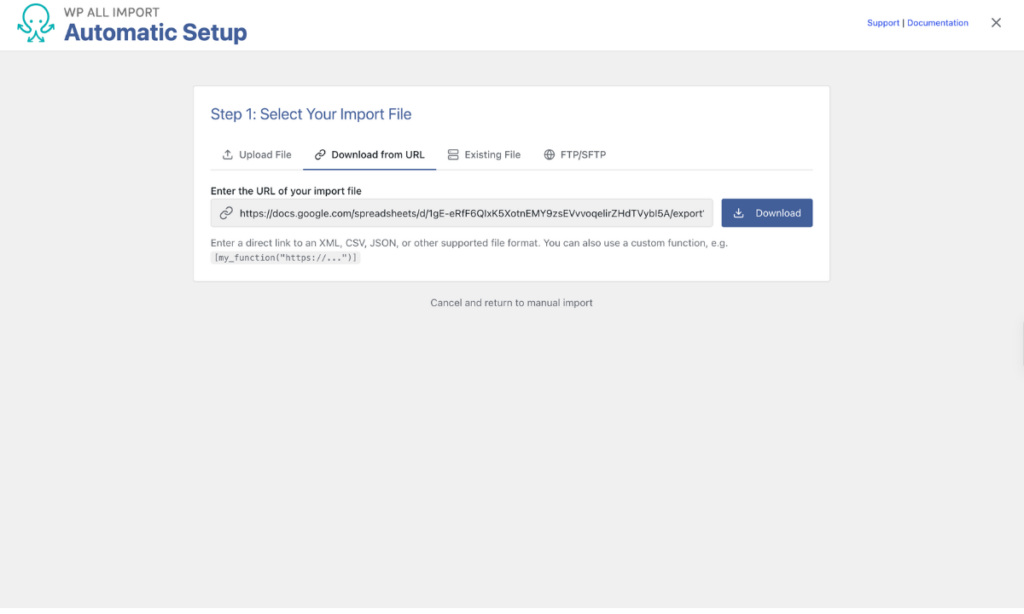
The Add Setup Instructions field is optional. I only fill it in when a header could be read two ways. Each note goes on its own line as a bullet in single quotes, such as • ‘Map the RRP column to the regular price’.
Step 3: Check the Mappings and Run the Import
When the setup finishes, WP All Import opens the Your Import Is Ready screen, with the number of fields mapped and the number of records waiting to import. WP All Import’s Automatic Setup maps a Google Sheet’s existing column headers to WooCommerce product fields, so I never rename anything in the sheet first.
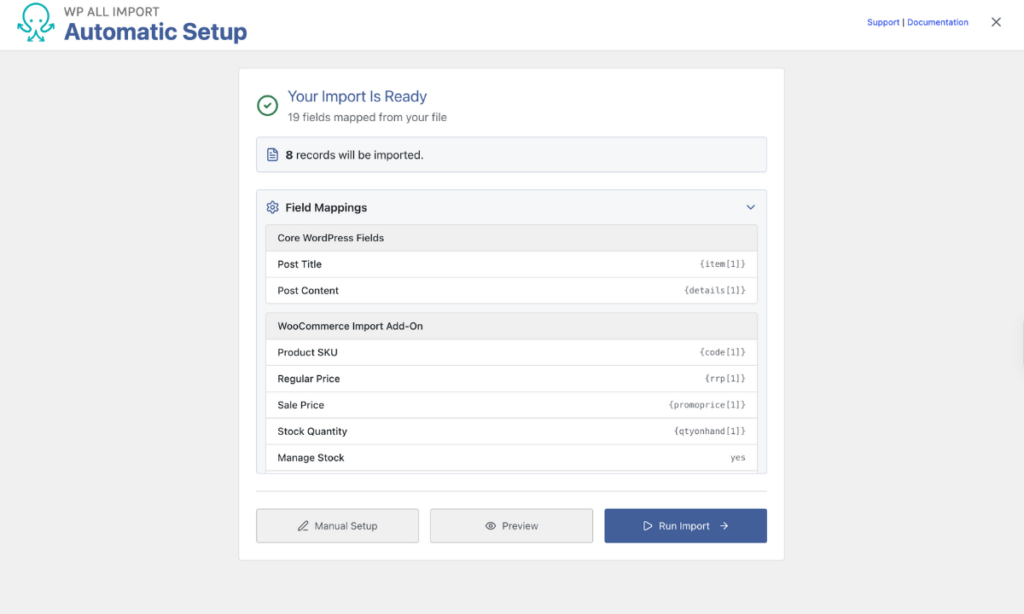
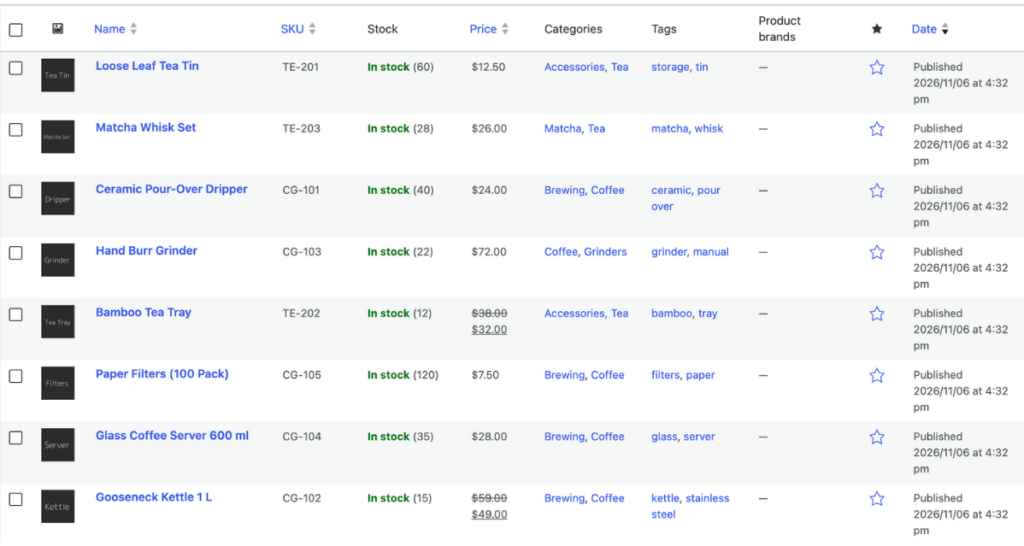
The collapsible Field Mappings section lists every match, grouped under headings such as Core WordPress Fields and WooCommerce Import Add-On. To change one, Manual Setup opens the drag-and-drop editor with the automatic mappings already filled in. Otherwise, click Run Import. The new products show up under Products › All Products as soon as the summary reports them as created.
Keeping Re-Runs Just as Fast
WP All Import saves the WooCommerce products CSV link with the import. That means a rerun fetches the Google Sheet as it stands at that moment, and I never have to create a new import for an edited sheet.
Update Products Instead of Duplicating Them
Before the first run, I click Manual Setup, open Import Settings, and set Product SKU as the unique identifier. Then I check Update existing products with changed data in your file. WP All Import matches each row of the Google Sheet to a WooCommerce product by SKU, so an edited price updates the product that already exists. Choose which data to update narrows a rerun to fields such as price or stock.
Run the Import on a Schedule
To stop rerunning imports manually, go to All Import › Manage Imports and click Scheduling Options. WP All Import’s Automatic Scheduling service runs the import at set times from inside the plugin for $19 a month. Free cron jobs on your server are the other option. The full setup is covered in How to Auto Import WooCommerce Products.
Speed Bumps I’d Clear Before the First Run
I run through three checks on the WooCommerce products Google Sheet before pasting its link into WP All Import. Each one prevents a problem that would otherwise turn up partway through the import.
Sharing is set to Anyone with the link › ViewerDetails
If you skip itThe CSV link returns Google’s sign-in page, and Automatic Setup stops with “Configuration failed – Invalid prepared data payload.”
All product rows are on the first tabDetails
If you skip itThe /export?format=csv link only exports the first tab, so products on any other tab never reach WooCommerce.
Every row has its own SKUDetails
If you skip itWP All Import can’t match those rows to existing WooCommerce products on a rerun, so they import as new products.
The browser check from Step 1 covers the first two in one go. If the link downloads a CSV with your products in it, the sheet is ready.
Final Thoughts: Is This the Fastest Way to Import from Google Sheets?
For me, it is. WP All Import imports WooCommerce products from a Google Sheets link, so there’s no file to download, and Automatic Setup maps the sheet’s headers to product fields without any dragging. The only manual work left is a one-time edit to the share link.
The speed holds up after the first import, too. WP All Import saves the link with the import, matches products by SKU, and reruns on whatever schedule I set, so updating the store later takes a single click or none at all. Any store that keeps prices and stock in Google Sheets gets the most from this setup, because the sheet is where the edits happen and WP All Import carries them into WooCommerce on every run seamlessly.
Common Questions About Importing WooCommerce Products from Google Sheets
Can I create WooCommerce products from Google Sheets?
Yes. WP All Import creates WooCommerce products from Google Sheets by reading the sheet through its CSV export link, so every row becomes a new product with the fields Automatic Setup mapped. WooCommerce’s built-in importer also creates products, but only from a CSV file uploaded from your computer or saved on the server.
How to import products from Google Sheets to WooCommerce?
WP All Import imports products from Google Sheets to WooCommerce straight from the sheet’s link:
- In Google Sheets, click Share, set General access to Anyone with the link with the Viewer role, and click Copy link.
- Change the link’s /edit?usp=sharing ending to /export?format=csv.
- In WordPress, go to All Import › New Import and click Set up automatically.
- Choose Download from URL, paste the link and select WooCommerce › Products.
- Check the Your Import Is Ready screen and click Run Import.
Can I edit a cell in Google Sheets and have it update WooCommerce?
Yes. WP All Import updates WooCommerce products from edited Google Sheets cells the next time the import runs. In Import Settings, set Product SKU as the unique identifier and turn on Update existing products with changed data in your file. Each row then updates the product with the matching SKU. The change shows up when the import runs, either manually from All Import › Manage Imports or on a schedule, not as soon as you edit the cell.
How often can WooCommerce sync with Google Sheets?
WooCommerce syncs with Google Sheets as often as your WP All Import schedule allows. The Automatic Scheduling service runs an import weekly or monthly on the days and times you pick, and it checks that each run finished. Cron jobs on your server are the free alternative and can trigger the import at any interval your host supports.
How to export WooCommerce products to Google Sheets?
WP All Export exports WooCommerce products to a CSV file that Google Sheets can import in a few clicks:
- Go to All Export › New Export and choose WooCommerce Products from the post type dropdown.
- Click Customize Export File and drag the product fields you need into the column area.
- Under Export Type, choose Spreadsheet and leave the format on CSV.
- Click Continue, then Confirm & Run Export, and download the CSV when it’s ready.
- In Google Sheets, go to File › Import › Upload and select the file.
Further Reading
Get Oxygen
Build it your way with Oxygen.
Not per year, not per site, not per seat. 60 day money back guarantee.