
The Best Way to Import WooCommerce Products from XML

Supplier catalogs often arrive as XML feeds rather than tidy spreadsheets, with product images, attributes, and variations nested inside each product record. XML allows suppliers to organize this information in different ways, but these structures don’t always match the product fields WooCommerce expects.
WooCommerce’s built-in product importer accepts CSV files, not XML. To import products from an XML feed, you need to either convert the file to CSV or use a plugin that can read XML directly.
In this article, I’ll walk through how to import WooCommerce products from XML, and which parts of the feed need attention before anything runs.
Why XML Is Still the Standard for WooCommerce Product Imports
Most product data on the web still moves as XML. Supplier catalogs, marketplace exports, affiliate networks, and dropshipping tools all publish it, and Google Merchant Center accepts feeds in the same format.
The reason is nesting. A single product element can carry its own SKU, price, gallery, categories, and variations. A spreadsheet row cannot do that without repeating columns or splitting one product across several rows.
That structure reaches WooCommerce stores in three common shapes. Some feeds list each variation as a separate record with a parent SKU. Some nest variation elements inside the parent product. Others wrap everything in namespace prefixes, like the g: elements in a Merchant Center feed.
WooCommerce reads none of them natively. The built-in importer accepts CSV only, so an XML feed needs a product import plugin that can resolve nested nodes and map them to product fields.
How to Read an XML Product File Before You Import It
Before choosing an import plugin, it is important to see the file the way the importer will. Chrome collapses the tree far enough that the nesting disappears, so open the feed in an XML viewer with a tree pane and a raw text pane. VS Code and most code editors do this.
Three checks take a minute each. Confirm that one root element wraps the feed, since two roots fail on parse. Find the repeating product node, usually <product> or <item>, because that node becomes the record the import works from. Then look at how variations attach: as separate records with a parent_sku element, or as <variant> elements nested inside the parent. Those layouts need different settings later, and they look identical in a browser.
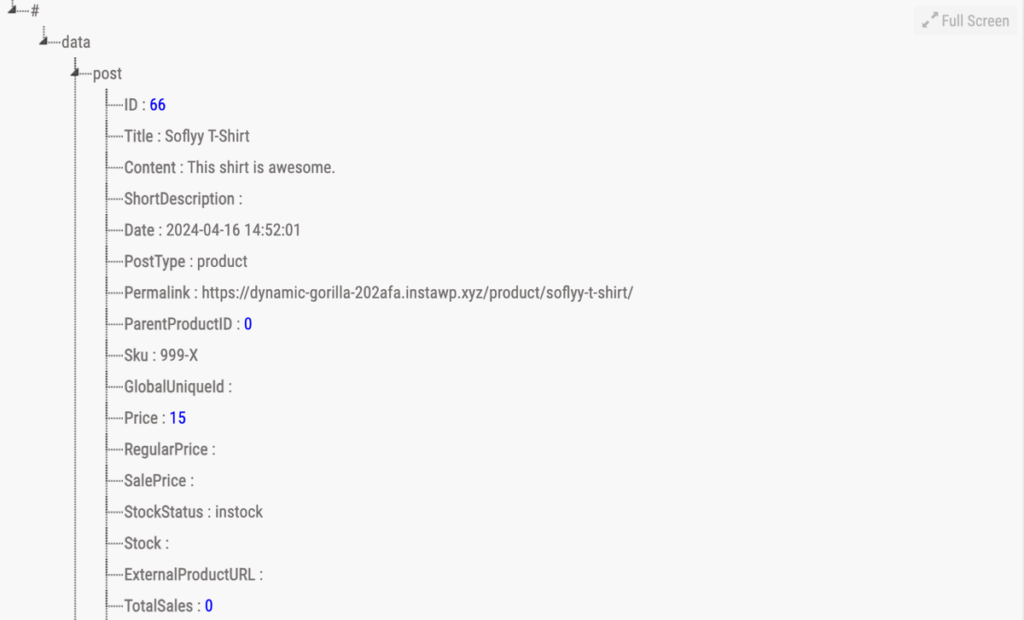
That preview decides most of what the wizard asks next.
How to Import a Nested XML Product File in WooCommerce
WP All Import imports WooCommerce products directly from XML files and live XML feed URLs. It parses the feed as XML instead of converting it first, so nested elements retain their intended relationships.
That parse depends on three features. The parent node selector picks the repeating element the import works from, so a feed wrapped in a <catalog> element still produces one record per product. XPath 1.0 then addresses elements at any depth below that record, including variation data nested inside a parent product. Automatic Setup builds the field mappings from the file itself, and the template editor exposes every mapping for review.
The delivery side matters too for XML feeds. The plugin lets you upload files from an upload, a URL, a Google Sheets link, a file already on the server, or an FTP/SFTP connection, up to 256 MB. Imports also run through WP-CLI or a cron job, which is what makes a nightly supplier feed practical.
The steps below work from the same file as the previous section, so the node names will look familiar.
Step 1: Upload the feed and choose the repeating node
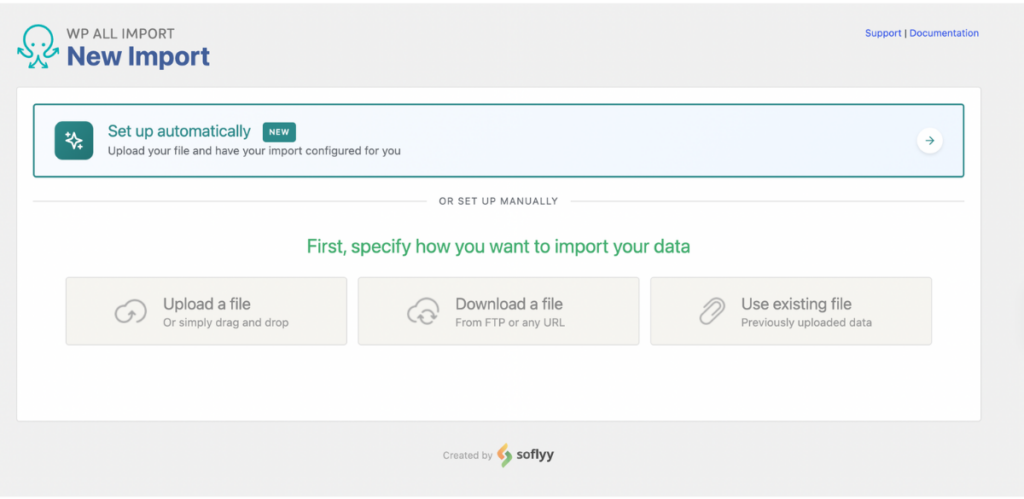
Go to All Import › New Import and click the Set up automatically banner.
From there, choose a file source: an upload, a URL pointing at the feed, a file already in the plugin’s uploads folder, or an FTP/SFTP server.
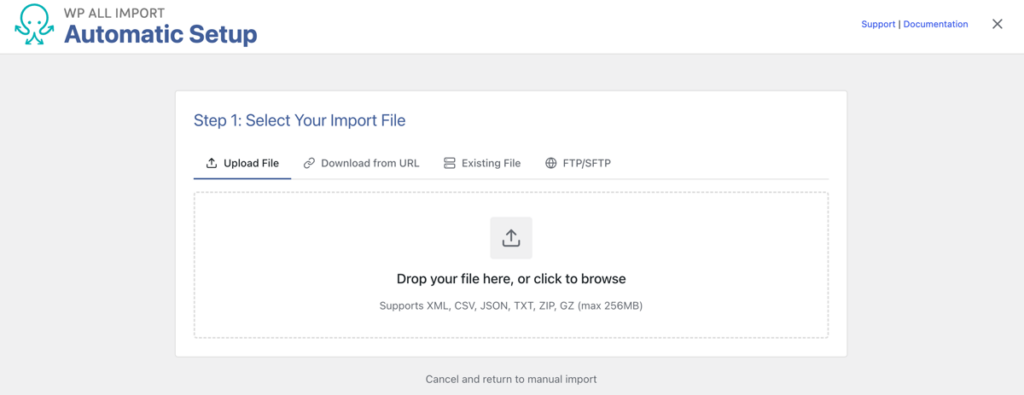
Choose WooCommerce, then Products. Add any notes about the feed in Add Setup Instructions, then click Start Automatic Setup.
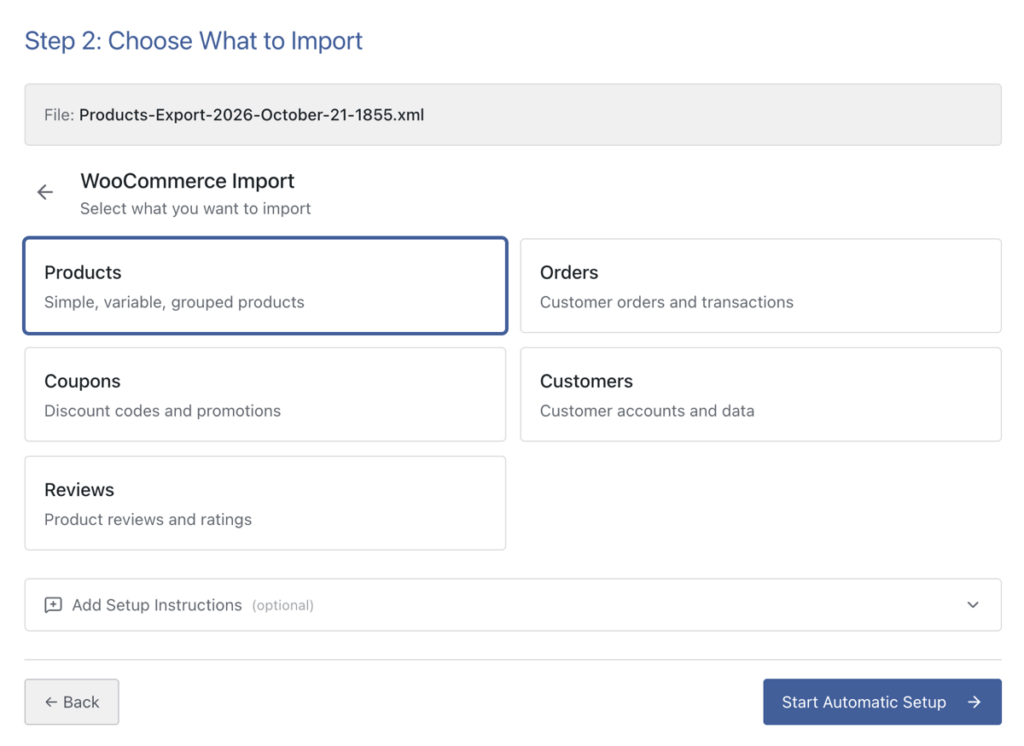
The plugin reads the file, works out its structure, and maps the elements it recognizes. No node selection or filtering step interrupts this part of the wizard.
Step 2: Read the Your Import Is Ready screen
The next screen shows two numbers worth checking before anything else. The headline shows how many fields were mapped from the file, and the card below it states how many records will be imported.
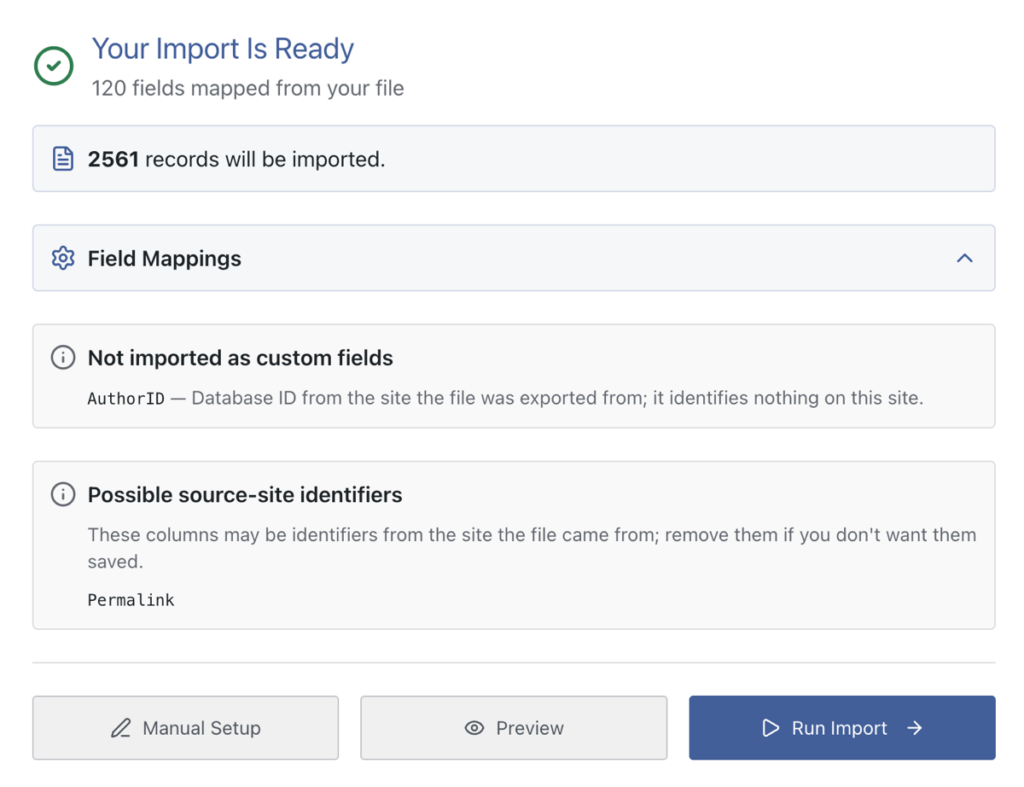
That record count is the first sanity check. It should match the product count in the feed, not the number of lines in a text editor. A count that looks wildly high usually means the parser chose a nested element as the repeating record.
Expand Field Mappings to see what went where. The list groups the mappings by area: Core WordPress Fields for the post title and content, then WooCommerce Import Add-On for the product type, SKU, GTIN, regular price, and sale price.
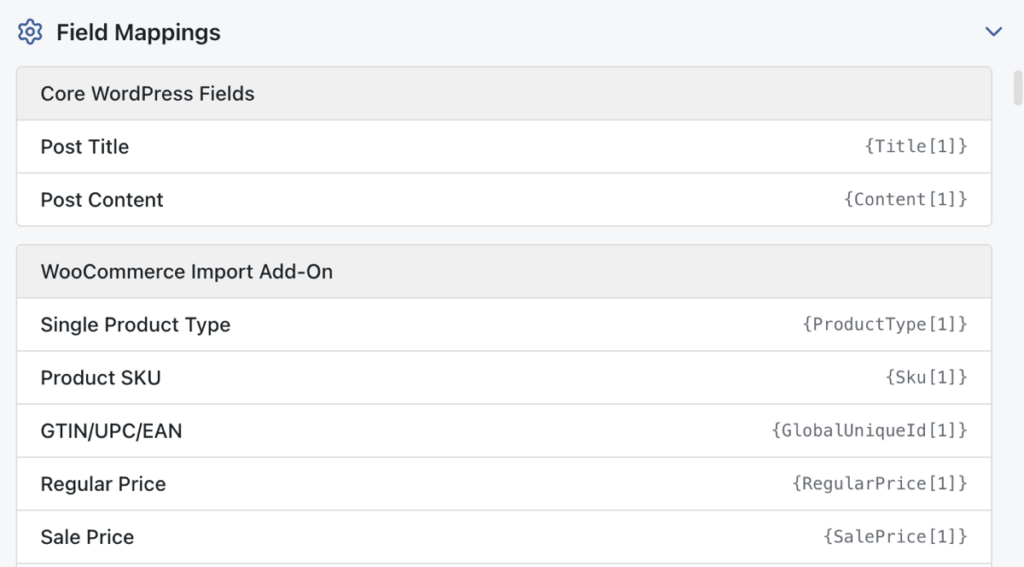
For an XML product import, read the SKU, product type, and price lines first. Then confirm the title element points at the product name, not at a variation or a category.
A wrong mapping costs less to fix here than anywhere else. Manual Setup opens the template editor with the automatic work already in place, so a correction is one drag instead of a rebuild.
At the bottom, three buttons decide what happens next: Manual Setup, Preview, and Run Import.
Step 3: Preview and run the XML product import
Click Preview to see how a product will look in the WordPress admin. At this stage, the preview opens in a side panel with both the frontend and the WP Admin View, so you can easily compare the product XML file against it.
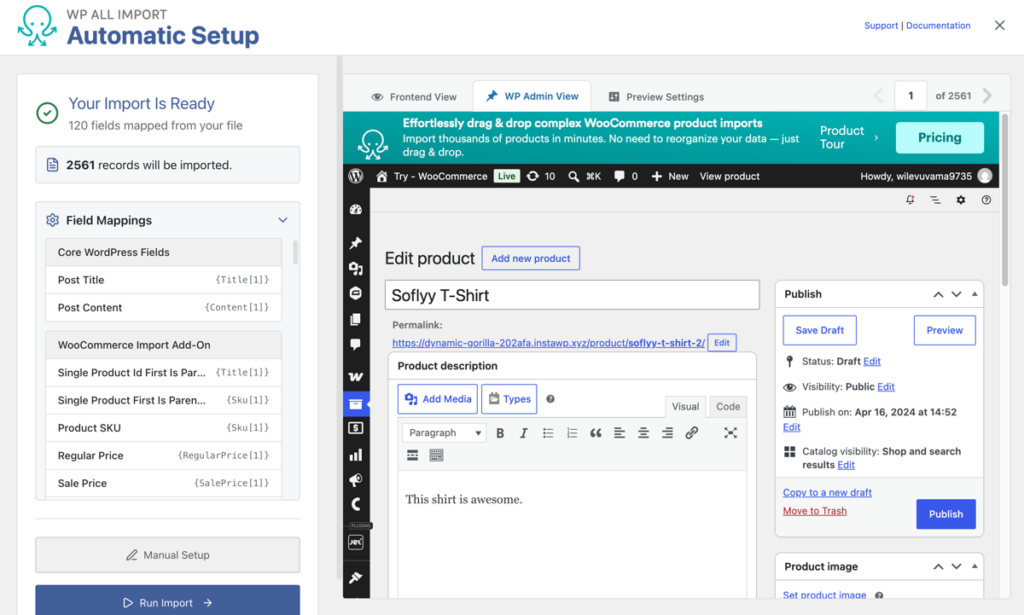
Check two things while it is open. First, a simple product with its gallery in the right order. Then a variable product, with its variations sitting under the parent rather than beside it as separate products.
When both look right, click Run Import and confirm. Navigate to Products › All Products as the run completes.
Inside the Template Editor: Mapping Nested XML Manually
Automatic Setup gets most feeds perfect on upload. When a supplier’s structure is unusual, the rest of the work happens in the template editor. Click Manual Setup on the Your Import Is Ready screen, and the editor opens with every automatic mapping already filled in.
The Panels That Hold XML Data
In the WooCommerce Add-on section, the General tab holds the title, description, and product type. Set the type to Set Product Type with XPath for feeds that mix simple and variable products, and each record follows its own value.
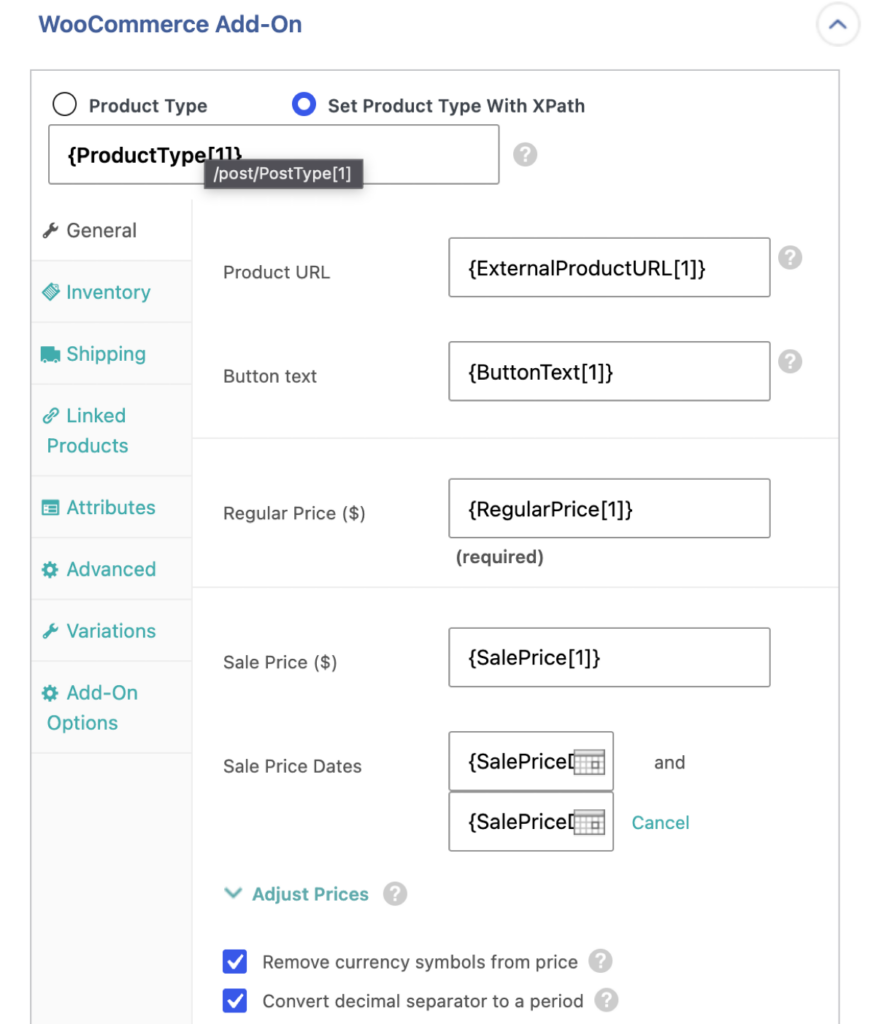
The Inventory tab holds the SKU, stock quantity, and stock status. The SKU also drives record matching on later runs, so it is worth reading twice.
Images, Attributes, and Variations handle everything nested. The Import Settings screen sits outside the editor and holds the Unique Identifier, with an Auto-detect button that fills it from the feed.
Product Attributes and Variations
Open the Variations tab. If the feed contains variable products, Automatic Setup has already set the product type and picked a linking method. The tab shows which one it chose.
Read that choice first. The plugin may have linked variations by parent SKU, by a shared unique value, or by product title. If the feed nests variations inside the product element, the child XML element option is the right one.
When the choice is wrong, drag one variation element into the Variations XPath box. The plugin then loops through the remaining variations on its own.
Attributes and prices appear in the popup tree, already filled where the parser recognized them. Tick XPath from Parent when a value should come from the parent product instead.
Images and Repeating Elements
Open the Images panel and check what Automatic Setup mapped. A product with several images should show them in the order the feed lists them.
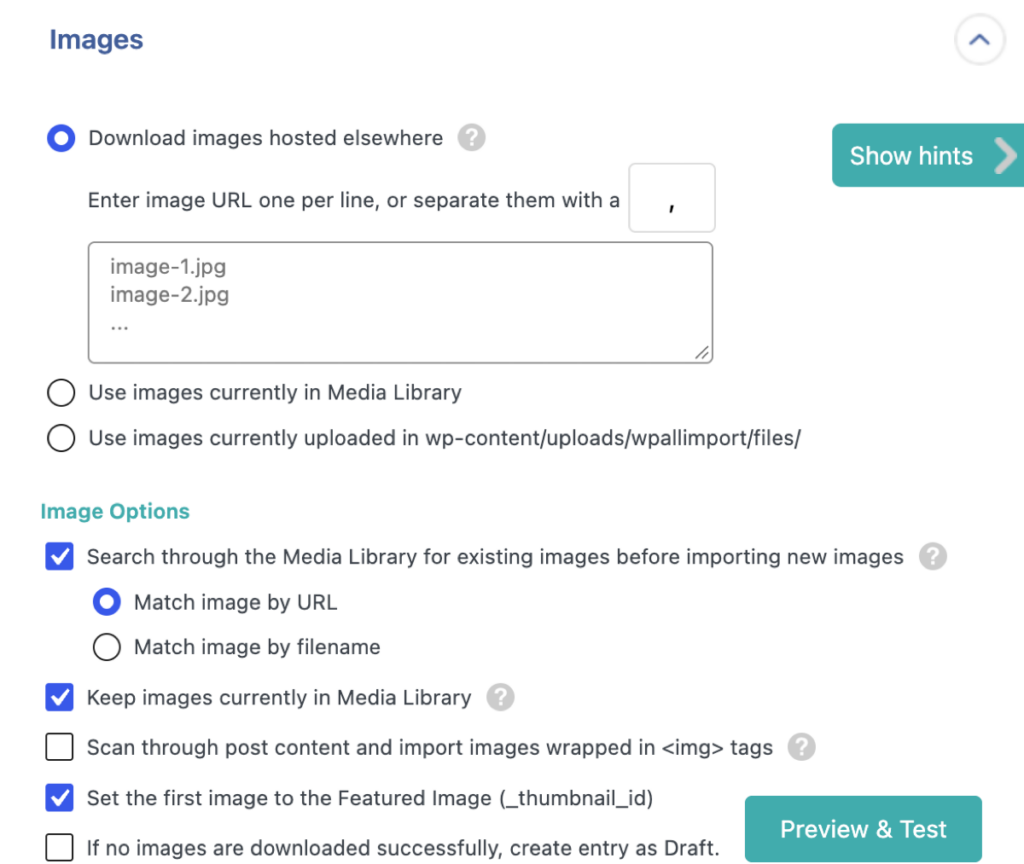
If the panel holds only the first image, one XPath fills in the rest. {images/image/@src} returns every image as a comma-separated list.
When the URLs need a prefix, swap that path for a loop: [FOREACH({images/image})]https://example.com/{@src},[ENDFOREACH]. Blank elements need no special handling, since empty values are ignored.
What Is the Best Way to Import WooCommerce Products from XML?
I’ve imported XML feeds using three approaches over the years: custom scripts, REST API calls, and WP All Import. The scripts worked, and I maintained them for years. The API calls were slower per record.
WP All Import is the practical answer for XML product imports because it reads the feed’s structure directly, maps nested elements through Automatic Setup, and gives you the template editor when a supplier’s layout refuses to behave.
It handles attributes, child element variations, galleries from repeated nodes, and custom fields, with XPath available at any depth. The same template runs again on schedule for feeds that refresh nightly.
Frequently Asked Questions – Best Way to Import WooCommerce Products from XML
Why are my XML variations importing as separate products?
The parent link is missing or the variation comes before its parent in the file. WP All Import groups variations by parent SKU, by a shared identifier, by title, or through child XML elements. Choose the method that matches the feed’s structure, and confirm each variation carries a parent reference.
How do I import multiple images per product from XML?
Point one XPath at the repeating image node, such as {images/image/@src}, and the importer returns every image as a comma-separated list. If the URLs need a prefix, wrap the path in a FOREACH loop instead. The first image becomes the featured image and the rest join the gallery.
Does the XML file need to be valid before importing?
Yes. The file needs a declaration, one root element, and closed tags throughout. Invalid XML fails at parse, before any mapping happens. Run the feed through an XML validator or open it in a viewer that flags errors, and fix the source file rather than the import.
How do I re-import an XML feed without duplicates?
Set a Unique Identifier on the Import Settings screen and let Auto-detect fill it from the feed. SKU is the usual choice. Every later run then matches incoming records to existing products and updates them, instead of creating a second copy of the catalog.
Further Reading
- Best Plugins for WooCommerce Product Import from XML
- How to Bulk Import WooCommerce Products
- How to Export and Import WooCommerce Products
- A Quick Look at Importing Variable Products into WooCommerce
- How to Import Attributes for WooCommerce Variable Products
- How to Use a WooCommerce Product Import Template
Get Oxygen
Build it your way with Oxygen.
Not per year, not per site, not per seat. 60 day money back guarantee.