
How to Bulk Import WooCommerce Products

Bulk importing WooCommerce products means creating or updating hundreds or thousands of products from a single data source rather than adding them individually. Large product imports need to process complex product data in manageable batches to avoid server timeouts and memory limits.
WooCommerce’s built-in importer works for basic product imports, but larger and more complex catalogs require more control over data mapping and import execution.
In this article, I’ll show you how to bulk import WooCommerce products using a workflow that maps your catalog automatically and runs the import in background batches without crashing your site.
Why Bulk Importing WooCommerce Products Breaks Default Importers
When you bulk import WooCommerce products using the default importer, your website tries to process the entire spreadsheet in a single attempt. That works fine for a small file. On a catalog with hundreds or thousands of rows, the server runs out of memory and the import dies partway through.
I’ve run into the same four problems every time:
- Variable products get split into separate, disconnected items. Your variation dropdowns break and inventory counts scramble across sizes and colors.
- Downloading hundreds of product photos and resizing them all at once takes more server power than most hosting plans allow. The browser hangs, then returns a timeout error with half your catalog missing.
- Product details like size, color, and material fail to register as site-wide filters. Your shop sidebar ends up blank, which makes browsing harder for customers.
- Adding thousands of catalog details in one pass slows the entire site for anyone shopping at that moment. Eventually the server drops the connection before every product is added.
To bypass these bottlenecks, store owners need a dedicated product import plugin.
How To Bulk Import WooCommerce Products
WP All Import automates bulk WooCommerce product imports by analyzing CSV, Excel, and XML files, identifying product structures and types, and mapping incoming data to the appropriate WooCommerce fields. It automatically links variations to their parent products, creates global attributes such as size and color, and processes large catalogs in manageable background batches to avoid server timeouts and memory limits.
Here’s the full workflow.
Step 1: Upload Your WooCommerce Product Spreadsheet
Navigate to All Import › New Import in your WordPress dashboard.
At the top of the screen, click the Set up automatically banner.
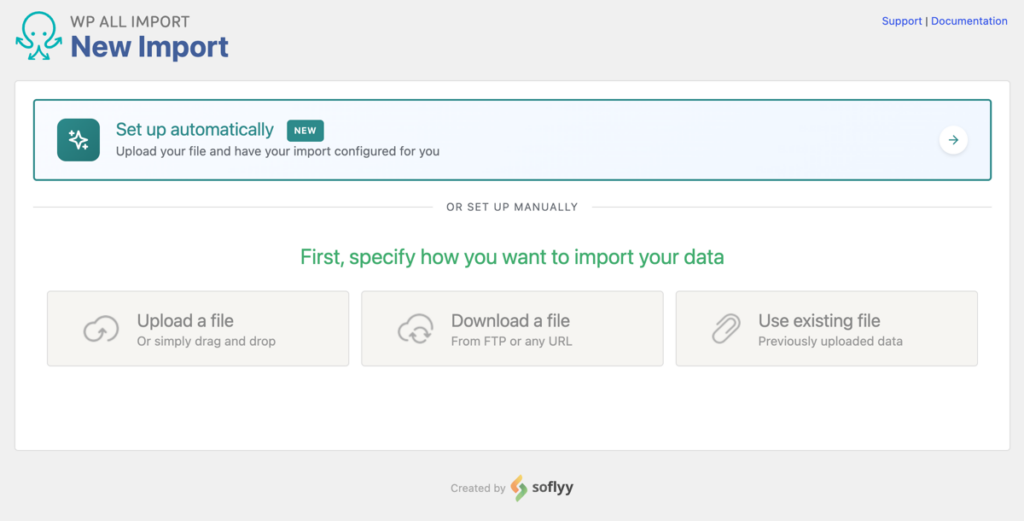
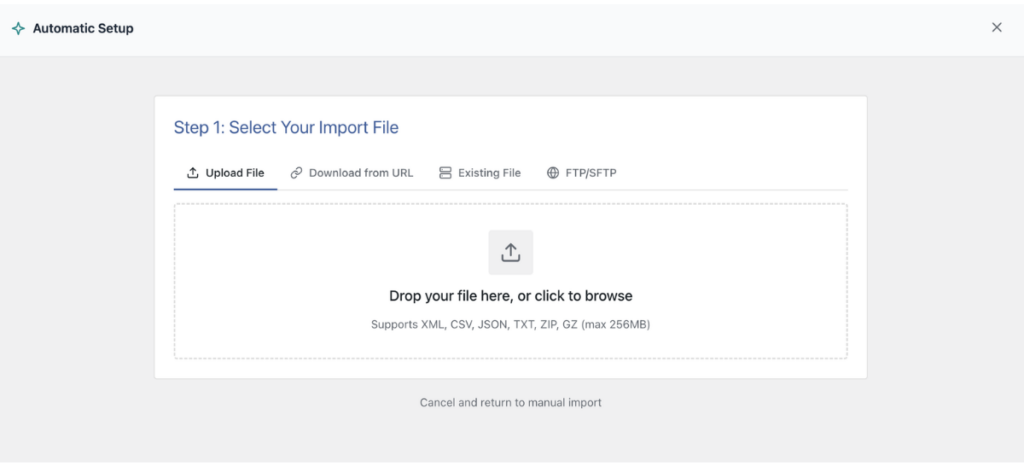
The wizard gives you four ways to bring in your file:
- Upload a file: Grab a CSV, Excel, or XML file straight from your computer, up to 256 MB.
- Download from URL: Point the plugin at a live supplier feed or a shareable Google Sheets link. It saves the URL so you can rerun the import later without re-uploading anything.
- Existing file: Reuse a file already sitting in the
/wp-content/uploads/wpallimport/files/folder on your server. - FTP/SFTP: Connect directly to a supplier’s storage server with host, port, and login details.
Under Choose What to Import, select WooCommerce, then Products (Simple, Variable, Grouped).
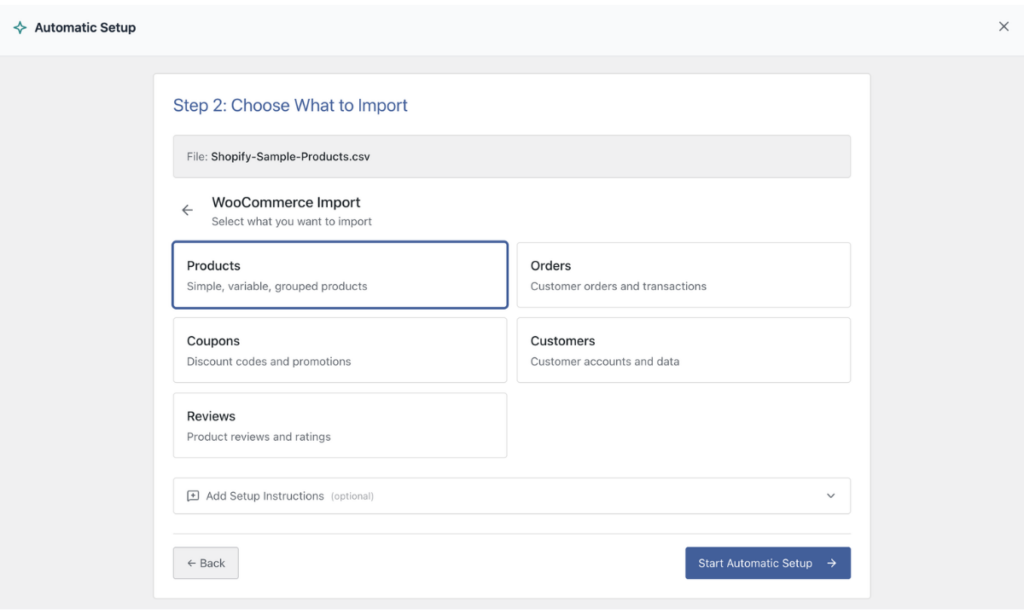
If your spreadsheet has anything unusual about it, expand the Add Setup Instructions box and describe what you need in plain English. Things like “Set products to draft when stock is zero” or “Column D holds sizes and colors” work fine. Then click Start Automatic Setup.
Step 2: Check the Mapped Product Fields
The plugin reads your file and shows the Your Import Is Ready card. It tells you how many products it found and how many fields it mapped.
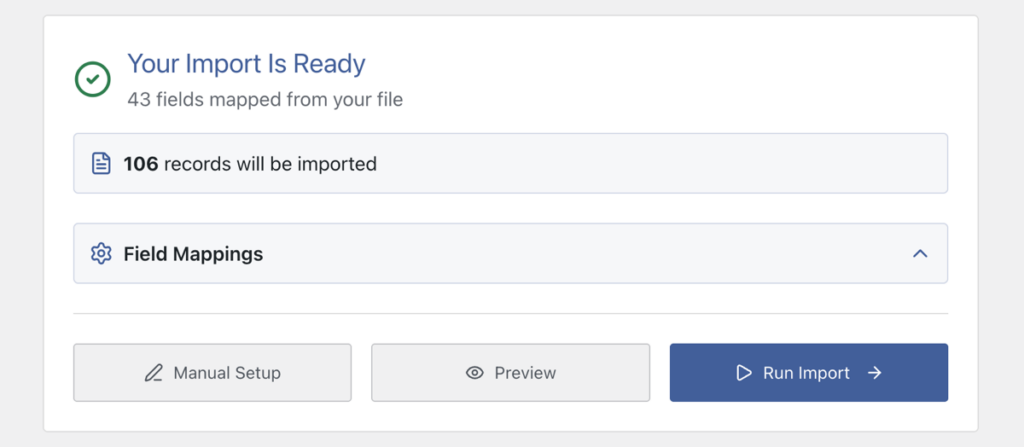
Click Field Mappings to expand the list. This is where I always spend a minute before running anything. You’ll see rows like Attribute Name paired with productcolor and Attribute Value paired with {productcolor[1]}. Skim it to confirm titles, prices, SKUs, stock levels, and image columns landed where they should.
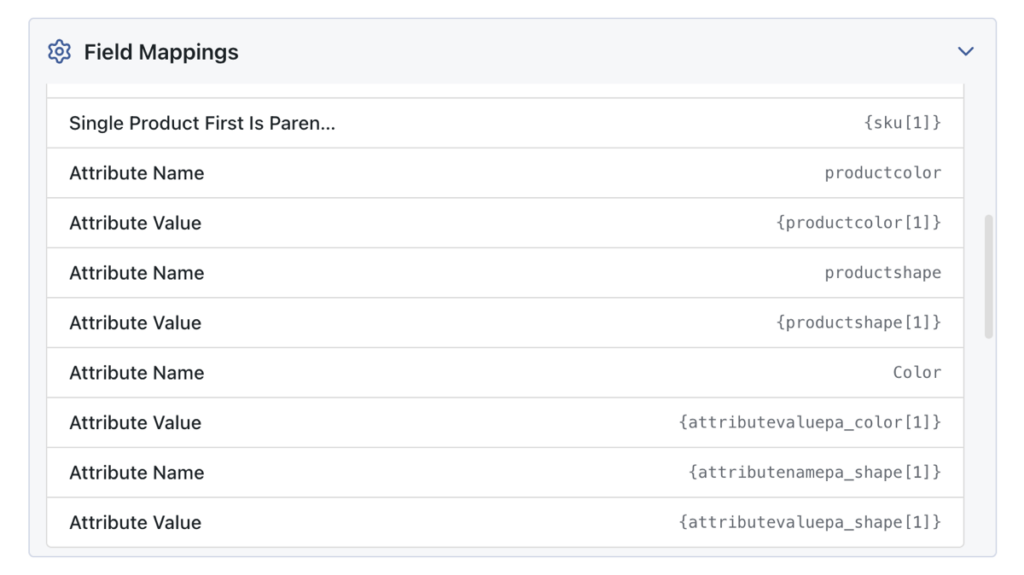
Most clean supplier files need no changes here. If something looks off, click Manual Setup to adjust it. If everything looks right, you’re two clicks from done.
Step 3: Preview Your Products Before Anything Goes Live
This is the step that saves the most time on a bulk product import. Click the Preview button and a panel opens on the same screen, right next to your field mappings.
- Frontend View shows an actual product page from your theme. Gallery images, prices, and variation dropdowns all render exactly as shoppers will see them.
- WP Admin View shows the backend edit screen, so you can confirm data landed in the right WooCommerce fields.
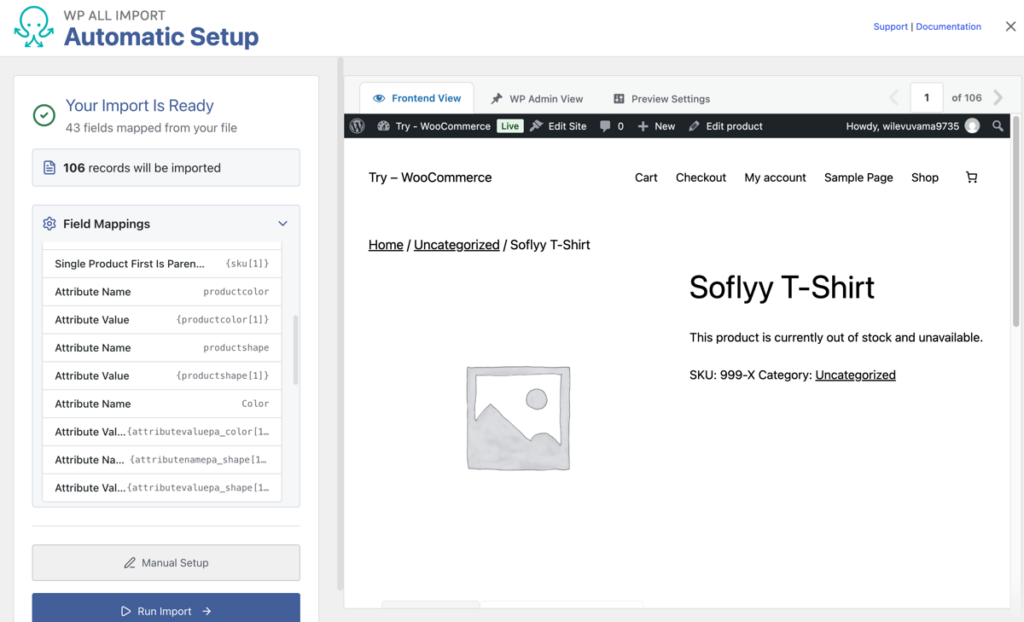
Flip through a few records with the pager. If a messy row is going to cause problems, you’ll spot it here instead of after 2,000 products are already in your database.
Step 4: Run the WooCommerce Bulk Product Import
Once the preview checks out, click the blue Run Import button on the summary card.
It will process your catalog in small background batches, releasing memory between each cycle, so a 5,000-product file runs to completion without ever hitting a timeout. A progress bar tracks products created, updated, or skipped.
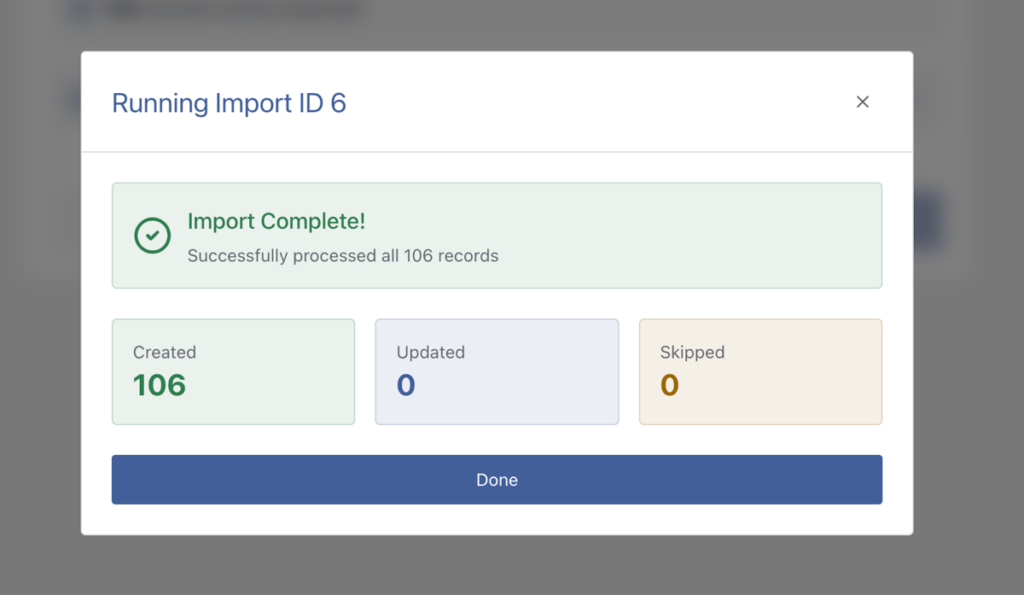
When it finishes, open Products › All Products and spot-check a few items, including a variable product with its variations and gallery.
When to Use WooComerce Product Manual Setup Instead
WP All Import’s Automatic Setup handles most bulk imports on its own. Manual Setup exists for the imports that need custom logic, and it opens the same pre-filled template editor rather than starting from scratch.
Three cases where I switch to it:
- Price math on import: Wrapping a price column in a PHP function to apply a wholesale markup or currency conversion, so the spreadsheet never needs editing.
- Selective updates: Refreshing stock and prices from a weekly supplier file while leaving descriptions, images, and SEO fields untouched.
- Recurring feed syncs: Scheduling the import to run on a cron job or through the paid scheduling service, so supplier updates arrive automatically.
What is the Best Way to Bulk Import WooCommerce Products
For a handful of products, the built-in WooCommerce importer does the job. For bulk imports, it fails the moment your file gets large: variations disconnect, images time out, and filters stay empty.
WP All Import lets you easily bulk import WooCommerce products because its Automatic Setup maps your catalog columns automatically on upload. You preview real product pages before committing anything, then run the import in background batches that never exhaust your server. That combination of automated mapping, live preview, and batch processing is what turns a risky bulk import into a routine task.
Common Questions on Bulk Importing WooCommerce Products
How do I bulk import WooCommerce products with variations?
WP All Import detects variation rows in your file automatically, links each child variation to its parent product using a shared SKU or title, and builds the variation dropdowns on your storefront without any manual configuration.
Can I bulk import WooCommerce products from a supplier URL?
Yes. WP All Import downloads product files directly from HTTP, HTTPS, FTP, and SFTP links. Save the feed URL during setup and you can rerun the import anytime, or schedule it to sync supplier inventory automatically.
How do I stop my bulk import from timing out?
WP All Import processes imports in small background batches instead of one long request, releasing server memory between cycles. If your host has strict limits, lower the records-per-iteration setting under Configure Advanced Settings and the import will simply run longer instead of failing.
Can I update product prices in bulk without overwriting everything?
Yes. Rerun your import with the update option enabled and check only the price fields. WP All Import refreshes prices and stock while leaving descriptions, images, and categories exactly as they are.
Does bulk importing support custom fields and plugins like ACF?
Yes. WP All Import detects custom post meta registered by Advanced Custom Fields, Meta Box, SEO plugins, and custom code. The setup maps incoming spreadsheet columns to those meta keys automatically, no PHP required.
Further Reading
Get Oxygen
Build it your way with Oxygen.
Not per year, not per site, not per seat. 60 day money back guarantee.