
The Best Way to Handle Big Product Imports in WooCommerce

When a big product import in WooCommerce fails, the error message most often doesn’t explain why. It names the row where the import stopped, but that row looks like every other row in the file, and running the same import again just moves the failure somewhere else. Even a run that finishes can leave a few hundred products missing from the catalog.
What actually stops the import is usually something around WooCommerce, like a server time limit, a memory cap, another plugin, or a spreadsheet that changed your SKUs when it saved the file. Each of those leaves its own pattern on a large import, and the first half of this guide shows how to read them.
The second half puts the fixes into practice. WP All Import sets up a big WooCommerce product import with Automatic Setup and runs it in batches, so a file with tens of thousands of rows goes through as a series of short server requests instead of one long one that leads to failures.
The Short Answer: How to Handle a Big WooCommerce Product Import
The short answer
If you only read one part of this guide, make it this list. It’s the order I’d follow for any big product import in WooCommerce.
- Give every product a SKU or ID that won’t change, and open the file once in a plain text editor to check that your spreadsheet hasn’t turned long SKUs into scientific notation.
- Check PHP’s memory and upload limits, and find out whether a proxy like Cloudflare cuts off requests after about two minutes.
- Put product images in the Media Library or on the server before the import, so no batch has to wait on remote downloads.
- Use an importer that works in batches. WP All Import maps the file with Automatic Setup, then imports a set number of products per batch, sized so each batch finishes inside the server’s time limits.
- Run the import from a cron job or WP-CLI rather than a browser tab that has to stay open until it finishes.
- When it finishes, compare the created, updated and skipped counts with the file, counting every variation as its own row.
How I Tested WooCommerce Big Product Import (Test Setup & Results)
I wanted to find out how long a big import really takes on a standard test site, and which changes actually shorten it. So I put together a product file shaped like a typical supplier feed, with simple and variable products mixed together and an image URL on every simple product and variable parent. I ran it through Automatic Setup with WP All Import’s default settings first, then changed one thing at a time and ran it again, timing every run and checking WooCommerce’s final product count against the file. WP All Import reports how many products it created, updated and skipped at the end of every run, so those checks took seconds.
Test setup
| Test detail | Setup |
|---|---|
| Products in the file | 5,200 rows: 4,000 simple products and 200 variable products |
| Variations | 1,000 (five sizes per variable product) |
| Images | 4,200, one per simple product and variable parent, pulled by URL |
| Server | InstaWP test site running Apache 2.4.58 and PHP 8.4.27 |
| PHP limits | 768 MB memory, 300-second time limit, 256 MB upload and post size |
| Import tool | WP All Import Pro with the WooCommerce Import Add-On, set up with Automatic Setup |
| Batch settings | 20 records per iteration, with the file split into 1,000-record chunks (the defaults) |
Results
| Run | What changed | Time | Result |
|---|---|---|---|
| 1 | Default settings, images downloaded by URL | 20 min 10 s | 5,200 products created, 0 errors |
| 2 | The same file run again with nothing changed | 4 min 51 s | All 5,200 rows skipped as unchanged |
| 3 | Images matched from the Media Library instead of downloaded | 16 min 9 s | 5,200 created, 0 images downloaded |
| 4 | 20 products removed from the file | 16 min 59 s | All 20 set to out of stock instead of deleted |
Six Signs Your Big Product Import Is in Trouble
Before changing a single setting, it pays to work out which kind of failure you’re looking at. A timeout and a duplicate SKU can both leave you with a half-finished catalog, yet the fix for one does nothing for the other.
I sort big product import problems into six signs. The table matches each one to the cause behind it and links to the fix, and the sections after it explain what’s happening on the server or in the file. WP All Import has a built-in fix for every one of the six, and the second half of this guide walks through them in the same order.
Six signs and their fixes
| Sign | What’s behind it | Fix |
|---|---|---|
| It stops at the same row every time | A time limit on the server, or a proxy like Cloudflare, cutting off a long request | See the fix → |
| It gets slower the longer it runs | Category recounts, lookup table updates and background jobs piling up behind every saved product | See the fix → |
| It dies with a memory error or a blank screen | PHP memory or upload limits set lower than the file and each batch need | See the fix → |
| Variable products arrive without their variations | Variation rows placed before their parents, missing or duplicate variation SKUs, or rows left behind by an earlier failed run | See the fix → |
| It finishes, but products are missing or duplicated | An identifier that changed between runs, SKUs altered by a spreadsheet, or lookup tables that never finished updating | See the fix → |
| Shoppers feel it while it runs | The import and the storefront share one database, and caching plugins clear their cache after every saved product | See the fix → |
It Stops at the Same Row Every Time
If your import keeps stopping at around the same row, it’s running out of time. Importers don’t process a big file all at once. They split it into small batches and send each batch to the server separately. When one batch takes too long, it gets cut off, and the import stops there.
The short answer
If you only read one part of this guide, make it this list. It’s the order I’d follow for any big product import in WooCommerce.
- Give every product a SKU or ID that won’t change, and open the file once in a plain text editor to check that your spreadsheet hasn’t turned long SKUs into scientific notation.
- Check PHP’s memory and upload limits, and find out whether a proxy like Cloudflare cuts off requests after about two minutes.
- Put product images in the Media Library or on the server before the import, so no batch has to wait on remote downloads.
- Use an importer that works in batches. WP All Import maps the file with Automatic Setup, then imports a set number of products per batch, sized so each batch finishes inside the server’s time limits.
- Run the import from a cron job or WP-CLI rather than a browser tab that has to stay open until it finishes.
- When it finishes, compare the created, updated and skipped counts with the file, counting every variation as its own row.
There’s more than one time limit to worry about. PHP has one called max_execution_time, and it’s the one most guides tell you to raise. Your web server has its own limit too, and so does any service in front of your site, like Cloudflare. Whichever limit is shortest is the one that ends the batch. Cloudflare, for example, stops waiting after about two minutes, according to its documentation on error 524., and only its Enterprise plan lets you change that. So raising PHP’s limit to five minutes won’t help if Cloudflare gives up first.
The error code tells you which limit stepped in. A 524 error comes from Cloudflare, and a 504 error comes from your own server.
Images eat into that time as well. If a batch has 20 products with five image URLs each, the server has to download 100 images before time runs out. When the supplier’s image server is slow, some batches get through fewer products than others, which is why the stopping point can move by a few rows between attempts.
It Gets Slower the Longer It Runs
An import that starts fast and then slows to a crawl is doing more work per product than is obvious. Saving one product in WooCommerce isn’t simply a single write to the database. WordPress saves the product, then saves each of its details, like the price and SKU, as separate entries. Then it updates the product count for every category and tag the product belongs to. WooCommerce adds its own work on top, updating the lookup tables behind your shop filters and queuing a background job for the product.
Behind one saved product
What a single row in the file sets off
WordPress
- Productthe product itself is saved
- Product detailsprice, SKU, stock and the rest, each saved as a separate entry
- Category and tag countsrecalculated for every category and tag the product is in
WooCommerce
- Lookup tablesupdated for the shop’s filters and sorting
- Background jobadded to the queue under Tools › Scheduled Actions
All of this happens again for every row in the file, and some of it takes longer as the catalog grows.
None of that is slow on its own. The trouble is that some of it gets heavier as the catalog grows. Before saving each row, the import checks whether the product already exists, and that check takes longer with every product added. Category counts behave the same way, since WordPress recounts a category each time a new product joins it.
WooCommerce’s background jobs are the easiest part to spot. While the import runs, go to Tools › Scheduled Actions and open the Pending tab. If the list grows by one entry for every product saved, those jobs are stacking up faster than they’re cleared, and they’re adding to the slowdown.
It Dies With a Memory Error or a Blank Screen
Sometimes a big import doesn’t slow down or stall. It just stops, and you’re left with a blank page or WordPress’s “There has been a critical error on this website” message. In most cases, PHP has run out of memory.
PHP gives each request a set amount of memory to work with, controlled by a setting called memory_limit. Every batch of products has to fit inside it. Resizing large product images uses a lot of memory, and so do products with dozens of variations or long lists of categories and tags. Put enough of those in one batch and PHP runs out partway through. If you can see your server’s error log, look for a line starting with “Allowed memory size of … bytes exhausted”.
A similar problem can show up before the import even starts. If the file is bigger than your server allows, WordPress rejects it with an error saying it “exceeds the upload_max_filesize directive”. To fix it, raise the upload limit above the size of your file, then make sure the post size limit is higher than the upload limit and the memory limit is higher than both. You’ll find all three under Tools › Site Health › Info › Server.
Variable Products Arrive Without Their Variations
WooCommerce saves every variation as its own record, linked to a parent product. A T-shirt in five sizes is six records, not one. So a file with a few hundred variable products can hold thousands of rows, and one mistake in how those rows are set up affects a lot of products at once.
When it goes wrong, you’ll usually see a parent product with no variations under it, or variations that show up as separate products. The cause is almost always one of these:
- The variation rows come before their parent in the file. The parent doesn’t exist yet when the variation is saved, so there’s nothing to link it to.
- A variation has no SKU, or shares one with its parent or another variation. WooCommerce rejects it with an “Invalid or duplicated SKU” message.
- The parent reference doesn’t match exactly. The column that links each variation to its parent, usually a parent SKU or ID, has to match character for character, and a stray space is enough to break it.
- An earlier run froze halfway. It can leave variations behind with no parent, which get in the way of the next attempt. WooCommerce › Status › Tools has a “Delete orphaned variations” tool for clearing them out.
Good to know
What “30 variations” actually means
You’ll find forum posts saying WooCommerce can’t handle more than 30 variations per product. That number is a display setting. Once a product has more than 30 variations, the product page stops loading all of them up front and fetches each one when the shopper picks their options. It has no effect on how many variations you can import.
It Finishes, but Products Are Missing or Duplicated
This particular problem is easy to miss because on the surface, the import looks like it worked. It reports that it finished, but you do not get to notice that there’s a category with fewer products than it should have, or that the same product is listed twice until much later.
Duplicates happen when the import doesn’t recognize products it has already created. Importing tools match each row to an existing product using an identifier, which is usually the SKU. If that value changes between runs, even by one character, the row looks new and the product gets created a second time. A spreadsheet that drops the leading zero from a SKU is a common way this happens, and I cover it in the Spreadsheet Damage section further down.
Missing products, on the other hand, have two main causes. Some rows get skipped, often because of a duplicate SKU, and the only sign is a line in the import summary that indicates that a number of products were skipped.
Other times the products were created but don’t appear on shop or category pages. Those pages don’t read your products directly. They use a summary table that WooCommerce keeps updated in the background, and if an import stops halfway, some products never make it into that table. The product shows up when you search for it in the dashboard, but shoppers browsing the category won’t see it. Regenerating the product lookup tables under WooCommerce › Status › Tools brings the two back in line.
Shoppers Feel It While It Runs
A large WooCommerce product import doesn’t run separately from your store. It uses the same server and database that your customers are browsing, so while thousands of products are being added to your store, shoppers’ pages take longer to load.
There are two things that make that even worse. Caching plugins clear part of their cache each time a product is saved, so during an import, shoppers keep landing on pages that must be rebuilt from scratch. WooCommerce’s background jobs add to it too. They run on WordPress’s built-in scheduler, which is triggered by visits to your site, so your shoppers’ visits are what keep that work moving while it competes with them for the same server resources.
You’ll notice it as slow category pages, or as a CPU graph in your hosting dashboard that stays near the top for as long as the import runs. The Plugins section further down covers the cache side in more detail.
Plugins That Slow Down Large WooCommerce Imports
Some plugins run a task of their own every time a product is saved. A caching plugin clears part of its cache, for example, and an image optimizer compresses the new image. When you edit one product manually, that extra work takes a second or two, and you never notice it. An import, however, saves thousands of products one after another, so those few seconds are repeated thousands of times, adding significantly to the total import time.
These are the kinds of plugins that add the most to that load:
Plugins that add to every saved product
| Plugin type | What it does each time a product is saved | What to do during a big import |
|---|---|---|
| Caching | Clears part of its cache, and may start rebuilding pages straight away | Pause automatic cache clearing until the import finishes |
| Image optimization | Compresses each new image and its thumbnails | Deactivate it, then optimize the images in bulk afterwards |
| Search indexing | Adds or updates the product in its own search index | Pause indexing, then rebuild the index once the import is done |
| SEO | Updates the product’s SEO data and analysis | Time a test import with it off to see how much it adds |
| Translation | Creates or syncs translated copies of the product | Follow the translation plugin’s own import instructions |
WP Rocket is a good example of how this plays out. Its documentation explains that each product update clears part of its cache, so a large import runs that clearing step over and over, and preloading slows things down further. Its fix is a one-line code filter that tells WP Rocket an import is running.
The quickest way to find the plugin slowing your import down is a conflict test on a staging copy of the site. Deactivate everything except WooCommerce and your importer, time a sample import, then switch plugins back on one by one until you notice a jump in the time.
Spreadsheet Damage That Breaks Product Matching
Opening a product file in Excel can quietly change the data inside it. Excel tries to be helpful by treating anything that looks like a number as a number, and product codes often look like numbers even though they aren’t.
What a spreadsheet does to product data
0068368340123450000474.01235E+12Café MugCafé MugIf you save the file in that state, the changes are written back into the CSV, and the original values are gone. On a big import, that’s a problem you won’t spot by scrolling. A SKU that lost its leading zero no longer matches the product already in your store, so the import creates a second copy instead of updating the first one. A barcode saved as 4.01235E+12 is simply wrong.
There are two ways to avoid it. The first is to stop Excel from converting the data. In Excel, go to File › Options › Data and turn off the automatic data conversion options, or open the CSV through Data › From Text/CSV and set the code columns to Text.
The second is to fix the values during the import itself. WP All Import can run a PHP function on any field as it imports, so a SKU column that lost its leading zeros can be padded back to the right length without anyone editing the file.
Scripts, Direct Database Inserts, or an Importer
When developers need to handle a big WooCommerce product import, they often weigh up writing their own solution. The usual ideas are a script that sends products through the WooCommerce REST API, a custom WP-CLI command, or writing the rows straight into the database. Each of them can work, but each one leaves you building parts that an efficient importer already handles.
Four routes for a big import
| Route | What you have to build yourself | Main risk |
|---|---|---|
| REST API script | Batching (the API accepts up to 100 products per request), separate image uploads, and a way to restart from where a failed run stopped | Slow on a large catalog, because every batch is a separate request over the internet |
| Custom WP-CLI command | Field mapping, image handling, variation linking and logging | Every new file layout means changing the code |
| Direct database inserts | Every table WooCommerce writes to, including its lookup tables | Products that look fine in the database but break in the store |
| WooCommerce’s built-in importer | Nothing extra, within its limits | CSV files only, 30 rows per batch, and no scheduling |
The direct database route is the one you want to avoid. WooCommerce saves each product across several tables and applies its own updates afterward; skipping those steps leaves products with missing or mismatched data.
WP All Import does the job of a custom import script for big WooCommerce product imports, with no code to write or maintain. Its Automatic Setup feature maps the product file to WooCommerce fields, imports each product with its variations and images in a single run, and processes the file in batches so a long import stays within the server’s time limits.
A saved WP All Import import can also run from the command line with wp all-import run, which, according to the plugin’s documentation, is about 50% faster than running the same import from the WordPress dashboard.
A Pre-Flight Checklist for Big Product Imports
Most of the problems in Part 1 can be caught before a single product is created. I go through this list in order before every big WooCommerce product import. The backup comes first because it’s what lets me undo anything that goes wrong in the later steps.
Pre-flight checklist
For the test run, I pick the variable products with the most variations and the products with the most images. Those rows take the longest to import, so they’re the first to hit a server limit. WP All Import can limit a WooCommerce product import to the rows that match a rule, such as every row whose product type is variable, through its filtering options. The staging test then runs from the same file as the real import, and there’s no separate test file to build. Once those products look right on staging, I run the full file on the live store.
Setting Up a Big Product Import With Automatic Setup
Automatic Setup in WP All Import reads a WooCommerce product file and maps its columns to product fields, without any drag and drop. In my test, it mapped a 5,200-row file containing 200 variable products, 1,000 variations and 4,200 image URLs, and the first run created all 5,200 records without any errors. Setting it up takes two screens, and the file source you choose on the first one matters more for a big file than for a small one.
Start From a URL or a File Already on Your Server
Go to All Import › New Import and click Set up automatically at the top of the screen.
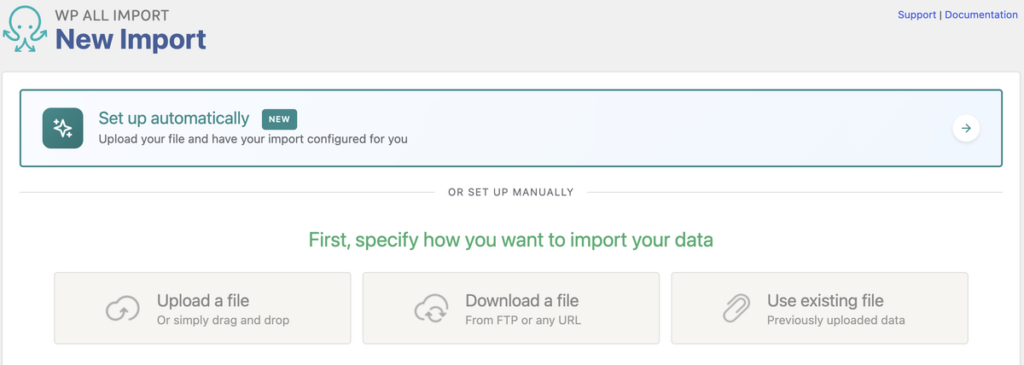
Automatic Setup can load the file in four ways: Upload File, Download from URL, Existing File and FTP/SFTP. The upload screen accepts XML, CSV, JSON, TXT, ZIP and GZ files of up to 256 MB. Zipping a large CSV makes it much smaller before you upload it.
For a big WooCommerce product import, I skip Upload File and use Download from URL, Existing File or FTP/SFTP instead. Download from URL fetches the file straight from where it’s hosted, such as a supplier’s feed. Existing File picks a file from the wpallimport/files folder on your server. None of these three sends the file through your browser, so the upload and post size limits from Part 1 don’t apply.
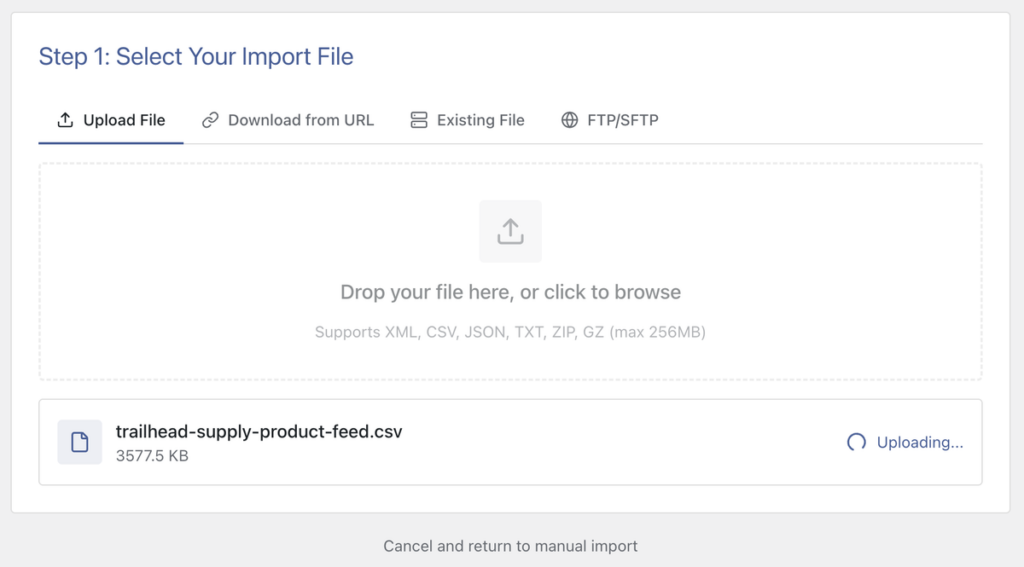
There’s a second reason to avoid Upload File. WP All Import turns on its scheduling options only for imports that get their file from a URL, an FTP or SFTP server, or an existing file. A big import set up this way can become a recurring feed later without being rebuilt.
If the file isn’t hosted anywhere and you don’t have FTP access, upload it to the Media Library. Then copy its file URL and paste it into Download from URL.
Before you paste a URL, open it in a browser. If the browser starts downloading the file, WP All Import can read it too.
Add Setup Instructions is optional, and my test file didn’t need any.
Check the Mapped Fields Before Any Product Is Created
Once the file loads, Automatic Setup shows the Your Import Is Ready screen. It lists how many fields it mapped and how many records it will import. Nothing has been created in WooCommerce yet, so this is the easiest place to catch a mistake.
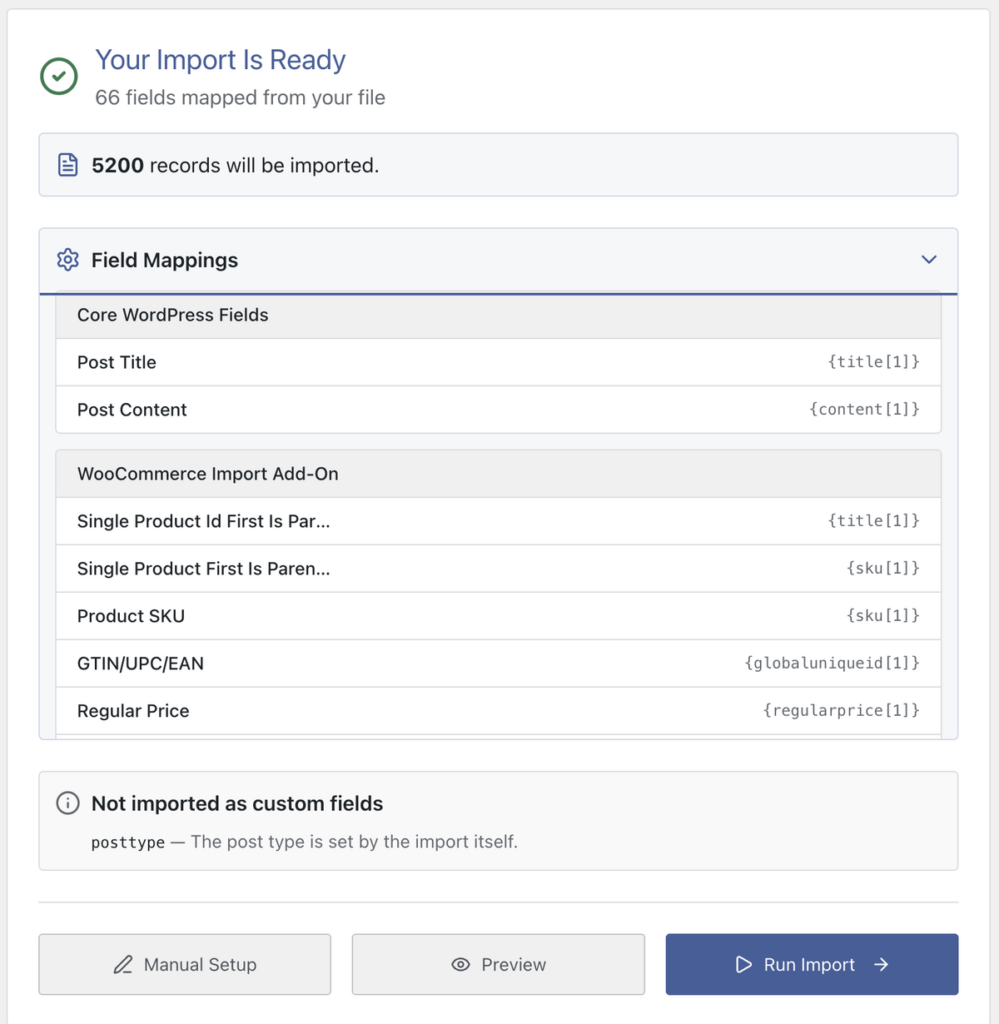
Start with the record count, which should match the number of rows in your file. Each variation counts as its own record, so my file of 4,200 products and 1,000 variations showed 5,200. If the count is lower than you expect, check the file for a broken row or the wrong delimiter before going any further.
Next, open Field Mappings. The WooCommerce Import Add-On group holds the product fields, so that’s where to confirm the SKU, price, stock and attribute columns went to the right places. Preview shows a product as it will be imported.
For a big file, I click Manual Setup instead of Run Import. Manual Setup in WP All Import opens the import’s full settings with every automatic mapping already in place. Those settings are where you make the speed, matching and image fixes in the next section.
Matching Each Sign to Its Fix in WP All Import
The fixes below follow the same order as the six signs I covered in Part 1, so you can jump straight to the one that matches your big product import. Most of them take a single setting in Manual Setup or under All Import › Settings.
For Imports That Stop at the Same Row
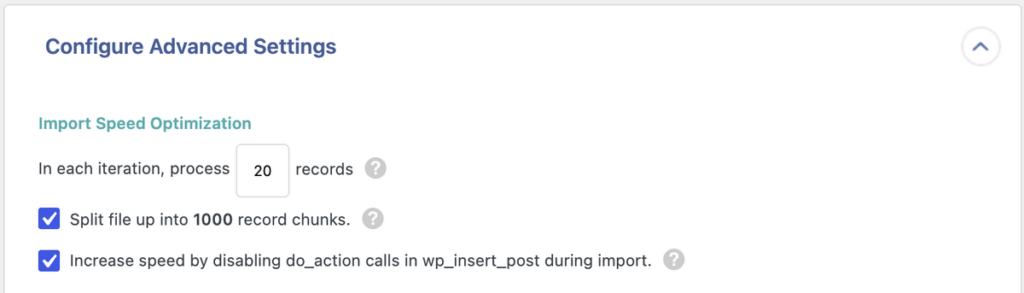
WP All Import processes every import in batches, and you set the batch size with In each iteration, process 20 records in Configure Advanced Settings. Lowering that number makes each batch finish sooner, image downloads included, and it’s the first thing to try when a WooCommerce product import keeps stopping. Drop it in steps, from 20 to 10 and then 5, and run the import again after each change. If it still stops at 1 record per iteration, the server’s time limit is too low, and your host needs to raise it. WP All Import’s guide to terminated imports follows the same process.
If a smaller batch isn’t enough, run the import from the server instead of a browser tab. Cron jobs run a WP All Import import using the trigger and processing URLs in its Scheduling Options. The Processing time limit under All Import › Settings caps how long each processing request runs, and the next request picks up where the last one stopped. Left blank, it uses a default of 120 seconds. Lower it if the server still cuts requests off.
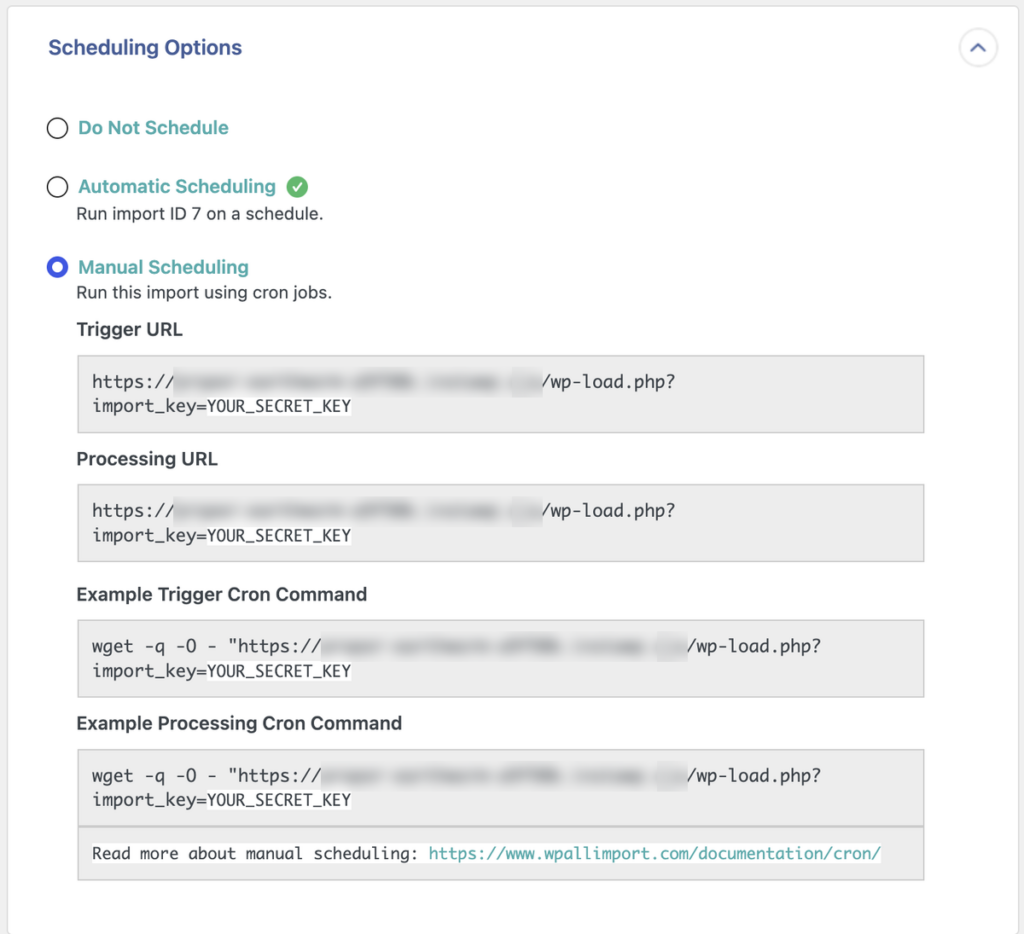
For the largest WooCommerce product files, run the saved import from the command line with wp all-import run, followed by the import’s ID. WP-CLI runs directly on the server, so the web server and proxy timeouts from Part 1 don’t apply.
For Imports That Slow Down
Three settings make the biggest difference to how long each WooCommerce product takes to import.
The first is where the images come from. WP All Import can attach images that are already in the WordPress Media Library by matching their file names, which removes image downloads from the import completely. In the Images section, choose Use images currently in Media Library and map the column that holds the image file names.
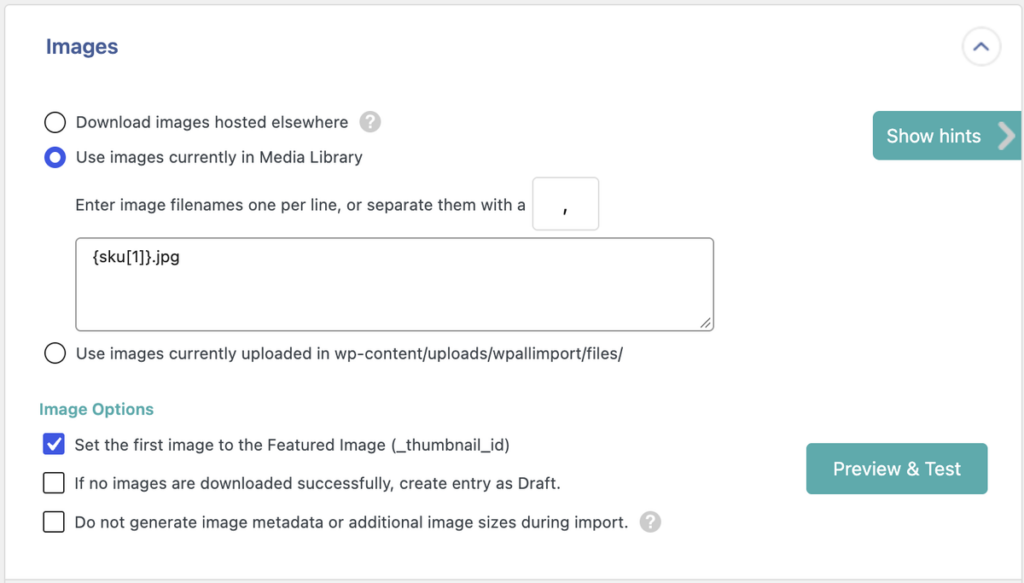
In my test, switching 4,200 images from URL downloads to the Media Library cut the full import from 20 minutes 10 seconds to 16 minutes 9 seconds. If you have FTP access, Use images currently uploaded in wp-content/uploads/wpallimport/files/ works the same way with images in that folder.
Next, in Configure Advanced Settings, tick Increase speed by disabling do_action calls in wp_insert_post during import. This stops plugins like the ones in Plugins That Slow Down Large WooCommerce Imports from running their own tasks on each saved product. They won’t process the imported products afterwards either, so clear the cache or rebuild the search index yourself once the import finishes.
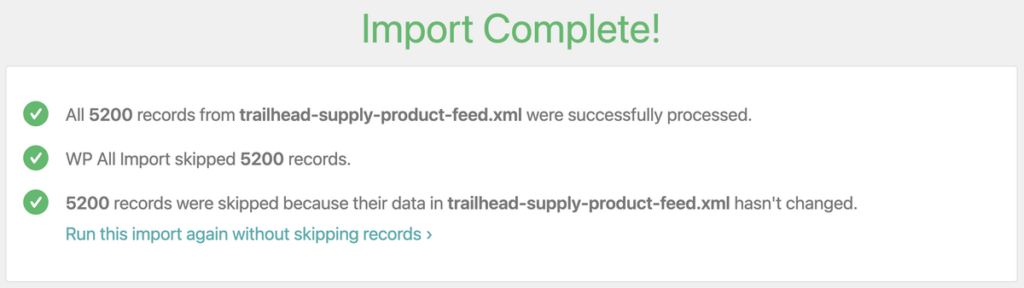
Last, keep Skip posts if their data in this import file has not changed ticked, as it is by default. When you run the same big WooCommerce import again, WP All Import skips every record that hasn’t changed since the last run. My second run of the unchanged file finished in 4 minutes 51 seconds, compared with just over 20 minutes for the first.
For Memory Errors
If the screen goes blank, find the error first. Add define( ‘WP_DEBUG’, true ); and define( ‘WP_DEBUG_LOG’, true ); to wp-config.php, run the import again, and open wp-content/debug.log. A line starting “Allowed memory size of … bytes exhausted” confirms a memory error. Remove both lines afterwards.
An import that fails before the first product is created needs a different file source. Switch it to Download from URL or Existing File, as covered in the setup section.
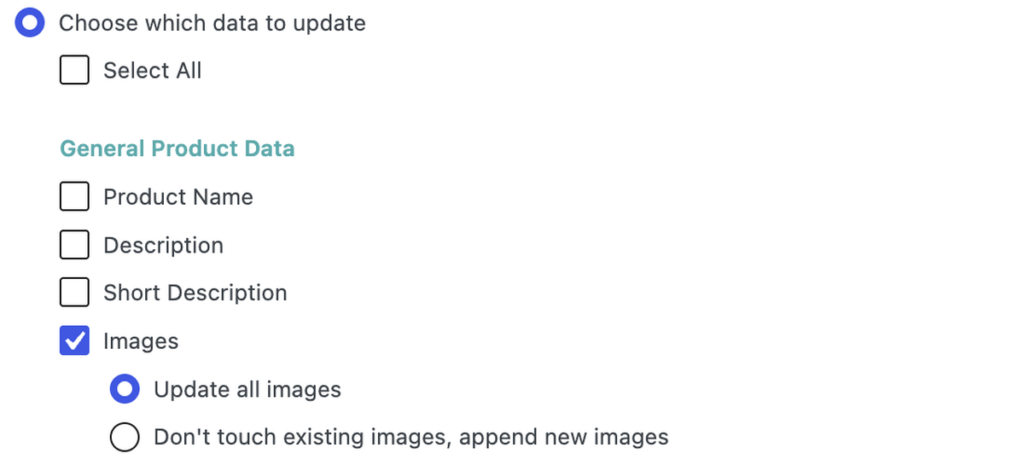
An import that fails partway through is running out of memory on its heaviest products. WP All Import can split a heavy WooCommerce product import into two passes over the same file, with the first creating the products and the second adding only their images. Leave the Images section empty for the first import. Then create an Existing Items import with the same file, match the products by SKU, and use Choose which data to update to update the images only. WP All Import’s guide to updating existing items covers this step by step.
If one product still runs out of memory on its own, ask your host to raise the PHP memory limit. Keep it higher than the upload and post size limits, as explained in It Dies With a Memory Error or a Blank Screen.
For Missing Variations
WP All Import links each variation to its parent product on the Variations tab of the WooCommerce Add-On in Manual Setup. If your variation rows point to their parent with an ID or SKU column, map the parent’s identifier to SKU element for parent and the variation’s parent column to Parent SKU element for variation. The two have to hold the same value. A parent with 1042 in its ID column needs 1042 in the parent column of each of its variations.
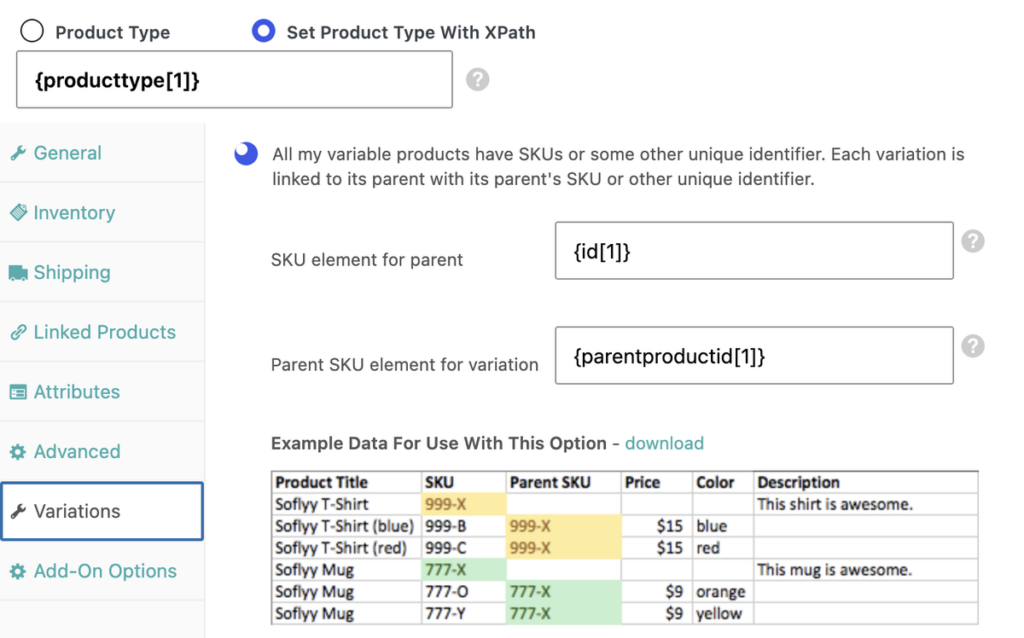
Files that link variations another way, such as by title, use other options on the same tab, covered in our guide to importing variable products in WooCommerce.
The import type matters too. A New Items import is the only type in WP All Import that can add or remove variations, so send updated variable products back through the New Items import that created them. Before running the big import again, go to WooCommerce › Status › Tools and click Delete orphaned variations to clear out any variation whose parent no longer exists.
For Missing or Duplicate Products
A product that appears twice after a later run means WP All Import didn’t recognize it the second time. WP All Import matches products to earlier runs through the import’s unique identifier, so a value that changes between files makes the same product look new. Before the first run, set Unique Identifier in Import Settings to a column that stays the same in every file, such as the SKU. Check the SKUs for lost leading zeros too.
For missing products, check the numbers. When a big product import finishes, the created, updated and skipped counts should add up to the number of rows in your file.
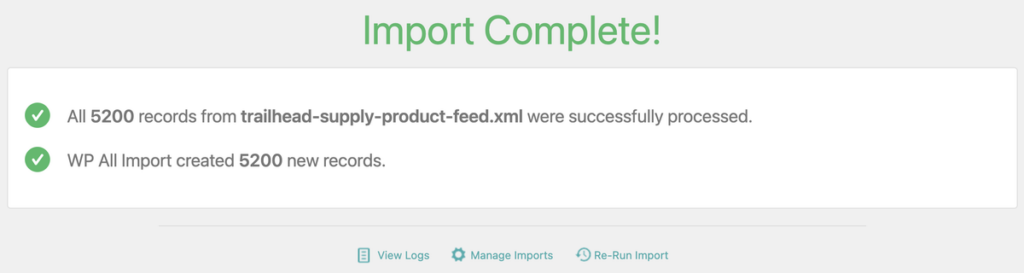
If they don’t add up, open the import’s history from All Import › Manage Imports and search the log for the SKU of a product that didn’t arrive.
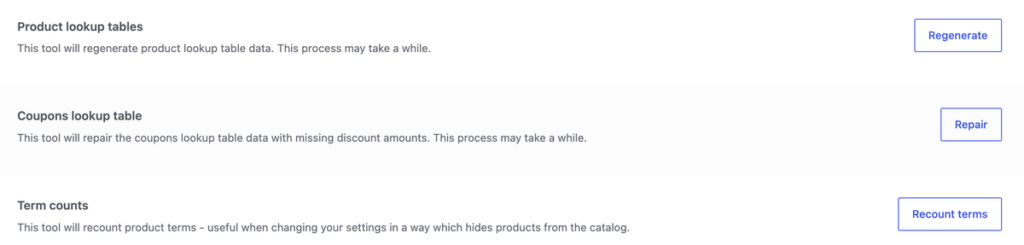
Products that exist but are missing from category pages or filters need WooCommerce’s lookup tables rebuilt. Go to WooCommerce › Status › Tools and click Regenerate next to Product lookup tables.
For a Slow Storefront
A large WooCommerce import uses the same database as your store shoppers, so the fix is either to run it when the store’s traffic is low or to slow it down enough to ensure it does not disrupt their shopping experience.
WP All Import’s Automatic Scheduling service runs a saved import at the times you choose, set from inside the plugin with no cron jobs to configure. Pick the hours when your store gets the fewest orders.
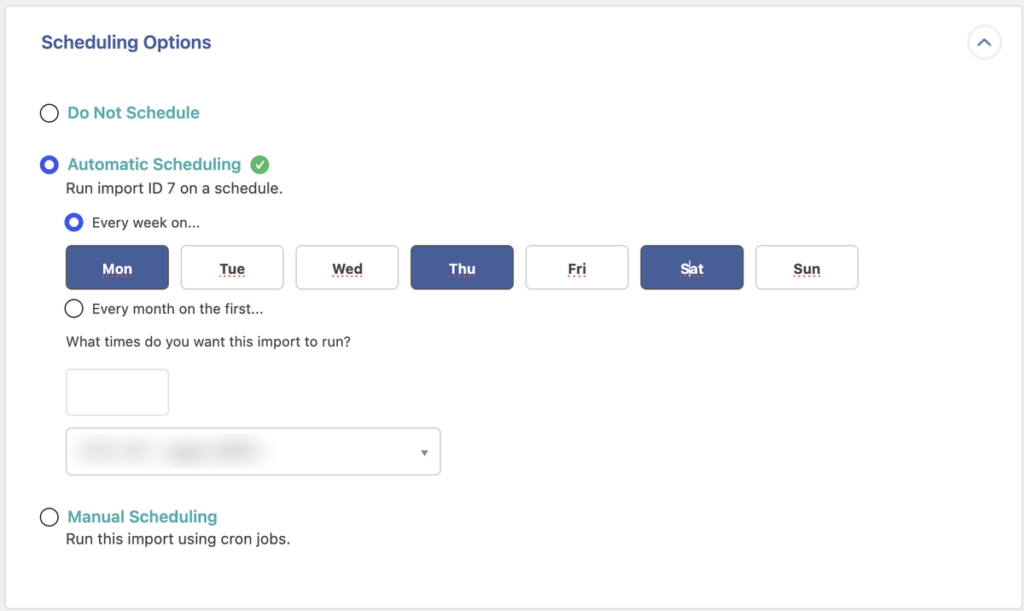
Cron jobs from the time-limit fix can follow the same off-peak schedule. If the import has to run while people are shopping, set a Pause between records under All Import › Settings. WP All Import then waits after each record it saves, so the import uses less of the server at any one time. The import takes longer, so leave the field blank for imports that run overnight. For caching plugins that clear their cache after every product, see Plugins That Slow Down Large WooCommerce Imports.
When the Big Import Becomes a Recurring Feed
A one-off migration and a feed that arrives every day need different settings, even when the file is the same. The table shows what to change once a big WooCommerce product import starts running on a schedule.
What changes when the file arrives on a schedule
| Setting | One-off import | Recurring feed |
|---|---|---|
| File source | Any source | Download from URL, FTP/SFTP or Existing File, so each run fetches the latest file (setup) |
| Skip WooCommerce products if their data in your file has not changed | Optional | Keep ticked (slow imports) |
| Products missing from the file | Leave alone | Mark them out of stock |
| Choose which data to update | Update everything | Update only the fields the feed controls |
| Scheduling | None | Off-peak, with Automatic Scheduling or cron (slow storefront) |
Products disappear from supplier feeds all the time, when they’re discontinued or simply sold out at the supplier’s end. WP All Import’s Remove or modify WooCommerce products that are not present in this import file setting decides what happens to them on your store. Choose products created or updated by this import and then later removed, and under Instead of deletion, choose change stock status to Out of stock. The product pages stay live with their URLs and reviews, and shoppers can’t buy something you can no longer supply.
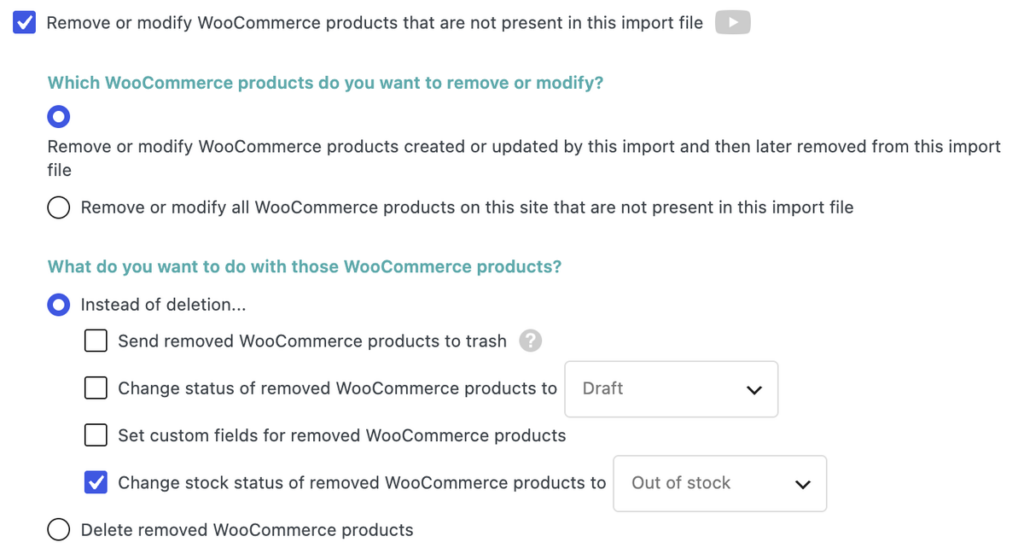
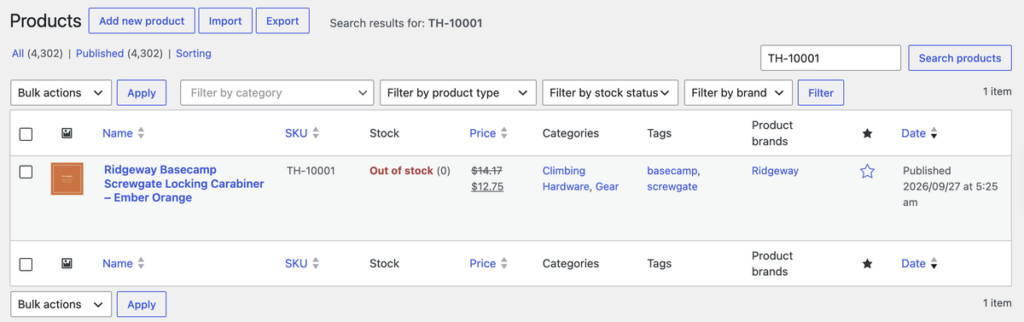
In my test, I removed 20 products from the file and ran the import again. WP All Import updated the other 5,180 records and set the 20 missing products to out of stock.
Leave the other scope option, all WooCommerce products on this site, unselected for a supplier feed. It also applies to products you added by hand or through other imports, so any product that isn’t in this one file would be changed too.
The last change protects your own edits. WP All Import’s Choose which data to update option limits a recurring import to the fields you pick, such as price and stock. Descriptions, SEO titles and images you’ve changed in WooCommerce stay as they are on every run.
Mark missing products out of stock rather than deleting them. If they come back into the feed, the next run restocks the same product pages.
Final Thoughts on Big Product Imports in WooCommerce
The best way to handle a big product import in WooCommerce is to work out why it’s failing before you change any settings. Where an import stops, and what the catalog looks like afterwards, points to one cause, and each cause has its own fix. Raising every server limit at once can leave the real problem in place, and you won’t know which change helped.
For the fixes themselves, I’d use WP All Import. WP All Import processes large WooCommerce product imports in batches, and you can reduce the batch size until each request completes within the server’s time limits. On my 5,200-row test file, Automatic Setup mapped the products, variations and images, and the first run went through with no errors.
After the first run, the work shifts to keeping the catalog in step with the file. WP All Import skips products that haven’t changed since the last import, which brought my second run of the same file down from just over 20 minutes to under five. If you’re about to run a big import for the first time, start with the pre-flight checklist and a staging run of your hardest products. Any of the six signs is quicker to fix on a staging copy than on a live store.
Common Questions About Big Product Imports in WooCommerce
How long does it take to import thousands of products into WooCommerce?
It depends mostly on the server and on how many images the import has to download. On a test store with a 300-second PHP time limit, WP All Import imported 5,200 rows in about 20 minutes, including 1,000 variations and 4,200 images. Running the same file again took under five minutes, because WP All Import skipped every product that hadn’t changed since the first run.
How do I undo a WooCommerce product import?
WP All Import can undo a WooCommerce product import by deleting every product that import created.
- Back up your store first, because deleted products can’t be restored.
- Go to All Import › Manage Imports and click Delete under the import.
- Tick the option to delete the products created by the import. Tick images and attachments too if you want them removed.
- Leave Delete import unticked, so the import’s settings stay in place for your next attempt.
- Confirm the deletion.
How do I update thousands of WooCommerce products at once?
WP All Import updates thousands of WooCommerce products in one import by matching each row to an existing product and changing only the fields you choose.
- Go to All Import › New Import, add your file, and choose Existing Items and WooCommerce Products.
- Map only the columns you want to change, such as price and stock.
- In Import Settings, match the products by SKU.
- Turn on Choose which data to update and tick only the fields you mapped.
- Run the import.
Can I import multilingual WooCommerce products with WPML?
Yes. WP All Import Pro and its WooCommerce Import Add-On work with WPML’s Export and Import add-on to import WooCommerce products in more than one language. Before the import, set up WPML, WPML String Translation and WooCommerce Multilingual & Multicurrency, with every language you’re importing enabled. WP All Import’s WPML import guide covers the full setup.
Further Reading
Get Oxygen
Build it your way with Oxygen.
Not per year, not per site, not per seat. 60 day money back guarantee.