
The Fastest Way to Import WooCommerce Variable Products from Excel

Excel is a comfortable place to build WooCommerce variable products before you import them. You can see a jacket and all four of its sizes on one screen, and a formula can price every size based on the smallest. WooCommerce’s built-in importer doesn’t open Excel files, though, and it needs every size’s row to name its parent product.
WP All Import accepts the Excel workbook in its .xlsx form and sets each product’s type from the columns it finds, so a jacket with four sizes comes through as one variable product with four variations. I’ll use the jacket example throughout this guide, so you can see what WooCommerce’s own importer requires and how the same Excel file imports through WP All Import.
Why WooCommerce Can’t Take the Excel Workbook As It Is
To use WooCommerce’s built-in importer, you first have to save the workbook as a CSV file. In Excel, you do that under File › Save As by choosing CSV UTF-8 (Comma delimited), since WooCommerce’s documentation asks for a UTF-8 CSV. Excel saves only the sheet you have open at the time, so any products on the workbook’s other tabs are left out of the CSV.
The CSV then needs a few changes before WooCommerce can import the content as variable products. For my example, that means giving the jacket a row of its own with Type set to variable, then adding a separate row for each size below it, with Type set to variation and the jacket’s SKU in a Parent column.
WooCommerce 11.1 and later can import everything in one go as long as each parent row sits above its variations and Update existing products is selected. Older versions need two imports: parent products first and variations second. Each time you update the workbook, the CSV has to be saved and edited again.
Two routes at a glance
WooCommerce’s built-in importer
5 steps
- Open the product sheet
- Save As › CSV UTF-8
- Add Type and Parent values to every row
- Move each parent row above its variations
- Products › All Products › Import
WP All Import
3 steps
- All Import › New Import › Set up automatically
- Upload the .xlsx file
- Check Field Mappings and click Run Import
Which Excel Habits Matter When You Import Variable Products
Excel makes it easy to tidy up a product sheet. Most of that tidying doesn’t change anything when you import the file, but a couple of habits do. For my example, the jacket’s workbook below has a few of them.
The jacket’s workbook in Excel
| A | B | C | D | E | F | |
|---|---|---|---|---|---|---|
| 1 | Item Code | Parent Code | Product Name | Size | Price | Stock |
| 2 | JKT-210 | Harbor Rain Jacket | S|M|L|XL | $89.00 | ||
| 3 | JKT-210-S | JKT-210 | S | $89.00 | 14 | |
| 4 | JKT-210-M | JKT-210 | M | $89.00 | 20 | |
| 5 | JKT-210-L | JKT-210 | L | $94.00 | 18 | |
| 6 | JKT-210-XL | JKT-210 | XL | $99.00 | 9 |
Swipe the sheet to see every column →
I imported this workbook with WP All Import’s Automatic Setup to see what happened to each one.
Habits you can keep
Merging a product name across its sizes
When you merge cells, Excel keeps the name in the top cell only, and the cells below it are empty. That isn’t a problem. WP All Import links each variation to its product through a parent SKU column, so the empty cells don’t matter. For my example, all four sizes still came through as one variable product, Harbor Rain Jacket.
Using formulas and $ signs in prices
A formula can work out a price for you, and currency formatting adds a $ sign to the cell. Neither one causes a problem. WP All Import imports the price itself, so WooCommerce gets a plain number with no formula or $ sign. For my example, the L and XL jackets came through at 94 and 99.
Habits to change first
Sorting the sheet
Sorting by size or price can move a size above its product’s row. Each product’s row needs to stay above its sizes, or those sizes won’t join it. Before you sort, add a column that numbers each row. Then sort by that column again before you save, and everything goes back in order.
Keeping products on more than one tab
WP All Import imports the tab that was open when the Excel workbook was last saved. To import a different tab, open that tab in Excel and save the workbook before you upload it. For my example, the Outerwear tab was open, so the accessories on the second tab would need a separate upload.
Importing the .xlsx File with Automatic Setup
You’ll need WP All Import Pro with its WooCommerce Import Add-On, which come together in several WP All Import plans. The steps below use Automatic Setup, the feature that maps your columns for you.
Step 1: Upload the Workbook Without Converting It
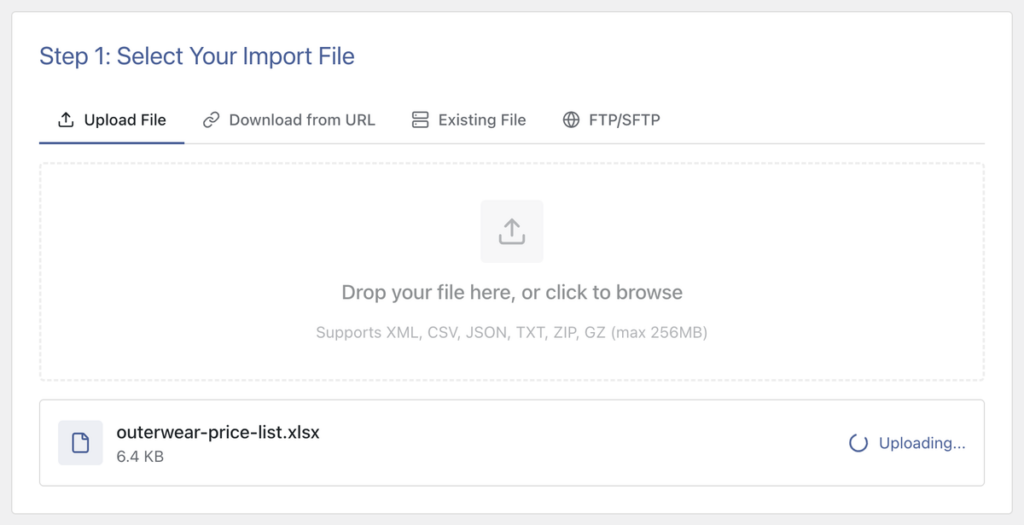
Go to All Import › New Import and click Set up automatically. On the Upload File tab, drop in your .xlsx or .xls file as it is. WP All Import reads Excel files directly, so there’s no need to save a CSV copy first.
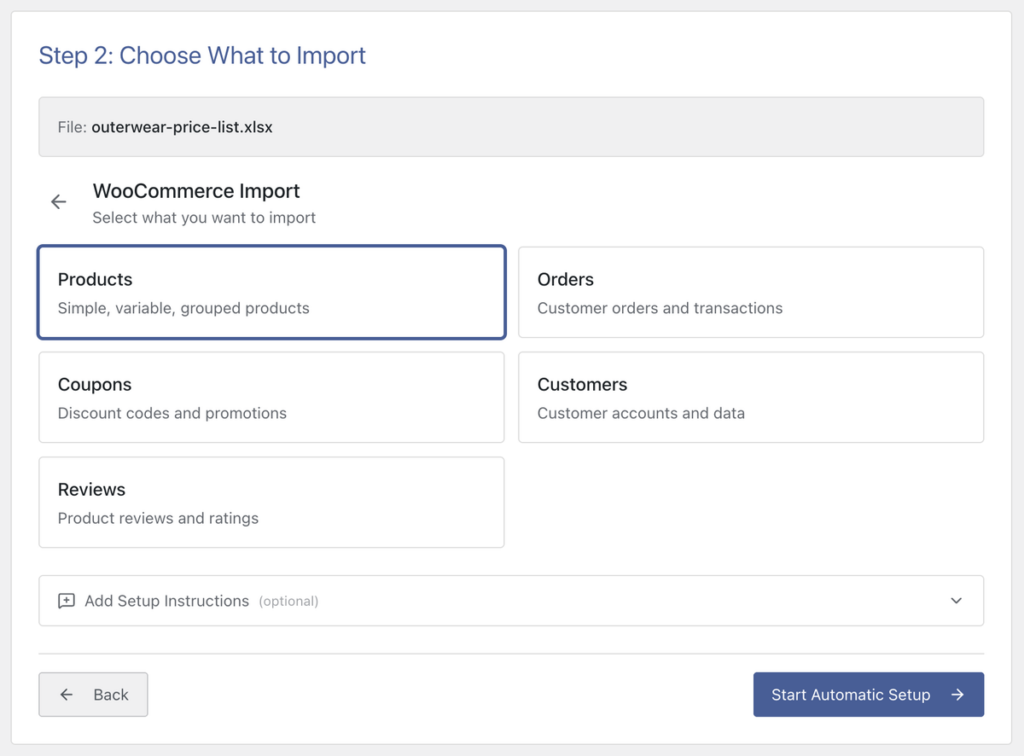
On the next screen, choose WooCommerce, then Products, and click Start Automatic Setup. The Add Setup Instructions box is optional, and you only need it when a column has an unclear name. For my example, I left it empty.
Step 2: Read the Field Mappings Against the Workbook
The Your Import Is Ready screen shows how many records will be imported. This number should match the product rows on the tab that was open when you saved the workbook. For my example, it showed 9 records, one for each row on the Outerwear tab.
Open Field Mappings and check these rows:
- Product Type is set to variable
- Parent Product ID points to your parent SKU column
- Attribute Name and Attribute Value point to your variation column, such as size
- Regular Price points to your price column
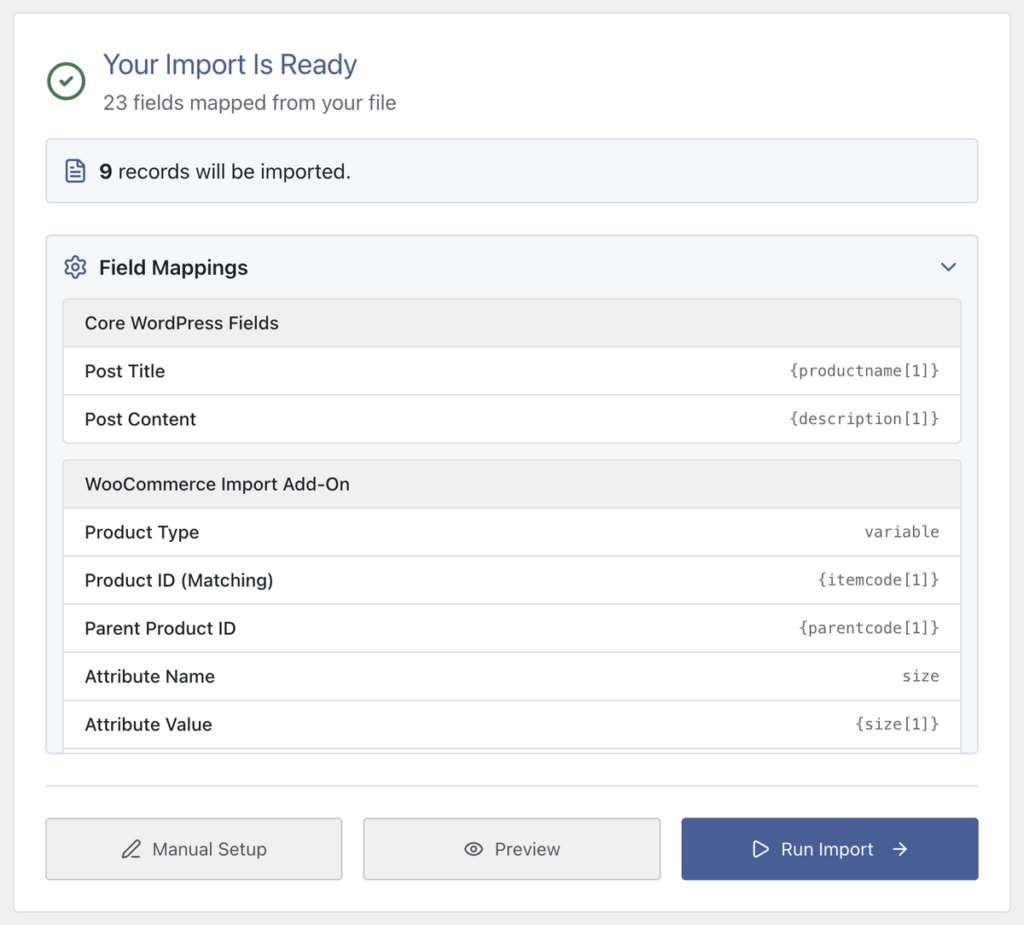
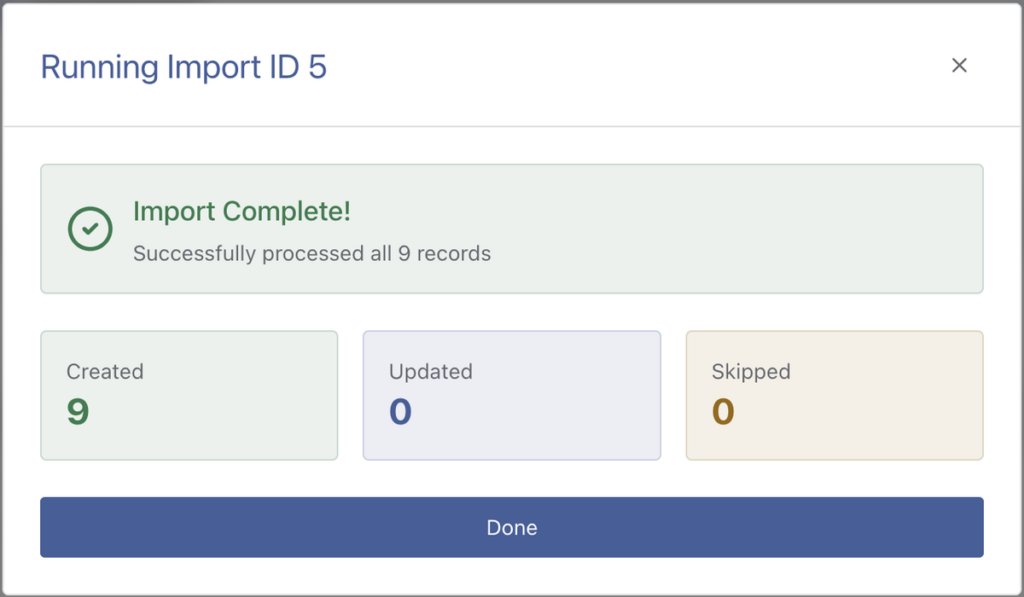
WP All Import doesn’t need a product-type column to import variable products from Excel. For my example, Automatic Setup set the type to variable and linked the sizes through the Parent Code column. When everything looks right, click Run Import. The summary at the end shows how many records were created.
Step 3: Check One Product Against Its Rows in Excel
Go to Products › All Products in WooCommerce, open one of the new products and click Product data › Variations. Each variation should match its row in the workbook. For my example, the XL jacket showed a price of 99 and 9 in stock, the same as its row.
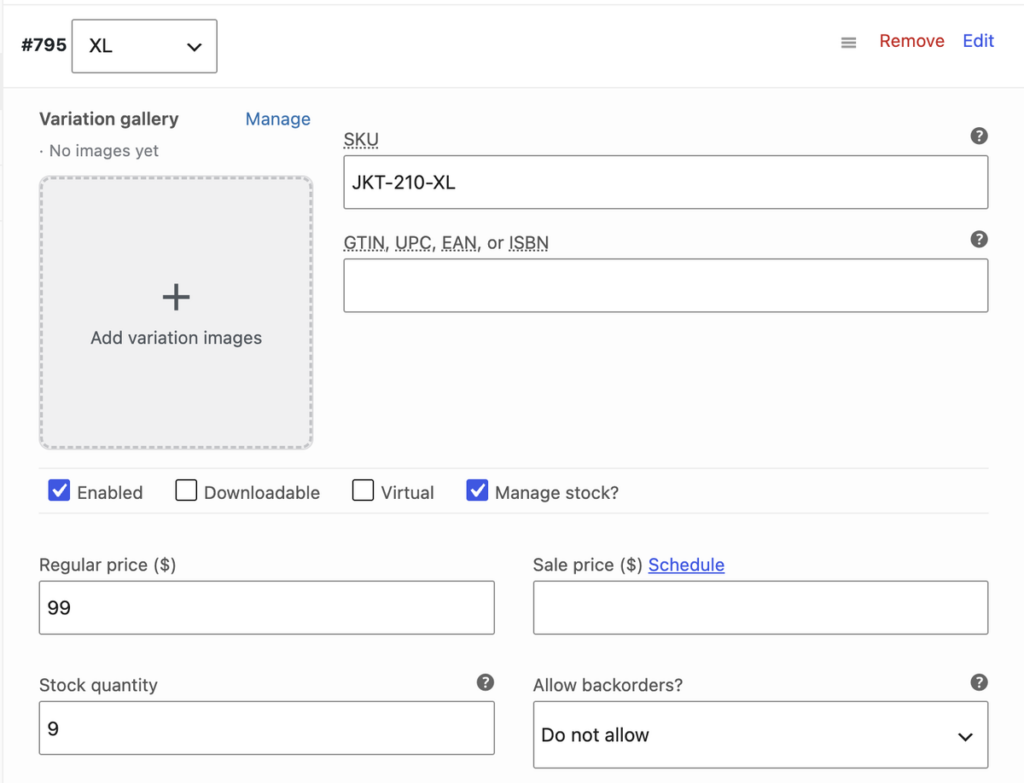
WP All Import gives each variation its own price and stock from its row in the workbook. To see it from a shopper’s side, open the product on your store and pick each option in the dropdown.
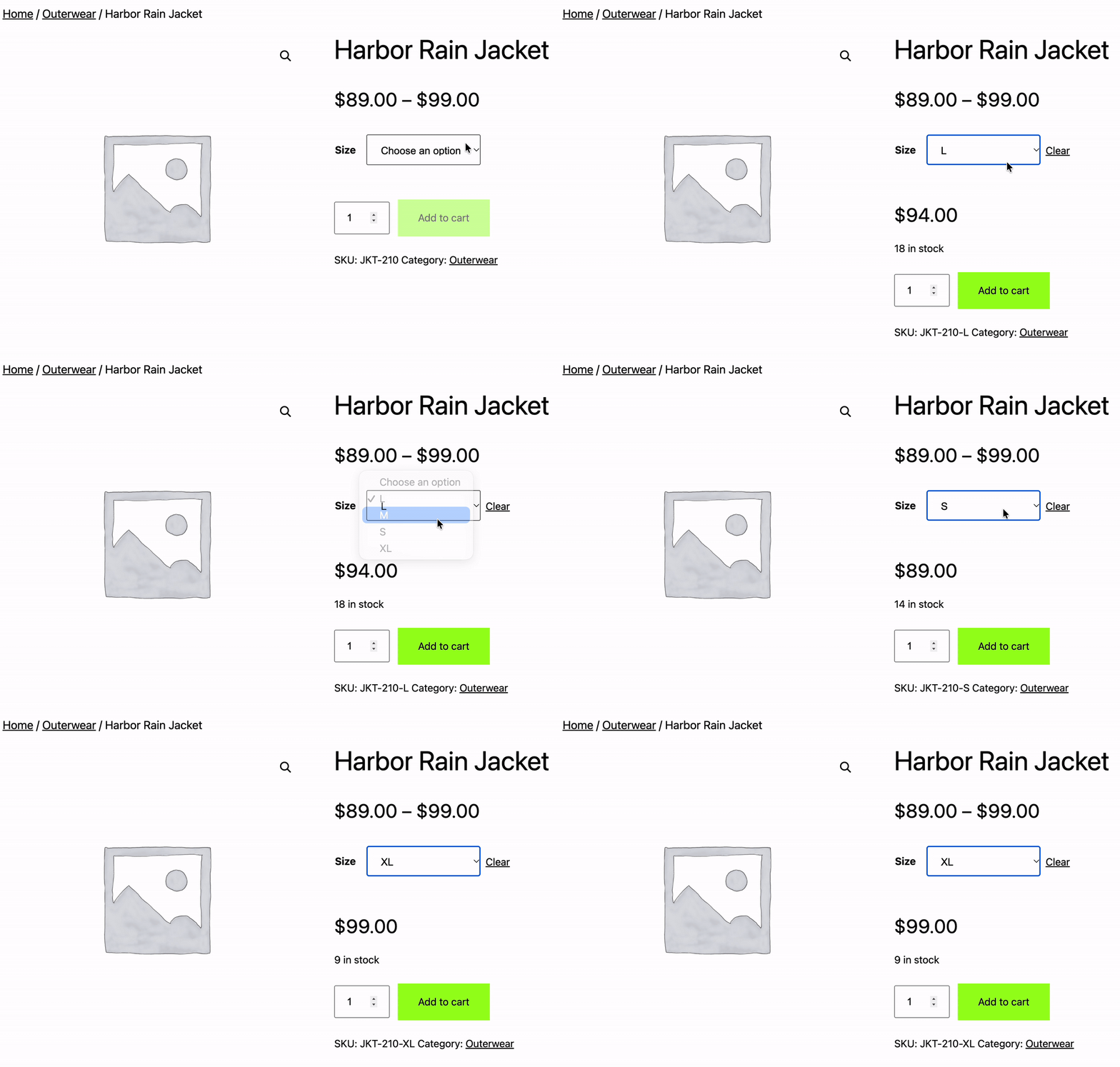
If one product looks right, the rest were imported with the same mappings.
Tip
When the workbook changes
WP All Import saves this import, so an updated workbook can update the same products instead of creating new ones. My guide to bulk editing WooCommerce variable products shows how.
Final Thoughts
I prefer editing sizes and prices in Excel to editing them in WooCommerce. This test showed that I can keep doing that and import the workbook as it is. The merged jacket name and the formula prices didn’t cause any problems. I only had to keep the rows in order and save the workbook with the right tab open.
WP All Import turns an Excel workbook straight into WooCommerce variable products, with every size linked to its parent product and priced from its own row. That means the workbook you build in Excel is ready to import as soon as you save it.
Common Questions About Importing WooCommerce Variable Products from Excel
How do I import WooCommerce variable products from a spreadsheet?
You can import WooCommerce variable products from a spreadsheet with WP All Import, using an Excel workbook or a CSV file.
- Go to All Import › New Import and click Set up automatically.
- Upload your spreadsheet on the Upload File tab.
- Choose WooCommerce, then Products, and click Start Automatic Setup.
- Check that Product Type is set to variable and Parent Product ID points to your parent SKU column.
- Click Run Import.
Do I need to convert an Excel file to CSV before importing it into WooCommerce?
No, not if you use WP All Import, which imports .xlsx and .xls files into WooCommerce directly. WooCommerce’s built-in importer only accepts CSV and TXT files, so it needs the workbook saved as a CSV UTF-8 file first.
How should variable products be laid out in an Excel sheet?
Variable products should be laid out in an Excel sheet with one row for the product and one row for each variation below it. Each variation row needs a parent SKU column that matches the product’s SKU, and each attribute, such as Size, needs its own column. On the product’s own row, list all of its sizes in that column, separated by a | character. For products with more than one attribute, see How To Import Attributes for WooCommerce Variable Products.
Which Excel tab does WP All Import import?
WP All Import imports the tab that was open when the Excel workbook was last saved. To import a different tab, save the workbook with that tab open, then upload it again.
Can I import an Excel file that uses formulas for prices?
Yes. WP All Import imports the result of each formula, so the prices reach WooCommerce as plain numbers. A price shown with a $ sign also imports as a plain number.
Further Reading
- The Fastest Way to Import WooCommerce Variable Products from CSV
- Best Plugins for WooCommerce Product Import from Excel
- A Quick Look at Importing Variable Products into WooCommerce
- How to Use a WooCommerce Product Import Template (CSV & Excel Guide)
Get Oxygen
Build it your way with Oxygen.
Not per year, not per site, not per seat. 60 day money back guarantee.