
Blog
The 5 Best Plugins to Export WooCommerce Products with Images

I’ve moved enough WooCommerce catalogs between hosts to know where they break. It’s never the prices and it’s rarely the variations. It’s the images. The CSV opens clean in Excel, the import finishes with a green tick, and then I load the shop and find a wall of grey placeholders, because the file carried image references pointing at a site I’d already taken offline.
So I tested five WooCommerce product export plugins on the same store and checked what each one actually writes into the export file.
I ran all five plugins against the same WooCommerce store: 50 products, 28 simple and 22 variable, with 214 images across featured shots and galleries. The mix included JPG, PNG, and WebP files, a few products with six gallery images, and two with no image at all. I exported products with image data, left everything else at its defaults on the first run, then opened each file and checked four things.
Featured image and gallery: Whether the featured image and the gallery images arrived in separate places in the export file.
Image URLs: Whether the URLs were absolute and publicly reachable, rather than relative paths that break on another site.
Alt text: Whether alt text and other image metadata came along with the product data.
Gallery separator: Which separator the gallery field used, since mixing comma and pipe conventions causes gallery images to drop out on import.
As a last step, I imported each file into a clean staging site and counted how many of the 214 images landed in the media library.
How WooCommerce Stores Product Images, and Why Exports Break
WooCommerce keeps two kinds of images per product. The featured image is a single attachment, and the gallery is a list of additional attachments. Every plugin below reads those two, and how well it separates them decides whether the export is usable.
URLs, not files. Almost every WooCommerce product export gives you image URLs, not the images. That’s fine if the destination can fetch them, and useless if you’re shutting the source store down the same afternoon.
The separator. The built-in exporter separates gallery URLs with commas inside a quoted CSV field. Fine until a URL contains a comma, and fine until someone opens the file in a locale that uses semicolons. Some plugins use pipes instead, so mixing the two conventions across a migration causes gallery images to drop out on import.
Alt text travels separately. Alt text, title, caption, and description are attachment metadata, not product data. A product export that carries image URLs may well leave that metadata behind, which is a quiet SEO problem nobody notices until six months later.
Hotlink protection and relative paths. A URL that works in your browser may 403 when another server requests it. And any export that writes a relative path instead of a full URL will break on the destination site.
The 5 Best Plugins to Export WooCommerce Products with Images
What separates these five WooCommerce product image export plugins isn’t the product data, since all of them export that fine. It’s the image export: whether the plugin gives you URLs or files, separate columns or one packed field with comma or pipe separated data, and alt text or silence. Those three answers determine the ranking below.
1. WP All Export
⭐
Rating: 4.5/5 Stars (based on 415 reviews on WordPress.org)
💰
Pricing: $169/year; Lifetime $1,299 (one-time)
🎯
Best For: Image URLs, filenames, or alt text in specific columns for a marketplace, PIM, or partner feed
My Experience Using WP All Export
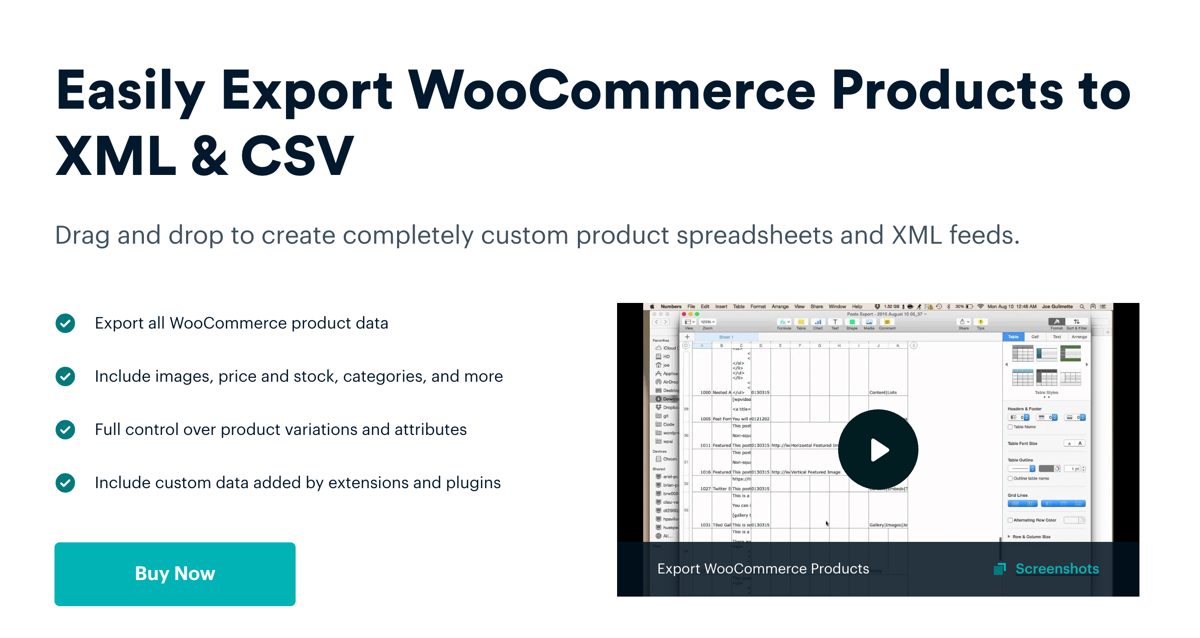
To export products with images, go to All Export › New Export, choose WooCommerce Products, and open the Drag & Drop screen. The image fields sit under Available Data › Media › Images, kept apart from Product Data, so they don’t sit among price and stock. Drag in what you need, and the Preview button shows your first ten products with their image data before anything runs.
That panel gives you ten choices, and they cover more ground than anything else on this list: All, URL, Filename, Path, ID, Title, Caption, Description, Alt Text, and Featured. Pick URL for a plain image link, Filename or Path when the files travel alongside the CSV, ID when the destination matches by attachment, and Featured to mark the main image apart from the gallery. Title, Caption, Description, and Alt Text each export as their own column.
Drop All or URL into one column and every image for that product lands in that single cell, pipe-separated, featured image first. Splitting those into separate columns means adding a custom export field and running a short PHP function against the image field, which WP All Export documents with a working snippet. That’s a code step, not a setting.
What I Liked
- Ten image fields under Media › Images, including Alt Text, Caption, and Description
- The Preview button renders your first ten products with their image columns before the export runs
- Output covers CSV, Excel (XLS and XLSX), simple XML, and custom XML with nested elements
- Add Filtering Options narrows by product type, category, stock status, price, or any export field
- Repeat runs can export only products added or modified since the last one
- Filename and Path write the file’s name or server path instead of a URL
What I Didn’t Like
- Splitting images into separate columns needs a custom export field and a PHP snippet
- No option to export the actual image files
Pricing
| Plan | Price |
|---|---|
| WooCommerce Export Package | $169 per year |
| Lifetime licence | $1,299 one-time |
Recommended For
Stores that need image URLs, filenames, or alt text in specific columns for a marketplace, a PIM, or a partner feed, and stores willing to add a PHP field for a column layout the defaults don’t produce.
2. WooCommerce’s Built-In CSV Exporter
⭐
Rating: N/A (built into WooCommerce)
💰
Pricing: Free with WooCommerce
🎯
Best For: One-off CSV backups and supplier files, where a spreadsheet is the final destination
My Experience Using the Built-In Exporter
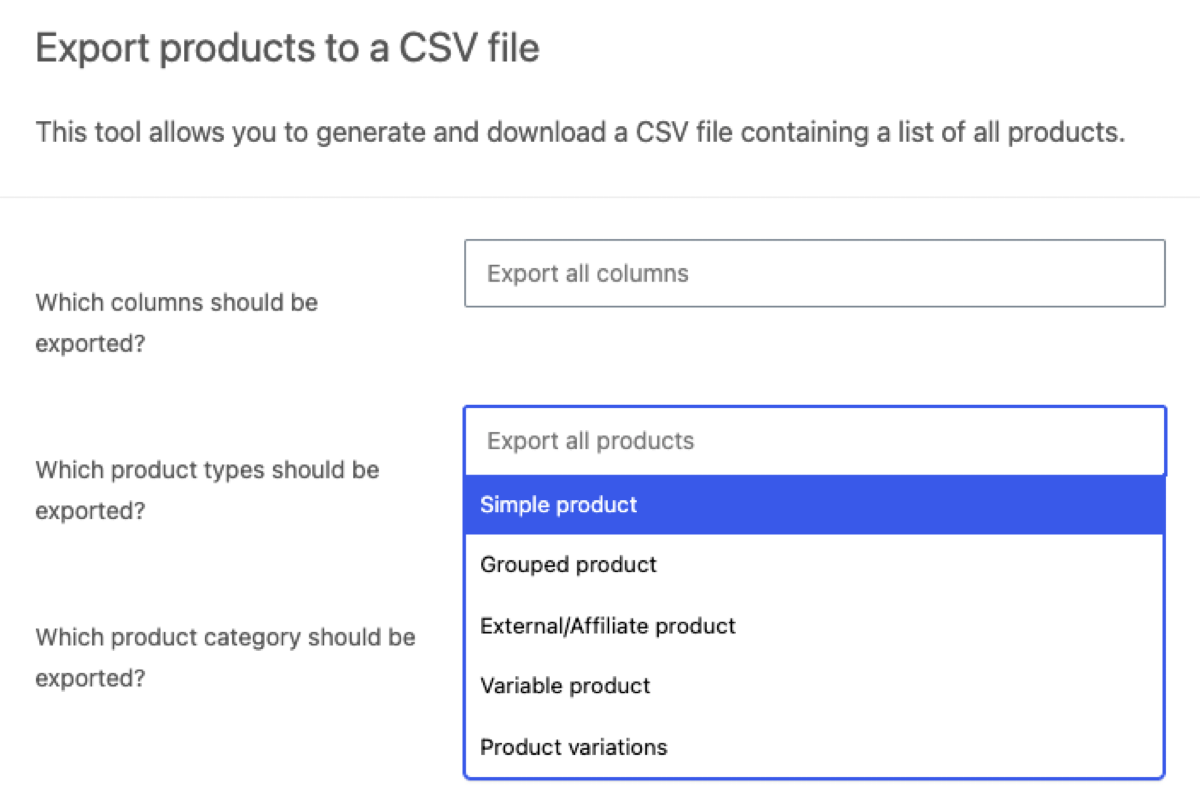
This one already sits in your dashboard. Go to Products › All Products, click Export, tick all product types, and you’ll have a file in about four seconds. No install, no licence.
Open that file and you’ll see an Images column, with each product’s featured image and gallery in it as a comma-separated list of URLs wrapped in quotes. The first URL is the featured image, and the rest are gallery.
The limit is anything past that single column. You can’t split featured from gallery, and there’s no alt text column at all, which matters because WooCommerce’s own documentation notes the core CSV tooling can’t add, edit, or update alt text for product images. There’s no scheduling and no ZIP of image files either. It’s CSV only.
What I Liked
- Zero setup, already installed
- Featured and gallery URLs in one predictable Images column
- Column choice is a single decision: tick what you need, or leave Export all columns selected
- Custom meta exports if you tick the option
What I Didn’t Like
- Only product types and categories can be filtered; there’s no way to pick individual products
- Turning on custom meta exports every meta key, each prefixed meta:, which thickens the file quickly
- Column and product type choices aren’t saved as a template, so a repeat export means re-picking them
- The file downloads to your browser, so nothing reaches a server without a manual upload
Pricing
Free with WooCommerce.
Recommended For
One-off CSV backups and supplier files, where a spreadsheet is the final destination rather than another store.
3. Import WP
⭐
Rating: 4.4/5 Stars (based on 25 reviews on WordPress.org)
💰
Pricing: Free; Pro from $49/year
🎯
Best For: Developers exporting to JSON or nested XML who already use Import WP for imports
My Experience Using Import WP
Import WP keeps its exporter in a separate place: Tools → Import WP → Exporters. Create one, pick the post type, and you get a list of fields to tick rather than a drag-and-drop canvas. Choose CSV, XML, or JSON, and the file downloads when the run finishes.
Images are handled here, in the free version. The listing spells out that the exporter covers custom fields, images, attachments, and terms, and that CSV headings and XML node names are editable, with nested XML for repeating data. Filters decide which records leave.
Custom post types, taxonomies, custom fields, and scheduled imports sit behind Pro, which is where a recurring image-aware feed ends up.
What I Liked
- Free exporter covers images, attachments, and custom fields
- Nested XML output suits feeds that nest gallery data
- CSV headings and XML node names are editable
What I Didn’t Like
- Field selection is a tick list, with no drag-and-drop column arrangement
- Scheduling needs Pro
Pricing
Free. Pro is $49 per year for one site, $149 for ten, $249 unlimited.
Recommended For
Developers comfortable with a field list and XML nodes, exporting to a JSON or nested XML consumer, and already using Import WP for imports.
4. WP Ultimate Exporter
⭐
Rating: 3.2/5 Stars (based on 16 reviews on WordPress.org)
💰
Pricing: Free; Pro $99 (one-time)
🎯
Best For: A one-time licence with featured and gallery image URLs split into separate columns
My Experience Using WP Ultimate Exporter
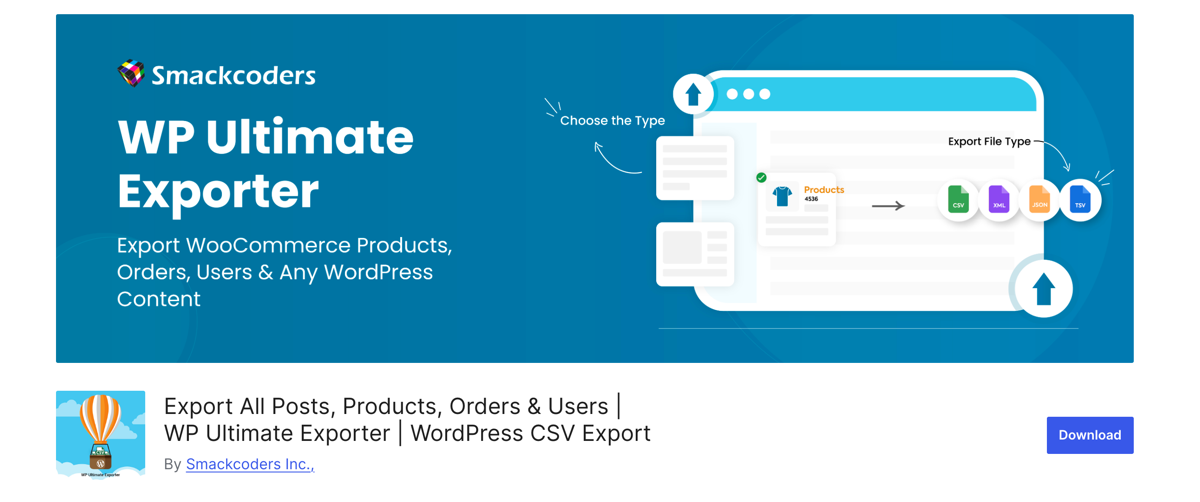
WP Ultimate Exporter runs inside the Smackcoders suite, and it won’t switch on until the free WP Ultimate CSV Importer plugin is installed alongside it. Once both are active, you pick products as the data type, tick the columns you want, and choose a format: CSV, XML, XLS, XLSX, JSON, or TSV.
Image support is documented in its FAQ. Products export with featured_image and product_image_gallery columns, the first holding a single URL and the second holding multiple URLs separated by pipe symbols. The listing also notes media can be exported separately or along with posts and pages, and that the plugin handles post types, authors, date ranges, and post status filtering.
Pro adds scheduled exports, advanced filtering by category, status, and post IDs, Google Sheets output, and ACF, Toolset, JetEngine, and Meta Box field support.
What I Liked
- Separate featured_image and product_image_gallery columns
- Six export formats, including XLSX and JSON
- Media can export as its own file, separate from products
- Pro is a one-time $99 payment for unlimited domains
What I Didn’t Like
- Requires the separate WP Ultimate CSV Importer plugin
- Scheduled runs and advanced filters sit behind Pro
Pricing
Free. Pro is $99 one-time.
Recommended For
Stores that want a one-time licence and need image URLs split into featured and gallery columns without custom code.
5. Product Import Export for WooCommerce
⭐
Rating: 4.6/5 Stars (based on 414 reviews on WordPress.org)
💰
Pricing: Free; Premium from $69/year
🎯
Best For: Server migrations where image files must travel as files, and nightly image-aware FTP feeds
My Experience Using Product Import Export for WooCommerce
WebToffee’s exporter lives under WebToffee Import/Export (Pro) › Export and works in steps: pick the post type, choose Quick Export, a pre-saved template, or Advanced Export, then filter products and arrange columns.
The image column holds product images as URLs by default, with multiple images separated by pipe symbols. Switch the mode and it writes image names instead, which suits a workflow where the files travel beside the CSV.
Then there’s the feature nothing else here offers. Tick Export product images separately under Advanced Options, and an Export images button appears, producing a ZIP containing only product images with no product data. That answers the question the others leave open: how to move the actual files rather than references. It’s a Pro feature, and the free version is CSV-only for simple, grouped, and external products, with variable product export reserved for premium.
What I Liked
- image column with URL or filename output, pipe-separated for galleries
- Export images separately as a ZIP of files alone
- Scheduled exports and FTP/SFTP delivery in Pro
What I Didn’t Like
- Image ZIP export and variable product export require the Pro licence
- The wizard adds several screens before a file appears
Pricing
| Plan | Price |
|---|---|
| One site | $69 per year |
| Up to 5 sites | $129 per year |
| Up to 25 sites | $249 per year |
Recommended For
Stores moving a catalog to a new server where the image files have to travel as files, and stores that want a nightly image-aware feed delivered by FTP.
Which Plugin Should You Use to Export WooCommerce Products with Images?
If the destination reads image URLs, WP All Export is my pick. Its Media › Images panel exposes alt text, caption, description, filename, and path as separate export fields, which is the difference between a migration that keeps its SEO metadata and one that doesn’t. The URL-only output and the PHP step for splitting columns are real trade-offs, and neither matters for a marketplace feed or a PIM. For a migration, WP All Import downloads those URLs into the new media library, which turns the URL into the file at the other end.
If the image files have to move before any import runs, Product Import Export for WooCommerce handles that case with its Export images ZIP option. That’s a different job, not a better plugin.
For a free one-off, the built-in exporter covers it and leaves you with the packed Images column. For a migration you’ll repeat, budget for one of the paid options.
Frequently Asked Questions – Export WooCommerce Products with Images
How do I export WooCommerce products with images?
Products › All Products › Export generates a CSV with an Images column holding image URLs, featured image first. For separate featured and gallery columns, or for alt text, use a dedicated exporter such as WP All Export, which exports image fields from Available Data › Media › Images.
Why are my product images missing after a WooCommerce export?
Two causes cover most cases. The export wrote URLs and the source site went offline or blocked hotlinks, so the destination can’t fetch them. Or the file uses the wrong separator, and the gallery field collapses to a single image. If the URLs were live when the import ran, an importer that downloads remote images, like WP All Import, pulls them into the media library without manual uploads.
Can I export the actual image files instead of URLs?
Yes, with the right plugin. Product Import Export for WooCommerce includes an Export images option that builds a ZIP containing only product images, with no product data. WP All Export doesn’t export image files, only image data and URLs, and WP All Import can download those URLs into the media library on the other side, which covers most migrations without a ZIP at all.
Do WooCommerce exports include image alt text?
The built-in product export doesn’t, and WooCommerce’s documentation notes the core CSV tooling can’t add, edit, or update alt text for product images. WP All Export exposes Alt Text as its own column, and documents a WP_Query Results attachment export for editing alt text, titles, captions, and descriptions in bulk.
How do I split gallery images into separate columns?
Not by default, in most plugins. WP All Export documents a custom export field that runs a short PHP function splitting the pipe-separated image field, with [my_get_image({Image URL},”1″)] for the first image and an incrementing number for the next column.
How do I export only the products that have images?
Add a filter before running the export. In WP All Export, set the element to the image field, the rule to is not empty, and run the file, which keeps products without images out of the output.
Related Information
Get Oxygen
Build it your way with Oxygen.
$199.50
once — unlimited sites, no renewal
Not per year, not per site, not per seat. 60 day money back guarantee.