
How to Export WooCommerce Variable Products

I once needed to export WooCommerce variable products for a promotion built around my store’s blue range, with every size and price in one Excel file. WooCommerce’s built-in exporter could give me every variable product in the store, but only as a CSV and with no way to pick out the ones that came in blue. I spent the next half hour scrolling through product names and deleting rows manually.
In WP All Export, the same request takes two filter rules, one for the product type and one for the color, and the file comes out with only the blue-range products and their variations. WP All Export filters WooCommerce variable products on any product field, attributes and custom fields included, and exports the results to Excel or XML as well as CSV. Here’s how I set that up.
Part 1: The General Answer
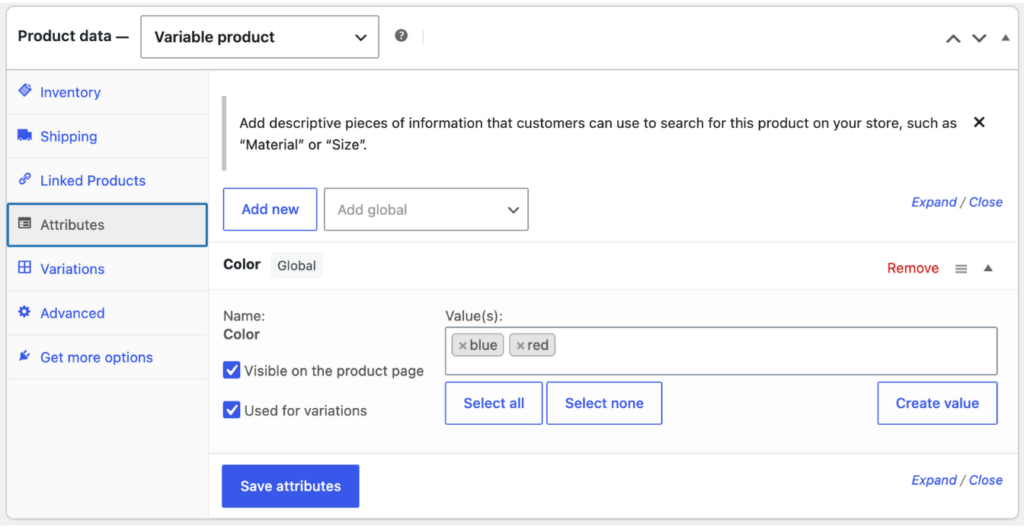
How WooCommerce Stores Variable Products
Under the hood, WooCommerce saves a variable product as one parent post plus a separate variation post for every combination you sell. A T-shirt offered in three sizes and two colors becomes seven records in the database, not one.
The parent holds what the variations share, such as the description and the size and color attributes. Each variation then carries its own SKU and price, and stock is counted at the variation level too. That’s why the parent row in an export often looks half empty.
WP All Export, on the other hand, gives you full control over how those parent and variation records land in the file. Its Product Variations setting exports parents and their variations together, or either set on its own, and I’ll show you where to find it further down.
Exporting Variable Products with WooCommerce’s Built-In Tool
WooCommerce’s exporter can be found on the Products › All Products screen under the Export button. Select Variable product and Variation as the product types to be exported, pick your columns, and click Generate CSV to export the parents and their variations as separate rows.
The WooCommerce exporter has these limits:
- CSV is the only output format
- Filters cover product type and category only
- Individual products can’t be selected
- Column headers can’t be renamed
- Exports run manually, with no scheduling option
WP All Export has none of these restrictions, and the steps below show where each one is handled when you set up a variable product export.
Part 2: Exporting with WP All Export
How to Export Variable Products with WP All Export
WP All Export exports WooCommerce variable products from a drag-and-drop screen where you choose the rows, the columns and the file format before the file is generated. To show how each setting plays out, I’ll rebuild the blue-range promotion export from earlier.
Start a WooCommerce Products Export
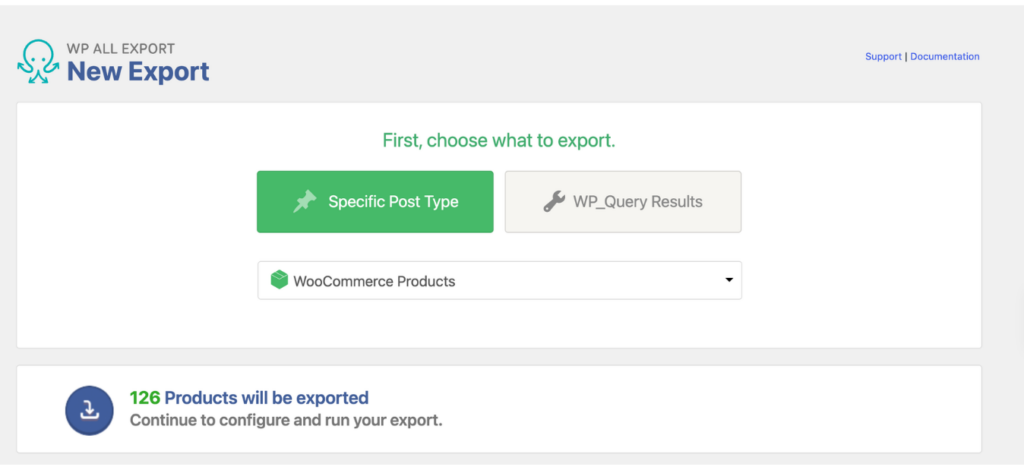
Go to All Export › New Export and select WooCommerce Products from the post type dropdown. WP All Export counts the products and variations in your store and shows the total straight away.
Filter Down to the Variations You Need
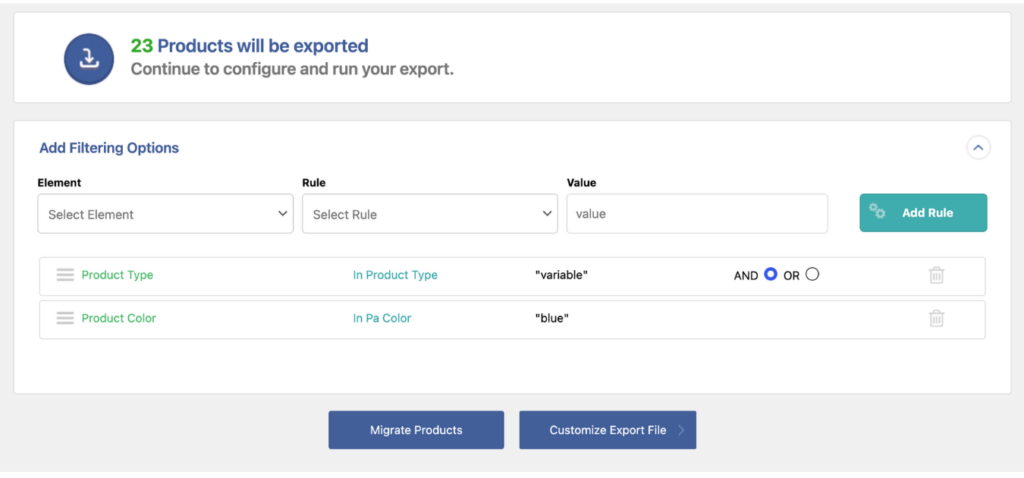
Expand Add Filtering Options. Each rule pairs a product field with a condition and a value, and this export needs two. The first sets Product Type to In Product Type with the value variable, which keeps simple products out of the file. The second sets Product Color to In with the value Blue.
With AND selected between them, a product has to be variable and come in blue to make the cut. WP All Export matches attribute filters against the parent product, so each blue-range product arrives with all of its variations, including its other colors. The record count at the top of the screen updates after each rule, which is a quick way to check the filters before you go any further. When the count looks right, click Customize Export File.
Arrange Your Columns
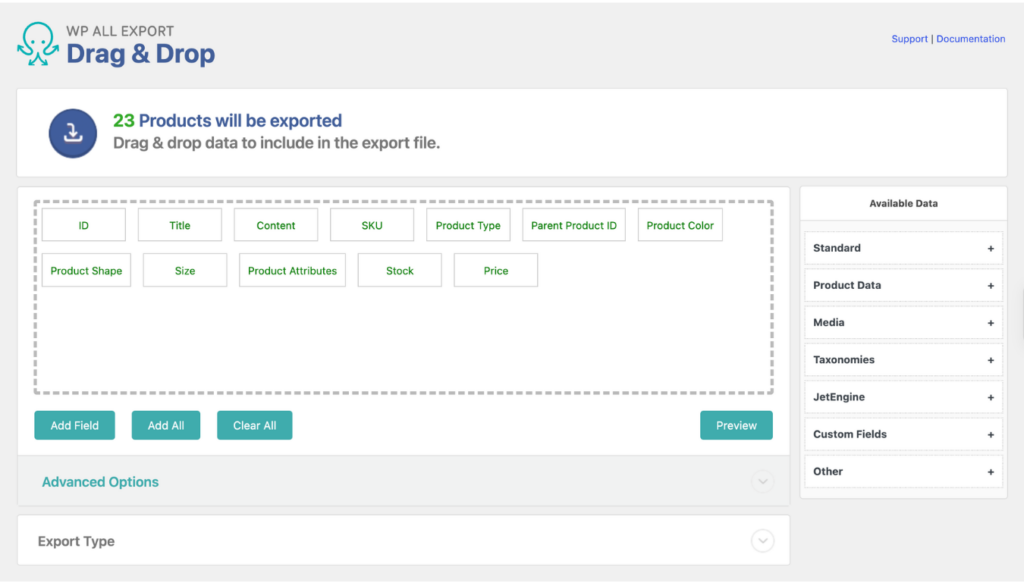
The Drag & Drop screen lists your export columns on the left and the store’s available data on the right. I started with Title and SKU, then added Regular Price and Stock, followed by the Size and Product Color attributes so every variation row shows exactly what it is.
WP All Export exports each attribute as its own column, so sizes and colors never end up packed into a single cell. Clicking a column opens its settings, where I renamed Regular Price to “Price” to match the promotion sheet I was filling in. The same settings can run a column’s values through a PHP function if the data needs reformatting on the way out.
Choose How Parents and Variations Appear
On the same screen, open Advanced Options and find the Product Variations setting. It decides which records from the parent-and-variation structure make it into the file:
| Option | What the file contains | Best for |
|---|---|---|
| Export product variations and their parent products | Each parent row followed by its variation rows | Product lists and store migrations |
| Only export product variations | Variation rows only | Stock counts and price edits |
| Only export parent products | Parent rows only | Catalog overviews |
For the promotion list, I kept the default so each blue-range product appears with its variations listed underneath. A stock or price update would call for Only export product variations instead, which drops the parent rows. If you export variable products for a marketplace feed, the Custom XML Feed type lets you design the tag structure yourself, including nesting variations inside their parent product.
Pick a Format and Run the Export
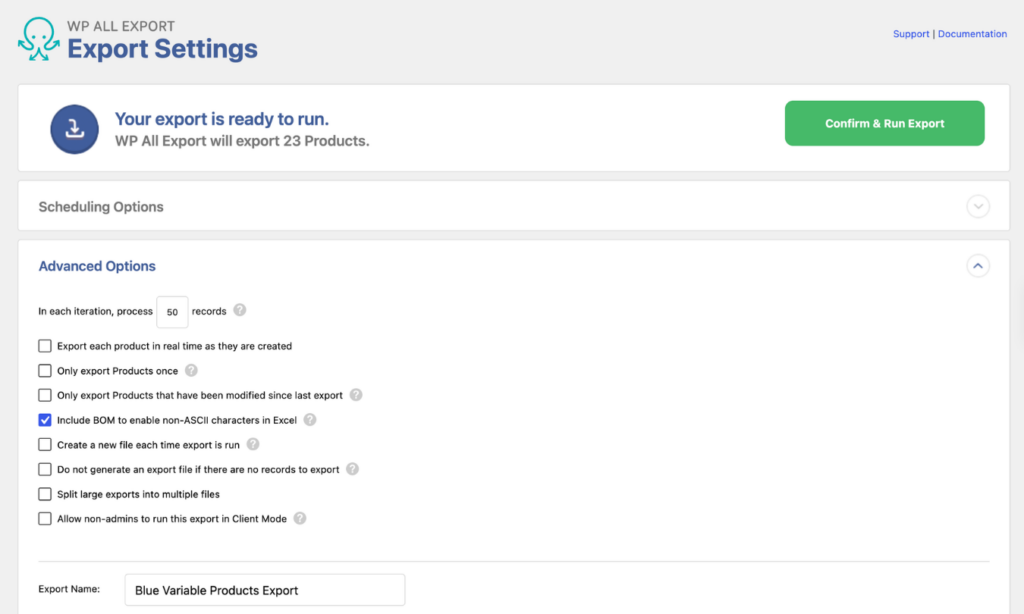
Under Export Type at the bottom of the screen, choose Spreadsheet for CSV or Excel, or Feed for XML. I went with Excel File (XLSX), clicked Continue, and ran the export with Confirm & Run Export on the Export Settings screen.
WP All Export writes native Excel files, so the promotion sheet opened without converting it to a CSV file first. The Export Settings screen is also where scheduling lives if the list needs refreshing every week while the promotion runs.
Bringing Edited Variations Back into WooCommerce
Promotions usually mean price changes, and the spreadsheet you just exported is the quickest place to make them. Edit the prices, keep the ID column as it is, and send the file back through All Export › Manage Exports › Import with WP All Import.
WP All Import matches every row to its variable product or variation by ID and updates only what changed, leaving descriptions and images alone.
The same file can also move your variable products to a different WooCommerce store. On the new site, WP All Import’s Set up automatically option reads the exported file and maps its fields before you run the import, and Manual Setup is there if you want to adjust any mapping first. The full import walkthrough is in How to Export and Import Variable Products in WooCommerce.
Final Thoughts
Every export of WooCommerce variable products comes down to two decisions: which products belong in the file, and how their parent and variation rows should be laid out. WooCommerce’s built-in exporter filters by product type and category and writes CSV files only, so most of that sorting has to happen manually in a spreadsheet afterward.
WP All Export handles both of those decisions before the file is ever generated. Two filter rules are enough to pick out every variable product that comes in blue, and a separate setting decides whether each parent appears with its variations or the variations stand on their own. WP All Export also keeps every export it runs, which means the same list can go out again on a schedule or be sent back into the store through WP All Import once the edits are made.
Common Questions About Exporting WooCommerce Variable Products
Can WooCommerce export variable products without a plugin?
Yes. WooCommerce’s built-in exporter, under Products › All Products › Export, exports variable products and their variations when you select Variable product and Variation as the product types. It writes CSV files only and filters by product type and category, with no attribute filter or scheduling. WP All Export exports WooCommerce variable products to CSV, Excel or XML and filters them by any product field, including attributes like color and size.
How do I export WooCommerce variable products by color or another attribute?
You can export WooCommerce variable products by color or any other attribute with WP All Export.
- Go to All Export › New Export and select WooCommerce Products.
- Expand Add Filtering Options and add a rule that sets Product Type to In Product Type with the value variable.
- Add a second rule for your attribute, such as Product Color set to In with the value Blue.
- Keep AND selected between the two rules and click Customize Export File.
- Drag in the columns you need, choose your Export Type, then click Continue and Confirm & Run Export.
Can I export only the variations of my WooCommerce variable products?
Yes. WP All Export exports only the variations of your WooCommerce variable products when you open Advanced Options on the Drag & Drop screen and set Product Variations to Only export product variations. The parent rows stay out of the file, so every row is a purchasable variation with its own SKU and price, ready for stock counts or price edits.
How do I move variable products from one WooCommerce store to another?
You can move variable products from one WooCommerce store to another with WP All Export and WP All Import.
- On the original store, go to All Export › New Export, select WooCommerce Products, and click Customize Export File.
- Add your product columns, open Advanced Options, and keep Product Variations set to Export product variations and their parent products.
- Run the export with Confirm & Run Export and download the file.
- On the new store, go to All Import › New Import and click Set up automatically.
- Upload the exported file, choose WooCommerce › Products, and click Start Automatic Setup.
- Review the field mappings on the Your Import Is Ready screen and click Run Import.
For a fuller walkthrough, see How to Export and Import Variable Products in WooCommerce.
Further Reading
- A Quick Look at Importing Variable Products into WooCommerce
- How to Import Attributes for WooCommerce Variable Products
- How to Export and Import WooCommerce Products
Get Oxygen
Build it your way with Oxygen.
Not per year, not per site, not per seat. 60 day money back guarantee.