
How to Import WooCommerce Orders from Excel

Importing WooCommerce orders from Excel requires correctly mapping customer details, purchased products, dates, statuses, and totals so that each order is recreated accurately.
Excel introduces additional challenges because dates may be stored as serial numbers, while currency-formatted totals can contain symbols and separators that need special handling.
In this guide, we’ll show you how to import WooCommerce orders directly from Excel without converting the file to CSV, including how to check field mappings and preview orders before running the import.
What Your WooCommerce Orders Excel Spreadsheet Should Contain
What your file needs depends on where it came from. If you exported orders from another WooCommerce store, the standard export already contains most of these columns, so your job is just to verify nothing is left out. If you’re migrating from another platform, the export will use that platform’s own column names, and the goal is to confirm every field below has an equivalent in the file before the import runs.
An order import may contain many more fields than the list below. But these are the columns that decide whether an imported order is usable, so they’re the ones to verify before running anything:
| Column | What It Holds | Why It Matters |
|---|---|---|
| Order Number / ID | The original order identifier | Matches orders on re-imports and keeps updates from creating duplicates |
| Order Date | The original purchase date and time | Keeps revenue reports and order history in the right timeline |
| Status | processing, completed, refunded, etc. | Preserves refund histories and the true state of each order |
| Customer Email | The buyer’s email address | Links the order to the right customer account |
| Billing Fields | Name, address, city, state, postcode, country, phone | Populates the billing address on the order record |
| Shipping Fields | Name and full shipping address | Populates the shipping label; falls back to billing if missing |
| Line Items | Product SKU or ID, quantity, and total per item | Attaches purchased products to the order |
| Order Total | The final amount paid | Drives reports and reconciliation |
| Payment Method | Gateway name and transaction ID | Completes the financial record |
| Coupons | Coupon code and amount applied | Keeps discount history accurate |
| Refunds | Amount, reason, and date | Maintains the full financial trail |
| Customer Note | The note added at checkout | Carries over delivery instructions and special requests |
If a platform export is missing one of these fields, it doesn’t have to block the import. WooCommerce fills gaps sensibly: orders without shipping addresses fall back to billing, orders without a customer match import as guest purchases, and totals can be recalculated from the line items. The columns above simply decide how complete each order record is when it lands.
How to Import WooCommerce Orders from Excel
The section above is exactly where most WooCommerce order import plugins fail. They either can’t read the Excel file, or they ignore the relationships inside each order.
That combination is why I use WP All Import for this. The plugin reads .xlsx and .xls files directly, so the data arrives exactly as Excel stored it. Its Automatic Setup maps order fields on upload, including billing and shipping addresses, line items, totals, and statuses. Large order histories run through background batches, so the import finishes without server timeouts.
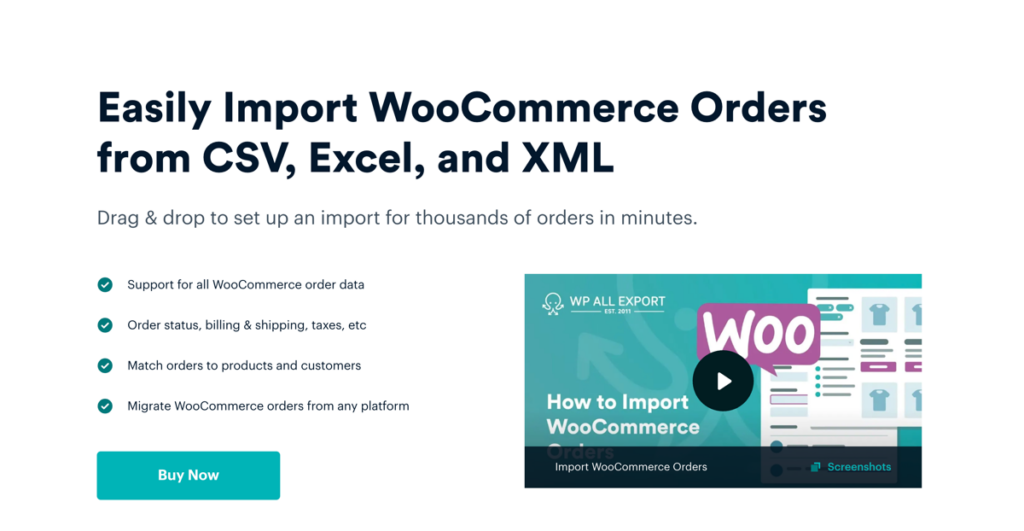
For this walkthrough, I’ll use WP All Import. When a workbook has anything unusual in it, the pre-filled template editor lets you review the mapping before importing anything to your database. The whole workflow runs in four steps.
Step 1: Load Your Orders Excel into the Import Wizard
Once WP All Import is installed and activated, open All Import › New Import and click the Set up automatically banner at the top.
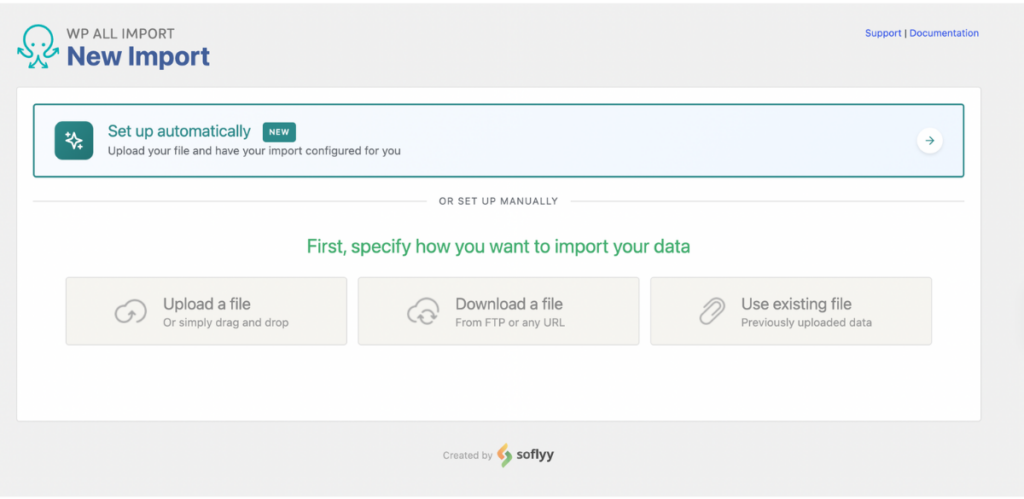
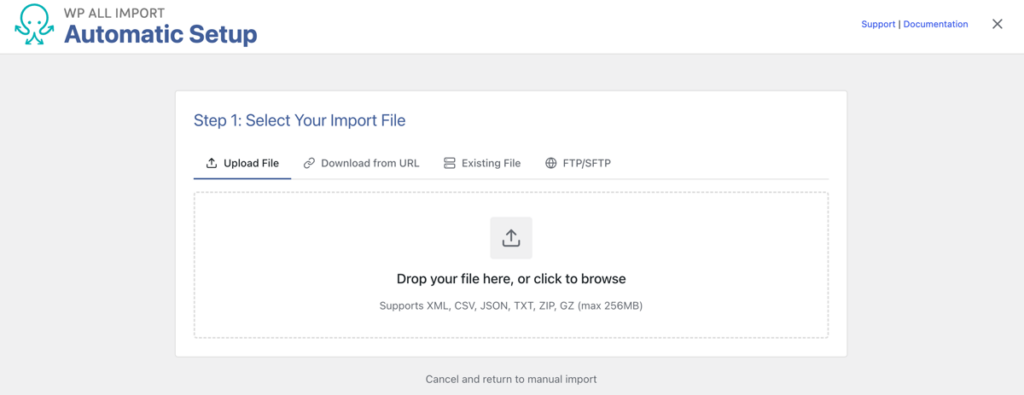
The wizard accepts your file four ways: a direct upload from your computer, a download from a hosted URL or Google Sheets link, a file already sitting in /wp-content/uploads/wpallimport/files/, or a direct pull from an FTP/SFTP server. Excel (.xlsx and .xls), CSV, and XML files all work.
Under Choose What to Import, select WooCommerce, then Orders.
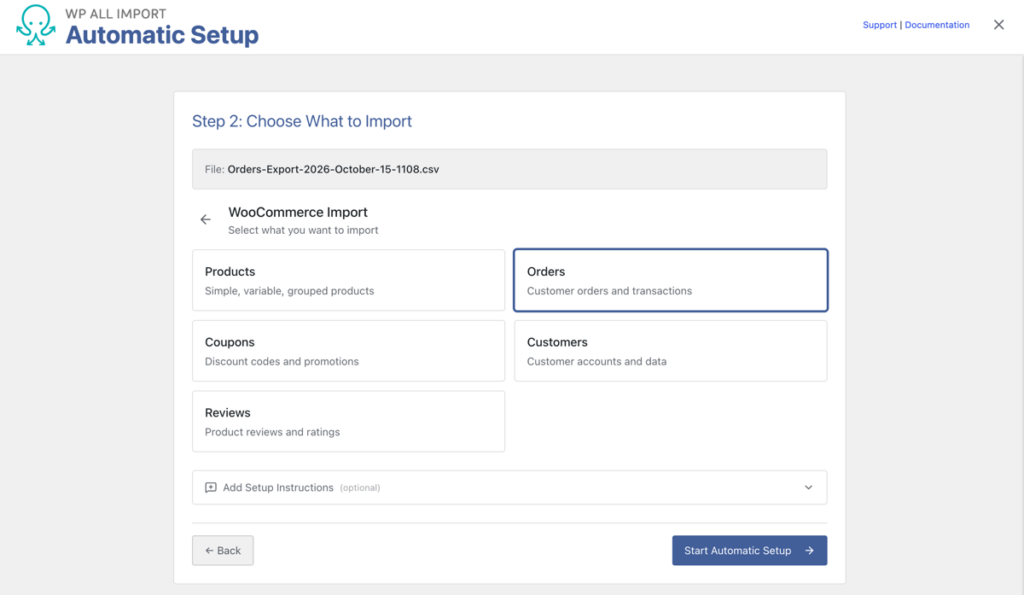
If the Excel file needs explanation, expand Add Setup Instructions and describe it in plain English, like “Order dates are in MM/DD/YYYY format” or “Line items are pipe-delimited with SKU, quantity, and total.” Then click Start Automatic Setup, and the plugin parses the Excel file and maps the order structure on its own.
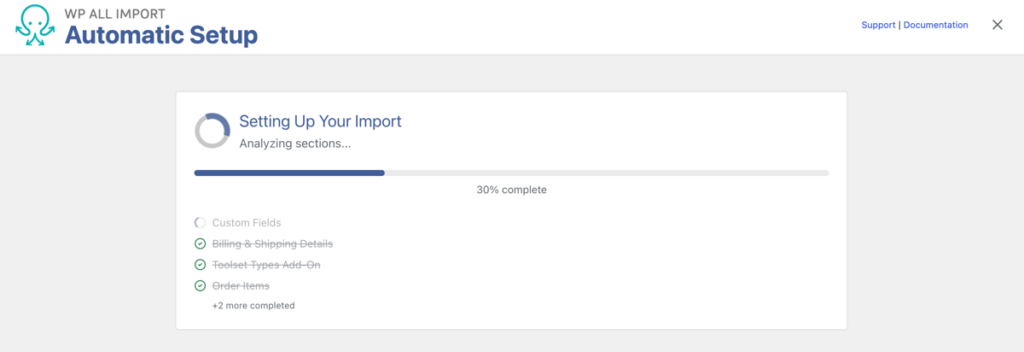
Step 2: Check the Mapped Order Fields on the Summary Card
The analysis finishes on the Your Import Is Ready card, which reports the detected order count and the number of fields mapped from your workbook.
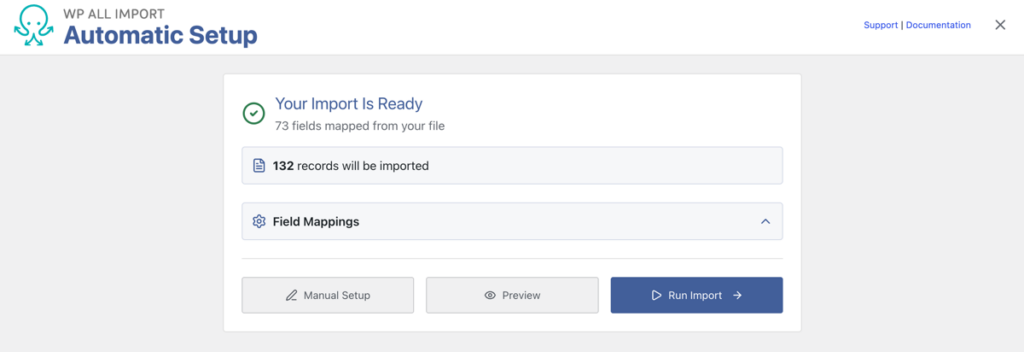
Click Field Mappings to expand the checklist and go through the mapped fields, looking for anything that sticks out.
The rows worth a closer look on an order import are the customer details (billing name, email, phone, and addresses), the order financials (order total, shipping total, taxes, discounts, and payment method), the line items column holding purchased products with quantities and prices, and the status and date columns that decide how each order behaves after it lands.
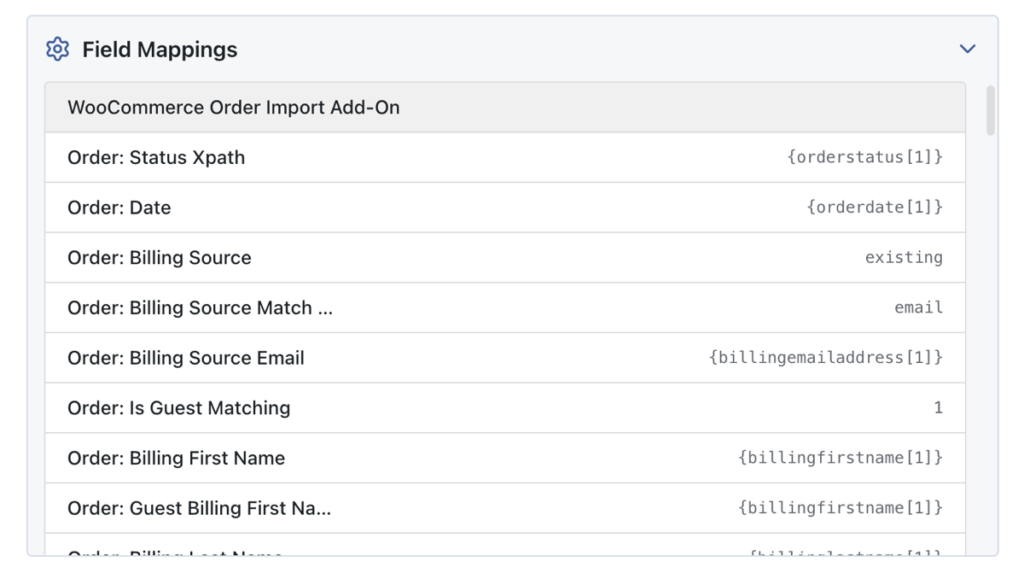
Spot something in the wrong field? Click Manual Setup to open the template editor and correct it. If all the mappings look right, move on to the preview.
Step 3: Preview Each WooCommerce Order Before It Imports
Click Preview on the summary card and a preview panel opens alongside your field mappings. For orders, the preview runs in WP Admin View, so what you’re looking at is the actual WooCommerce order edit screen: billing and shipping addresses filled in, line items listed with their quantities and totals, and the order total sitting where it should.
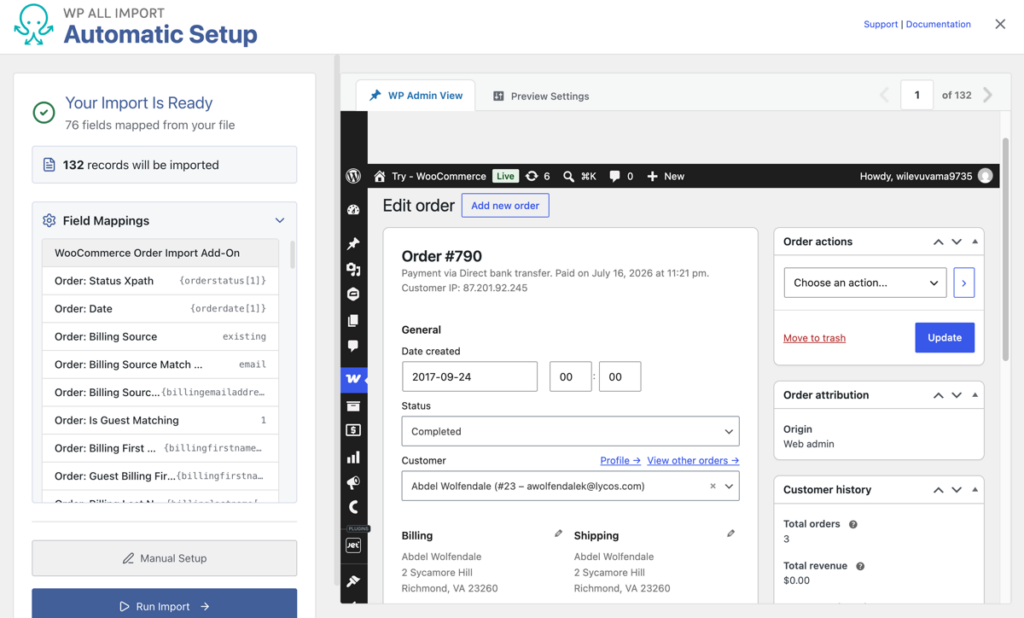
Spend most of your time navigating between complicated records using the arrows at the top. Orders with several line items, applied coupons, or partial refunds are where a wrong column mapping can break your import, and it’s much easier to catch those here than after a few thousand orders have landed.
Step 4: Run the WooCommerce Order Import
Once you’ve verified everything from the preview, click Run Import on the summary card. From there, WP All Import works through the Excel file in background batches, so even an order file with thousands of rows will import cleanly without hitting a server timeout. A progress bar tracks how many orders have been created as it goes.
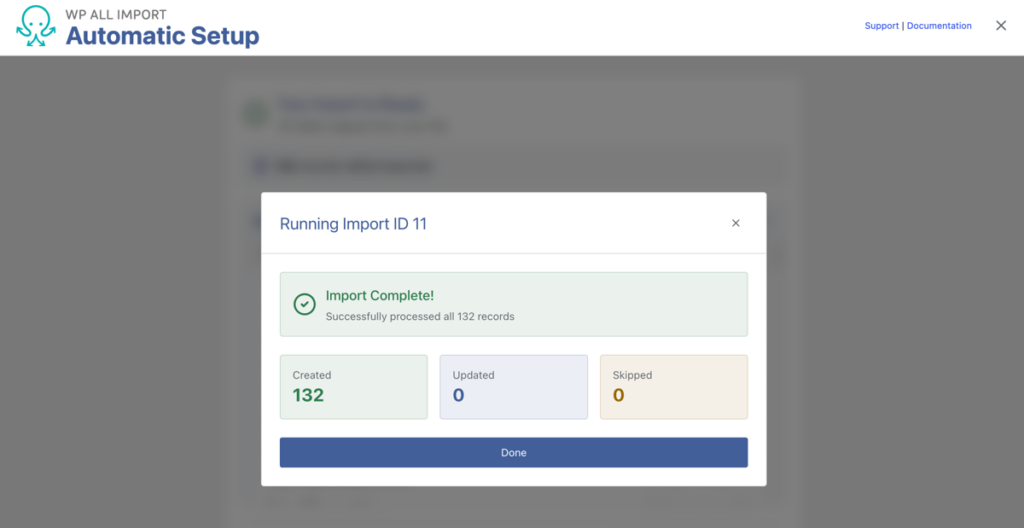
Once it finishes, don’t take the summary screen’s word for it. Navigate to WooCommerce › Orders, open a few complicated orders in your file, and check them against the original spreadsheet: line items intact, customer attached, status correct, total matching.
Order-Specific Settings to Check in Manual Setup
Orders carry more moving parts than products. Beyond the main record, each order can hold line items, shipping lines, fees, taxes, coupons, refunds, and notes, and each of those has its own section in the template editor. Automatic Setup maps them on upload, but a minute of review here is what separates a complete order history from a partial one.
Click Manual Setup on the summary card to open the pre-filled editor. Here’s what you should look at.
1. The Order Items Section
This is the core of an order import. The Order Items section dedicates a tab to each data type: Line Items (product SKU or ID, quantity, and total per item), Shipping (method and cost), Fees, Taxes (code and total), Coupons (code and amount), and Refunds (amount, reason, and date).
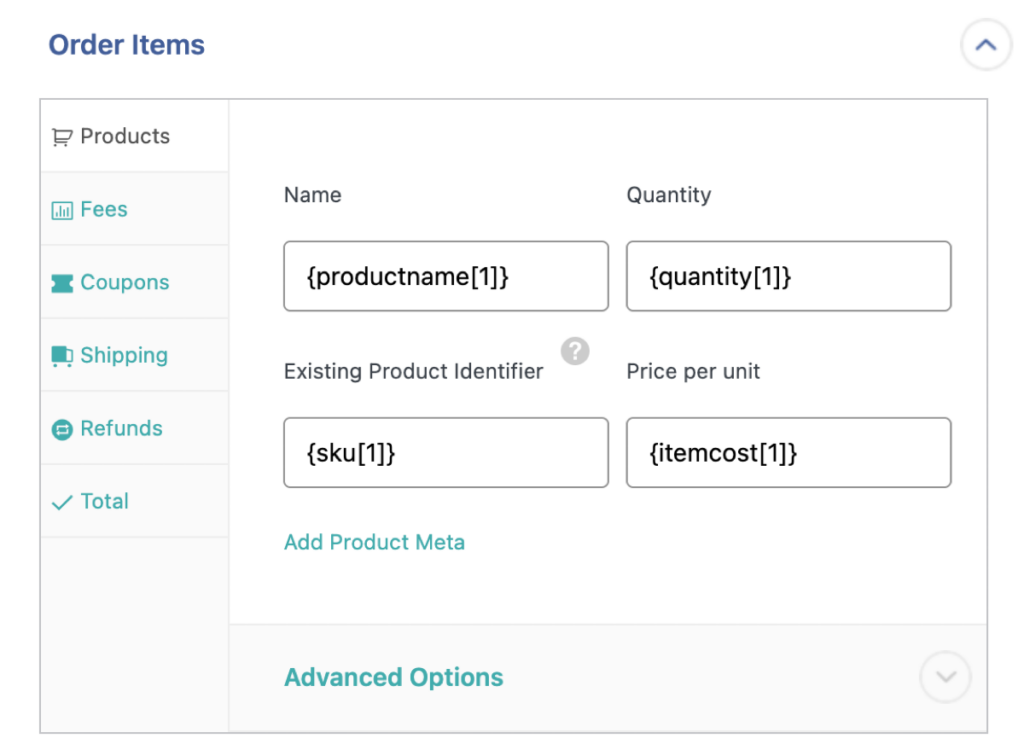
Automatic Setup has already mapped the Excel columns to each tab your file contains, so your job here is just to confirm the pairings look right. Empty tabs are fine; WooCommerce simply skips data it was never given.
2. Order Totals and Currency Symbols
Totals formatted as $1,299.00 land in the import as broken, because the currency symbol and thousands separator are part of the cell value. When you’re reviewing the General tab in the template editor, check how the Regular Price or Order Total fields are mapped and open the preview to see how the values read. If a total shows up broken, format the column as plain numbers in Excel and re-upload, or strip the symbols with a function in the template editor.
If your Excel has no totals column at all, that’s not a blocker. WooCommerce can recalculate order totals from the line items during the import, and that’s often the cleaner route anyway.
3. Matching Each Order to the Right Customer
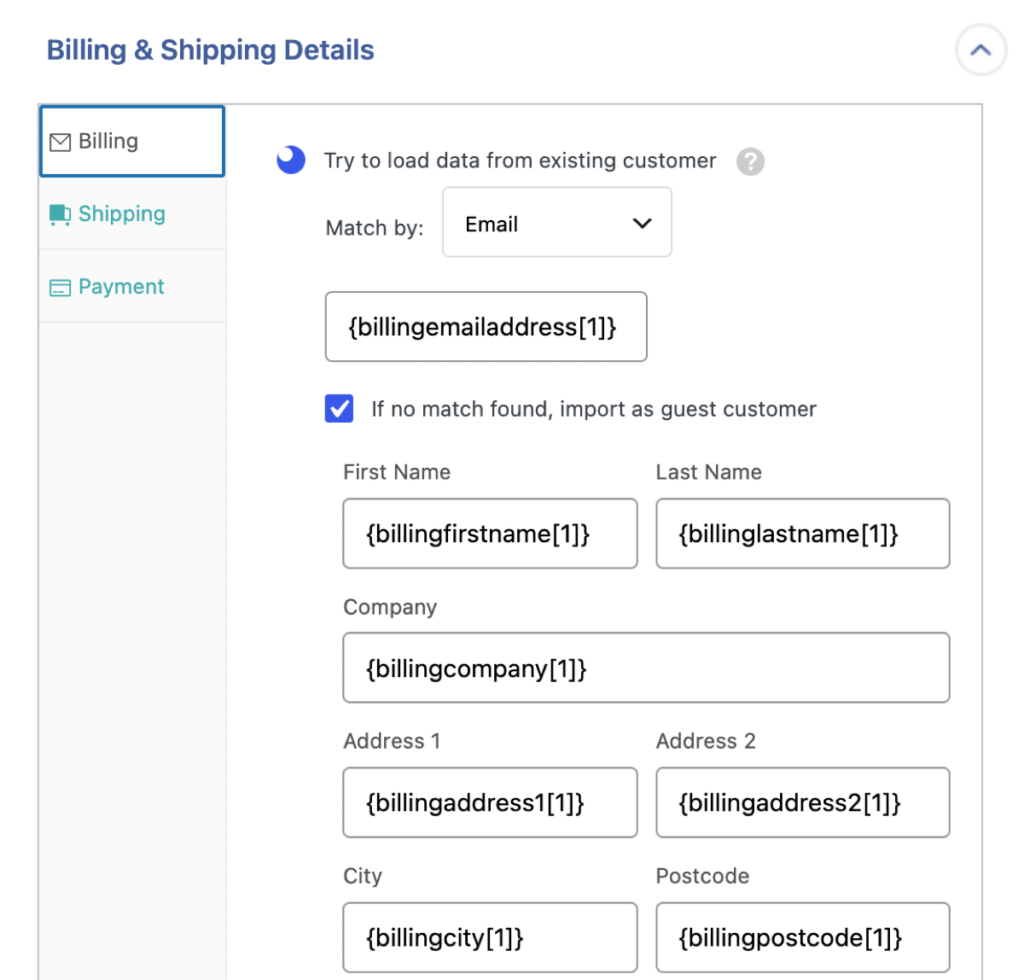
The customer on each order can be matched by email, by user ID, or by username. Email is the one that survives platform migrations, since addresses stay with the customer when everything else changes.
When you’re reviewing the mapping, confirm the customer email column was detected and check the preview to see whether the order is attached to a real account. A matched order updates the customer’s billing details, order history, and total spend figures on their profile, while an unmatched one imports as a guest purchase, which is usually the right outcome for an old order whose customer no longer exists.
Final Thoughts: Importing WooCommerce Orders from Excel
WooCommerce has no built-in order importer, and Excel adds a second layer of problems on top. An order import plugin that only moves rows leaves you with empty orders, detached customers, and dates from the wrong year.
WP All Import imports WooCommerce orders from Excel workbooks directly, with no conversion step. Its Automatic Setup maps order fields on upload, the Order Items section attaches every purchased product by SKU or product ID, and customer matching links each order by email or user ID. Original dates and statuses import intact, the preview panel verifies every record first, and the result is an accurate, complete order history without the cleanup.
More Questions on Importing WooCommerce Orders from Excel
Can WooCommerce import orders from Excel?
No. The built-in WooCommerce importer handles products only and reads CSV, not Excel. WP All Import imports orders from .xlsx and .xls workbooks directly, including line items, customer details, statuses, and dates, with automatic field mapping on upload.
What columns does a WooCommerce orders Excel file need?
An orders file needs the order identifier, order date, order status, customer email, billing address columns, and line item data with the product SKU or ID, quantity, and total at minimum. Shipping address, payment method, and coupon or refund columns make the history complete where they exist.
Why do order dates import as numbers from my Excel file?
Excel stores dates internally as serial numbers, so a cell displaying 03/15/2024 is actually the number 45366. If the column loses its date formatting, the import reads the raw number. Confirm the column displays real dates in Excel, save, and re-upload so WP All Import maps the actual dates.
Will importing WooCommerce orders send emails to my customers?
No. WP All Import writes order records directly into the database without sending transactional emails. Keep the email sending option unchecked during import, and customers receive nothing from the migration, even as order statuses are set or changed.
How do I update existing orders from Excel without creating duplicates?
To update existing orders without duplicates, set the original order number or ID as the Unique Identifier in WP All Import using the Auto-detect button on the Import Settings screen. Re-running the import then matches incoming rows to existing orders and updates them in place..
Further Reading
Get Oxygen
Build it your way with Oxygen.
Not per year, not per site, not per seat. 60 day money back guarantee.