
A Complete Guide to Advanced WooCommerce Order Imports

Moving orders into WooCommerce from another platform looks like a spreadsheet job until the orders land. The list fills up, the totals look right, and then you open one order and find three products stacked on a single line. Or a customer who has bought from your store for years shows up in the Customer field as a guest.
The file isn’t the problem. An order carries its own dates, totals and addresses, but it also points at products, customer accounts and shipping methods that only exist on your site. When one of those is missing, the order still imports with a gap where that data should be.
This guide walks through a normal order import first. Then it covers the advanced import settings that close those gaps, so the orders you finish with match the ones you started with.
Table of Contents
- What Is an Advanced WooCommerce Order Import?
- How to Import WooCommerce Orders With WP All Import
- The WooCommerce Add-On Sections in Manual Setup
- The Advanced Import Settings for Order Imports
- Fixing WooCommerce Order Data in Manual Setup
- How to Check an Imported Order
- Do You Need Manual Setup for Every Order Import?
- More Questions on Advanced WooCommerce Order Imports
What Is an Advanced WooCommerce Order Import?
Most order imports start as a file with one row per order. If every row carries everything the order needs, the import is straightforward. The work turns advanced when a row depends on records the file doesn’t contain.
Each order points at a product, a customer account, a shipping method and a payment gateway. Those live on your site, not in the file. When one of them is missing, the order still imports, but that part of it lands empty.
| What the file provides | What your site needs first |
|---|---|
| Line items with name, quantity and price | The product, with a matching SKU |
| Customer name, email and addresses | A customer account, or guest checkout |
| Shipping method name and cost | That method inside one of your shipping zones |
| Payment method and transaction ID | An active payment gateway |
| Tax amounts | Taxes switched on, plus a tax class on the product |
| The original status value | A status WooCommerce recognises |
WooCommerce has no order importer of its own, so the plugin running the import decides how much of each order arrives intact.
The order of imports matters as much as the mappings. Products go first, then customers, then coupons, then orders, because every order in the file points at one of them.
How to Import WooCommerce Orders With WP All Import
WP All Import is a WordPress import plugin that brings WooCommerce orders in from CSV, Excel and XML files. The order fields come from its WooCommerce Import Add-On, and the mapping is done by Automatic Setup, a feature that reads your file and pairs each column with a WooCommerce order field before you touch a thing.
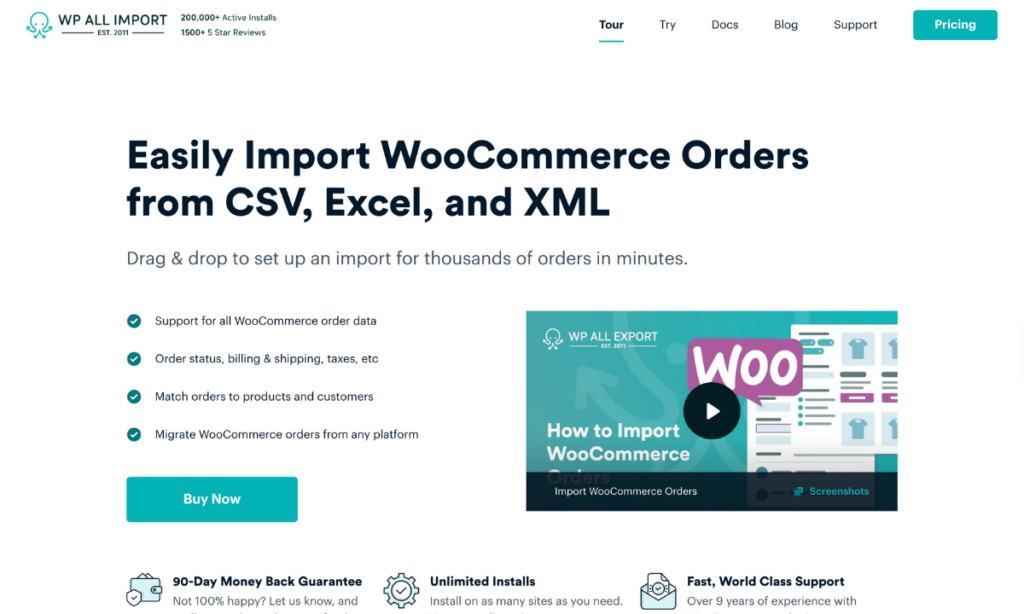
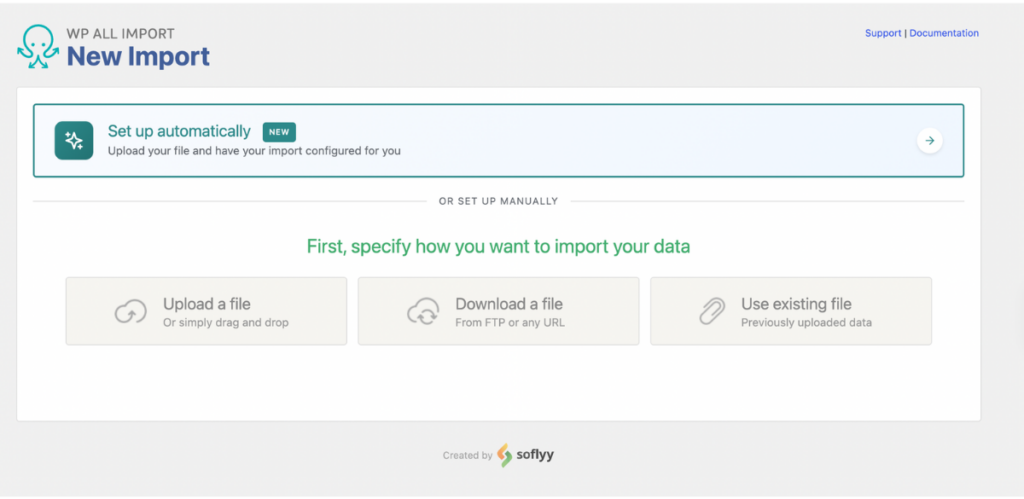
Go to All Import › New Import and click the Set up automatically banner.
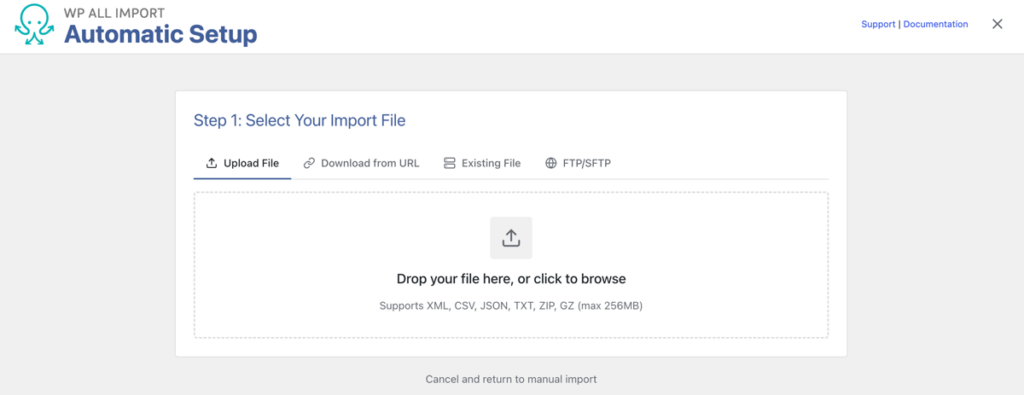
On the Select Your Import File step, upload the file or point the plugin at a URL, a copy on the server, or an FTP/SFTP connection. Each file caps at 256 MB.
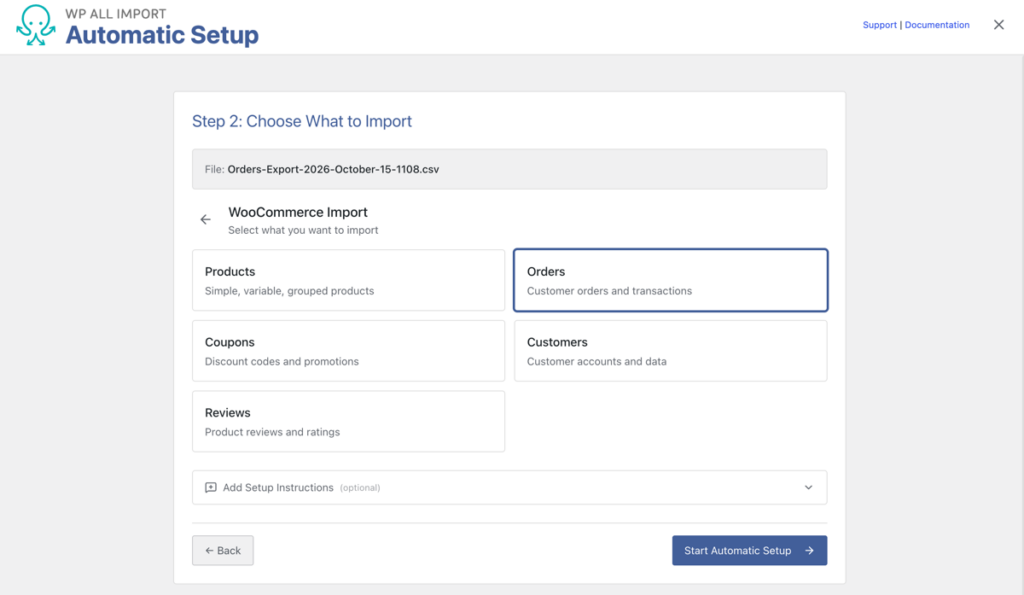
On the Choose What to Import step, select WooCommerce, then Orders. Add Setup Instructions is optional and takes plain notes about anything unusual in the file. Click Start Automatic Setup.
The Your Import Is Ready card reports the fields mapped and the record count. A file with one row per product counts rows, so records outnumber orders.
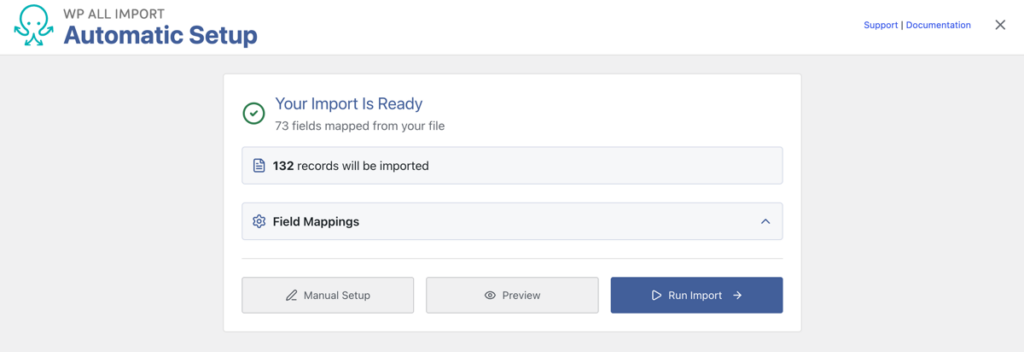
Click Run Import. Rows that share an order ID come out as one order, so a file with three products spread across three rows finishes as one order with three line items. For a clean export from another WooCommerce store, that is usually the whole job. When it isn’t, click Manual Setup on the summary card and the editor opens with every mapping already filled in.
The WooCommerce Add-On Sections in Manual Setup
Automatic Setup can map every column and still leave an order incomplete, because an order holds more parts than most files describe. A field in the template with nothing in it imports nothing. Manual Setup groups every field into sections that follow the way an order is built, and the table below shows what each one holds.
| Section | What it holds |
|---|---|
| Order Details | The Order Status and the order date |
| Billing & Shipping Details | Billing for the customer match, Shipping for the delivery address and customer note, Payment for the method, date and transaction ID |
| Order Items | Products, Fees, Coupons, Shipping, Refunds and Total, one tab each |
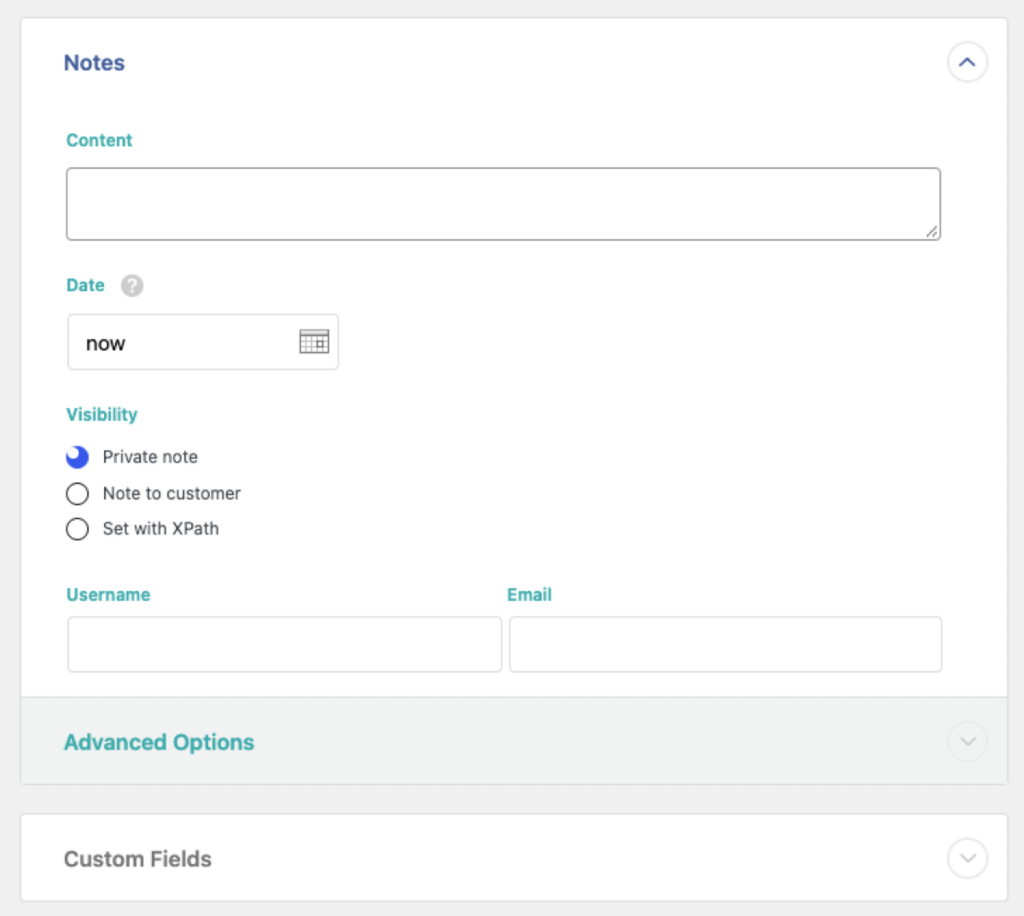
| Notes | Private order notes and customer messages from the source order |
| Custom Fields | Tracking numbers, delivery dates and meta added by other plugins |
Order Items carry most of the work. Each tab maps one type of line, and the tax lines sit under Advanced Options inside whichever tab needs them, such as shipping tax on the Shipping tab. A tab you leave empty imports nothing, which is the right result for an order that never had a fee or a coupon.
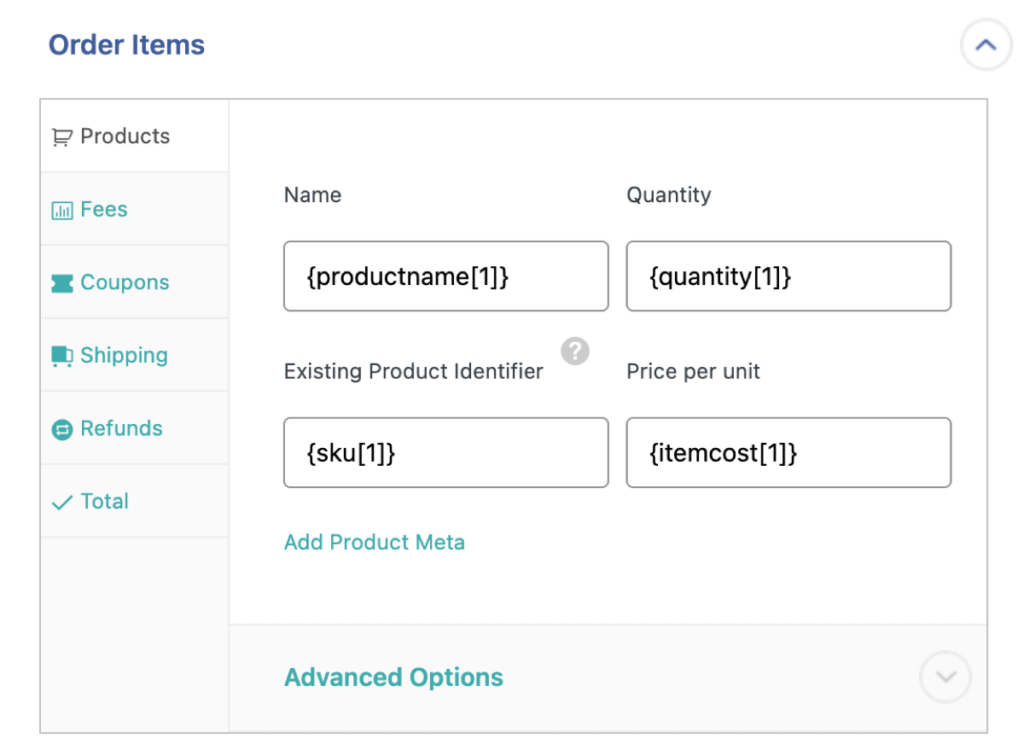
Two behaviours in this section are worth knowing before you map a column. Nothing in the Total tab is calculated, so the order total arrives exactly as your file states it, including any discount you applied by hand. And the Products tab links each line to a product already on the site by SKU, product ID or title, so a line whose product never arrived on the new store still imports, just without the link.
Notes and Custom Fields are the two sections people skip. Notes holds the comments support staff read when a customer asks about an old order, and Custom Fields picks up the meta other plugins register, so tracking numbers usually appear there with the column already matched.
The Advanced Import Settings for Order Imports
The template decides how a single order looks. The Import Settings screen decides what happens when you run the same import again. That second question is what separates a one-off import from a feed you can leave running, and these are the settings worth changing.
Unique Identifier. Click Auto-detect, or point the field at the order ID column in your file, such as {orderid[1]}. This is how WP All Import recognises an order it has already imported, so a second run updates that order instead of creating a copy. Keep the source order number in a custom field too, named something clear like _original_order_number, so support can find an order by the number the customer knows.
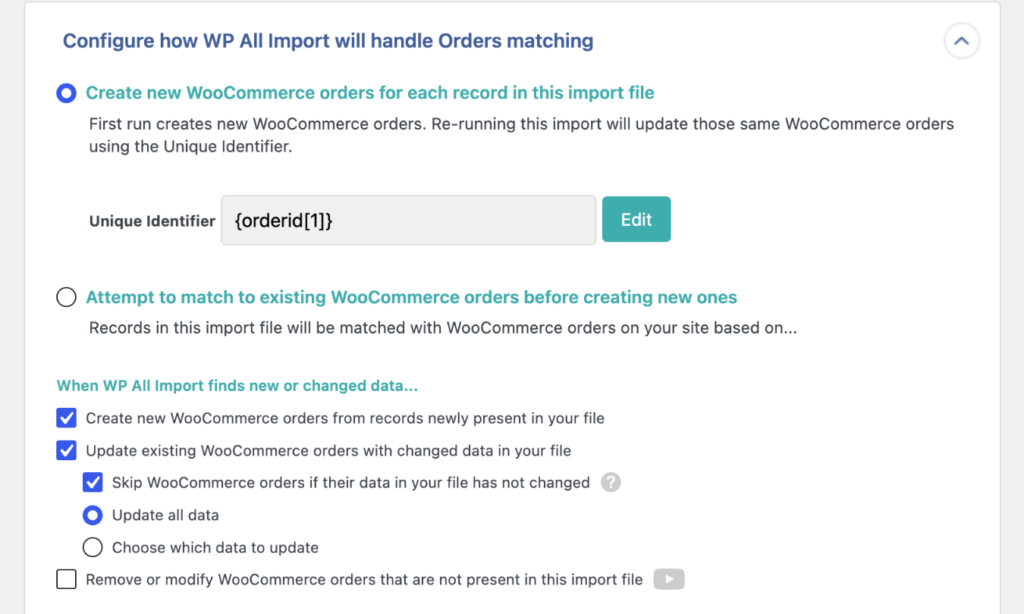
Update behaviour. Three controls sit together here. Update existing WooCommerce orders with changed data in your file keeps the order current when the feed says something new. Skip WooCommerce orders if their data in your file has not changed keeps a recurring run from rewriting every order it touches. Choose which data to update narrows a run to specific fields, which suits a feed that carries status changes and little else.
Remove or modify WooCommerce orders that are not present in this import file. This setting deletes or changes every order missing from the file. Turn it on only when the file always carries the full order history. Most marketplace feeds send the last few days and nothing more.
Email notifications. The Block email notifications during import checkbox under Email Notifications for Customers is on by default, so a historical import doesn’t email anyone. Leave it checked unless the orders are new.

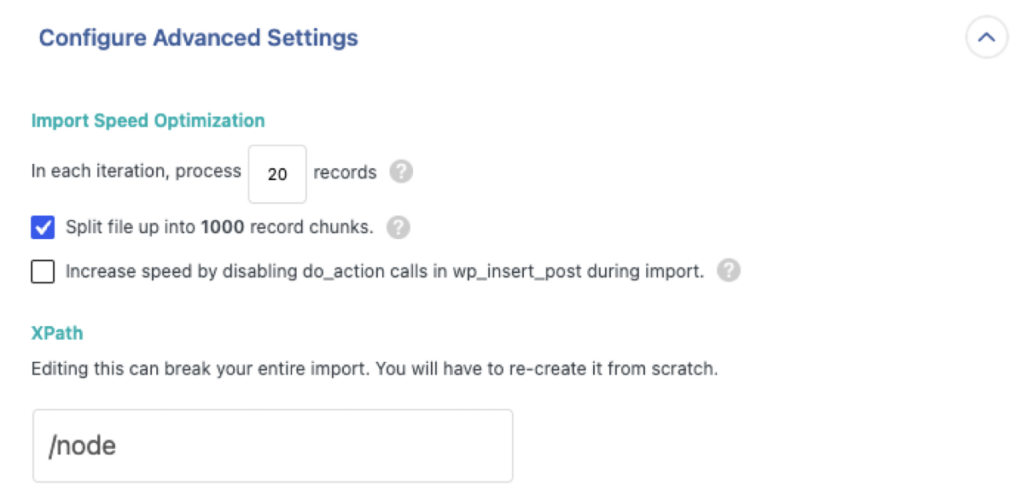
Configure Advanced Settings. In each iteration, process X records sets how many orders go through per server request. Split the file into record chunks when a long order history times out partway through.
Recurring feeds run on Automatic Scheduling inside the plugin, or on a cron job you set up yourself. Either way, WP All Import writes to the same order tables WooCommerce reads, including stores running High-Performance Order Storage.
Fixing WooCommerce Order Data in Manual Setup
Automatic Setup covers most files. These are the problems that still send you into Manual Setup, and each one starts with something visible on the order screen.
Products merge into one line item. An order for three products opens with one line reading “Walnut Desk Organizer|Linen Apron|Copper Tin Caddy”, carrying only the first product’s price, so the items subtotal falls short of the order total. The file keeps every product for an order on one row, separated by pipes, and the import reads that cell as one value. Open Order Items › Products and map Name, Quantity, Existing Product Identifier and Price per unit to their columns.
Line items aren’t linked to products. The name and price appear, but the line has no thumbnail, SKU or link. Matching runs on the Existing Product Identifier field, so set it to the column holding your SKUs, product IDs or titles. For products the store no longer sells, turn on Manually import product order data and do not try to match to existing products.
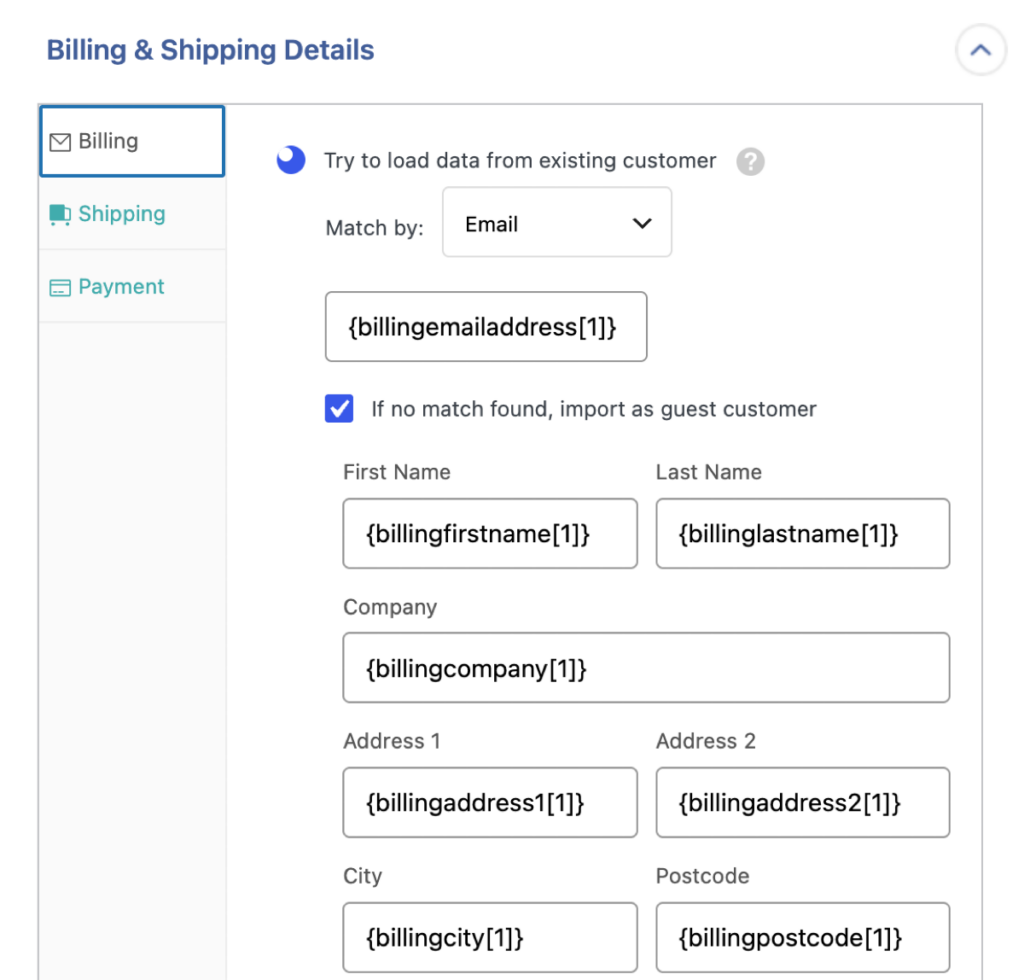
Orders import as guests. The customer shows as Guest, or the order is skipped with a log line naming the email it searched for, like SKIPPED: Search customer by email … Existing customer not found. Both mean no account matched the field being searched. Under Billing & Shipping Details › Billing, match by email and tick If no match found, import as guest customer.
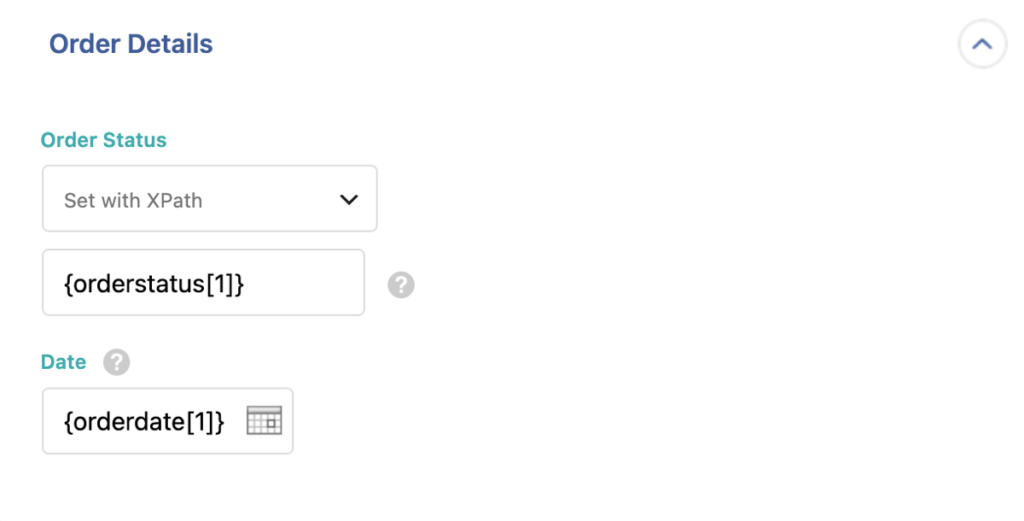
Statuses don’t match. A status such as “fulfilled” or “shipped” has no WooCommerce equivalent, so the order arrives in the wrong state. Add a mapping function in All Import › Settings › Function Editor, then call it from the Order Status field under Order Details. Values the function doesn’t recognise import as On hold, which makes them easy to find.
Totals drop after Recalculate. The order shows the right total until someone clicks Recalculate, and then it falls by the shipping charge. WooCommerce rebuilds the total from the lines it can see, so a charge without its own line disappears. Import shipping through Order Items › Shipping with Shipping Name, Shipping Amount and Shipping Method, and make sure that method exists inside one of your shipping zones.
Payment method is missing. The order carries no “Payment via” line when the gateway named in the file isn’t active on the site. Activate it under WooCommerce › Settings › Payments, then map Payment Method, Payment Date and Transaction ID on the Payment tab.
How to Check an Imported Order
An import summary confirms that every row was processed. It doesn’t confirm the data landed in the right places, and only the orders themselves show that. Open a handful, starting with the ones holding several products, and run through five checks.
- Every product sits on its own line, with a SKU and a link to the product page.
- The shipping line shows the method name and cost, directly under the items.
- Items subtotal, shipping and tax add up to the order total.
- The payment method appears under the order number.
- The customer field links to the right account.
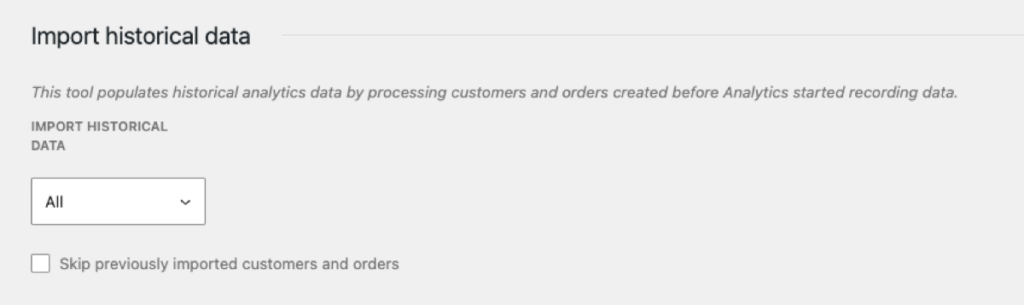
A miss on any of the five traces back to a mapping, and the import log under All Import › Manage Imports names the row and the setting that produced it. Once the sample checks out, go to Analytics › Settings, uncheck Skip previously imported customers and orders, and click Start, so WooCommerce reports include the imported orders.
Do You Need Manual Setup for Every Order Import?
Not every order import needs the manual pass, and most don’t. A clean export from another WooCommerce store usually maps correctly on upload, runs, and matches the source orders line for line. Nothing in this guide needs to be opened.
The files that need the extra work come from somewhere else. Marketplaces, ERPs and older platforms describe an order in their own vocabulary, so the plugin can only fill the fields it recognises. Manual Setup is where the rest gets resolved, one tab per part of the order, and the Import Settings screen is what keeps the next run from duplicating the last one.
If you’re moving years of order history off a platform you don’t control, that setup time is the price of an order list you can trust.
More Questions on Advanced WooCommerce Order Imports
Can WooCommerce import orders without a plugin?
No. WooCommerce has no order importer, so orders arrive through a plugin or not at all. WP All Import imports them from CSV, Excel and XML files, including line items, customer details, shipping, taxes, coupons, refunds and notes.
Why does an imported order show Guest in the Customer field?
The order had no matching customer account when the import ran, so it came in as a guest purchase. Match by email under Billing & Shipping Details › Billing, and import customers before orders. Email is the safer field because user IDs change between sites.
Can I import line items for products the store no longer sells?
Yes. Turn on Manually import product order data and do not try to match to existing products in Order Items › Products, and each line keeps its name and price without a product link. The order stays complete, but that line won’t connect to a catalog product.
How do I stop repeat imports from creating duplicate orders?
Set the Unique Identifier to the order ID column on the Import Settings screen. On later runs WP All Import matches each row to the order it created last time and updates that order, so running the same file twice leaves the same number of orders.
Does importing order history change stock levels?
No. WP All Import leaves product stock untouched during an order import, because those sales already reduced stock on the original store. Stores that should deduct stock on live feeds use the Reduce Stock for Imported Order Items snippet in the plugin’s code snippets library.
Related Information
Get Oxygen
Build it your way with Oxygen.
Not per year, not per site, not per seat. 60 day money back guarantee.