
How to Import Amazon Products into WooCommerce

Building a WooCommerce store manually is slow. If you’re sourcing inventory from Amazon, manually recreating each listing with its photos, prices, and descriptions isn’t practical past the first few dozen items.
In this article, I’ll walk through how to import Amazon products into WooCommerce using a workflow that maps Amazon’s product data automatically, previews everything before it goes live, and keeps prices current over time.
What You Need Before Importing Amazon Products
Importing Amazon products into WooCommerce isn’t just a file transfer. Amazon listings come with a few quirks that shape how the import should be set up:
- Amazon doesn’t hand you a clean export. Most people source product data through the Amazon Product Advertising API or a data provider that returns a CSV or XML feed with columns like title, ASIN, price, image URLs, and the detail page URL. The built-in WooCommerce importer expects its own rigid column names, so that file needs to be reformatted first. That’s the step that kills most manual attempts.
- Products should be set up as affiliate items. Unless you’re dropshipping, a WooCommerce product sourced from Amazon should be an external/affiliate product that sends shoppers to Amazon with your Associates tag attached. Set it up as a regular product, and you’ll break your own commissions.
- Amazon data goes stale fast. Prices, discounts, and availability change constantly. A catalog imported once and forgotten will show wrong prices within days, which violates Amazon’s Associates guidelines and erodes shopper trust.
- Image URLs point to Amazon’s servers. Amazon product photos are hosted on Amazon’s CDN. If you embed those URLs directly, you’re at the mercy of Amazon’s hotlinking behavior. Downloading the images into your own Media Library is the safer route.
Keep these four things in mind as we go through the workflow.
How To Import Amazon Products into WooCommerce
There are a few ways to move Amazon listings into WooCommerce, but the one I rely on is WP All Import. It handles Amazon data well because it reads any CSV or XML feed regardless of column names, and its Automatic Setup maps incoming columns to WooCommerce product fields on upload. When a file needs closer attention, the Manual Setup opens a pre-filled template editor where every setting can be reviewed before anything goes live.
Here’s the full workflow.
Step 1: Upload Your Amazon Product File
Navigate to All Import › New Import in your WordPress dashboard, then click the Set up automatically banner at the top of the screen.
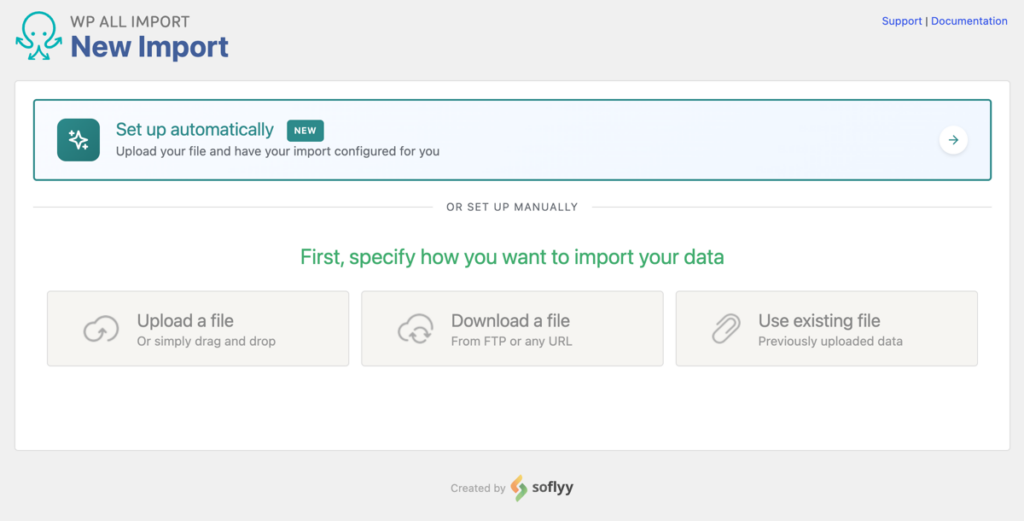
The wizard offers four ways to add your Amazon product file:
- Upload a file: Grab a CSV or XML export from your computer, up to 256 MB.
- Download from URL: Paste a link to a live Amazon data feed from your API provider. This is the option I recommend, because you can rerun the import against the same URL whenever you need updated prices.
- Existing file: Reuse a file already sitting in the
/wp-content/uploads/wpallimport/files/folder on your server. - FTP/SFTP: Pull the file straight from a remote data provider’s server.
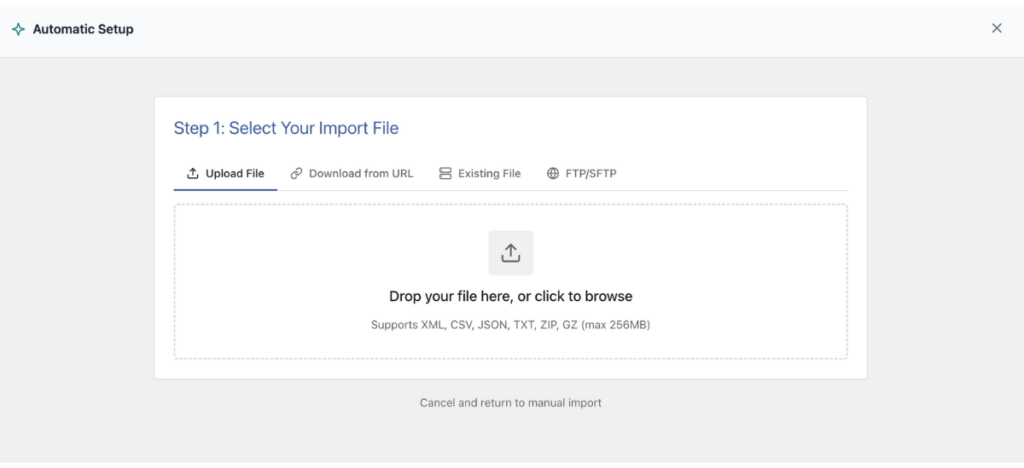
Under Choose What to Import, select WooCommerce, then Products (Simple, Variable, Grouped).
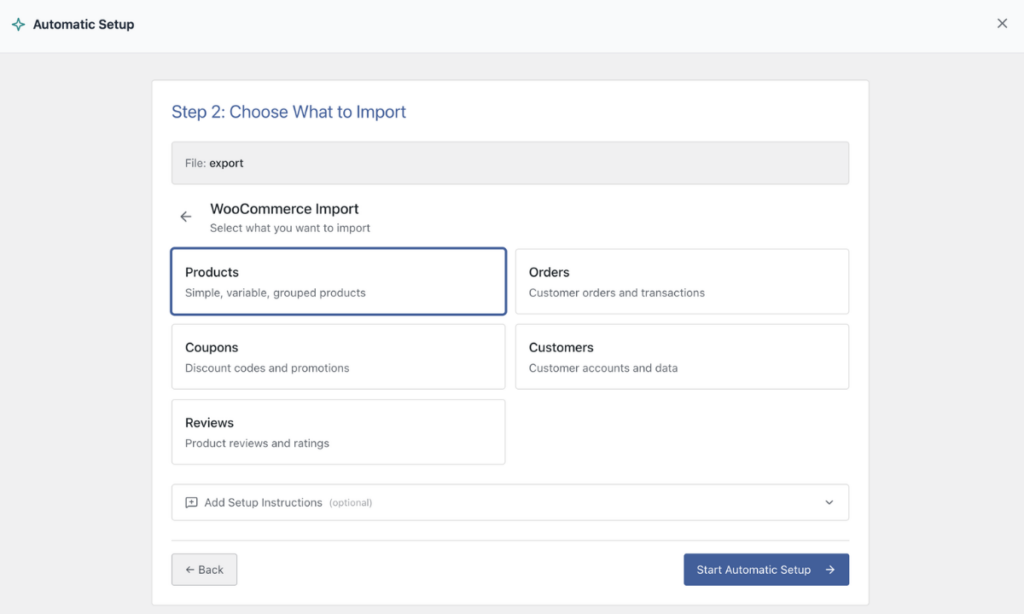
Before starting the analysis, expand the Add Setup Instructions box and tell the wizard how your Amazon file is structured. For example: “Prices are in the ListPrice column, and sale prices in the Price column” or “The Image_URL column may contain multiple URLs separated by a pipe.” Then click Start Automatic Setup.
Step 2: Review the Mapped Amazon Product Fields
The plugin reads your file and displays the Your Import Is Ready card, showing how many product records it found and how many fields it mapped.
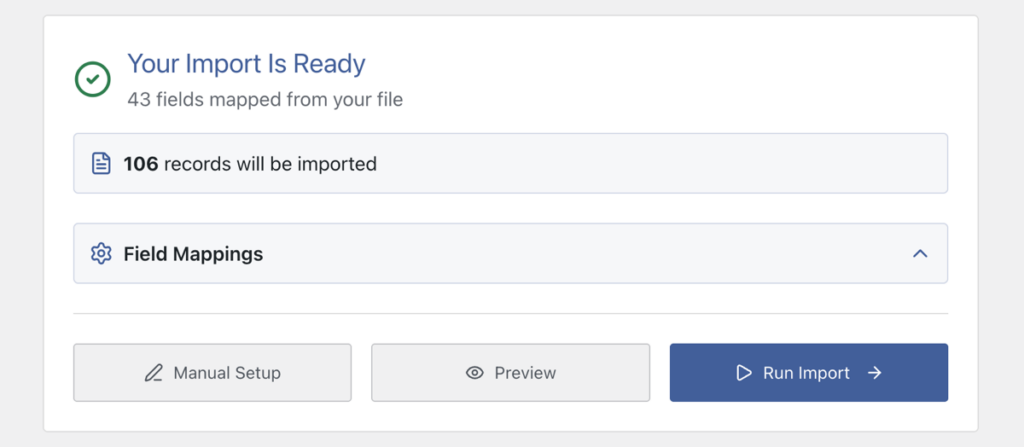
Click Field Mappings to expand the checklist. For an Amazon import, these are the rows I check first:
- Product title and description mapped from Amazon’s title and feature/description columns.
- Prices mapped from the Amazon list price and current price columns.
- Images pointing at the Amazon CDN URLs.
- The detail page URL, since that’s what your affiliate links will be built from.
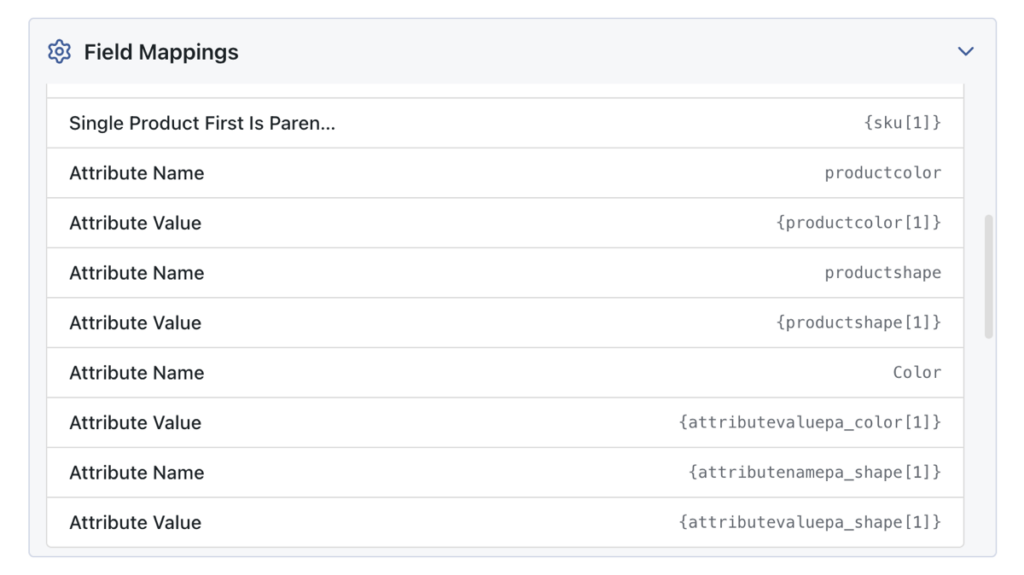
If a column got mapped to the wrong field, that’s fixable in a moment. Most API-generated files map cleanly on the first pass.
Step 3: Preview the Amazon Products in WooCommerce
Click the Preview button and a panel opens on the same screen, next to your field mappings.
- Frontend View renders actual product pages from your theme, so you can see how the Amazon photos, prices, and titles look to shoppers.
- WP Admin View shows the backend edit screen, confirming the data landed in the right WooCommerce fields.
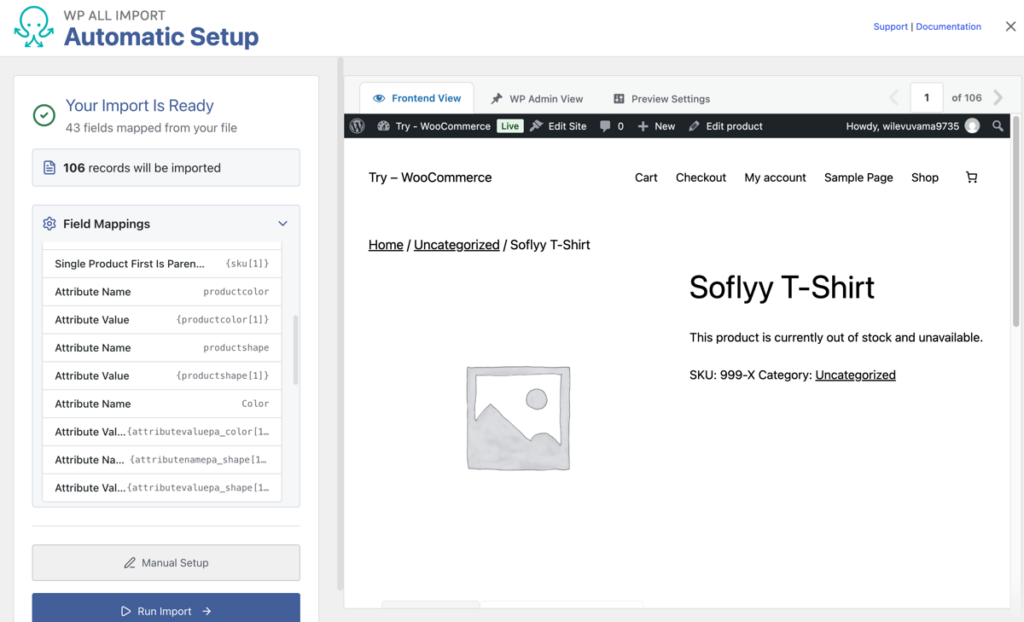
Flip through a few records. Amazon feeds occasionally have rows with missing images or stripped prices, and it’s better to catch those here.
Checking the Amazon-Specific Product Settings in the Template Editor
The automatic mapping handles the generic product fields, but an Amazon import has a few settings that deserve a closer look to make sure everything lands correctly. Instead of running the import right away, click Manual Setup at the bottom of the summary card. This opens the pre-filled template editor, where everything Automatic Setup configured can be reviewed and adjusted.
Here’s what I check every time:
1. Set the Product Type to External/Affiliate
In the WooCommerce Add-On section, find the Product Type dropdown. Automatic Setup usually detects simple products, but for Amazon listings you almost always want the External/Affiliate product. This product type tells WooCommerce to treat the listing as a referral rather than something you ship yourself.
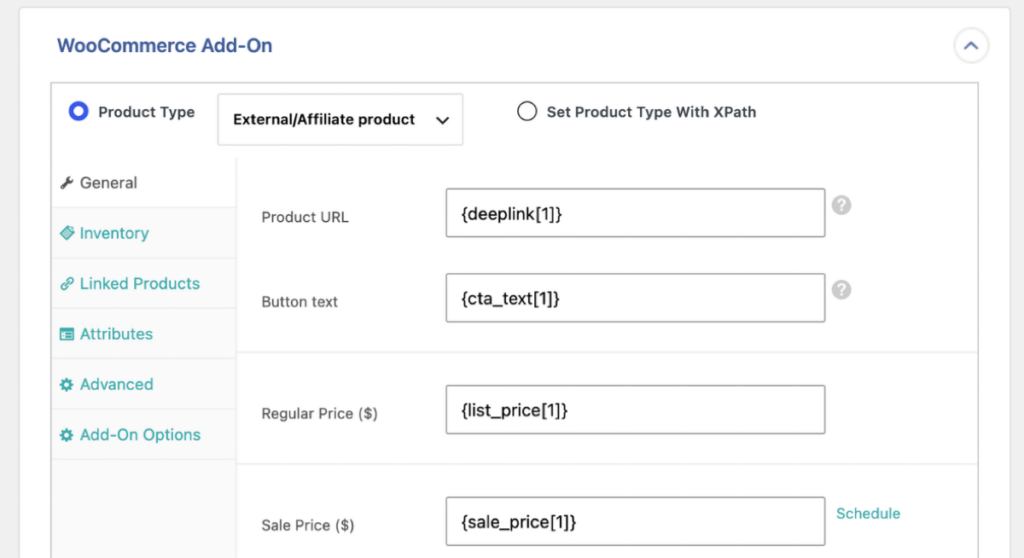
With that set, an External URL field appears. Map Amazon’s detail page URL column into it, and make sure your Associates tag is present in the link. If your data provider doesn’t append the tag, you can add it right in the template editor using the plugin’s inline tools, so every imported product carries your affiliate ID automatically.
2. Download the Images Instead of Hotlinking Them
Scroll to the Images panel. Automatic Setup will have pointed it at Amazon’s CDN URLs. Leave Download images hosted elsewhere enabled so the plugin fetches each photo, saves it to your own Media Library, and sets the first image as the featured photo with the rest going into the gallery.
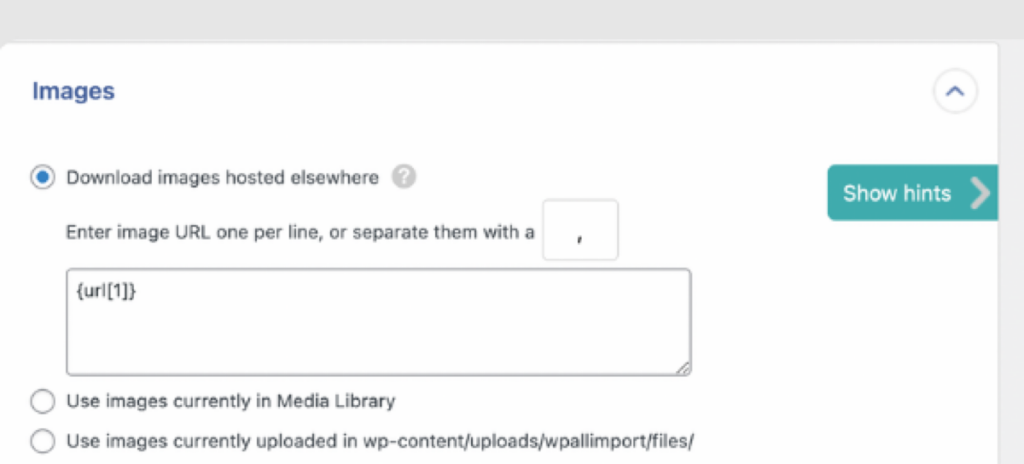
This matters for two reasons: your product pages stop depending on Amazon’s servers for imagery, and the images persist even if a listing’s CDN path changes.
3. Confirm Prices, Sale Prices, and Availability
In the same WooCommerce Add-On, verify the Regular Price field points at Amazon’s list price and Sale Price points at the current deal price where one exists. Map the availability column into the stock status field so out-of-stock Amazon listings import as out of stock rather than purchasable.
4. Use the ASIN as the Unique Identifier
On the Import Settings screen, click Auto-detect and confirm the Unique Identifier resolved to the ASIN column. The ASIN is Amazon’s permanent product code, which makes it the ideal matching key. When you rerun this import next week with fresh prices, WP All Import matches incoming rows to existing products by ASIN and updates them in place instead of creating duplicates.
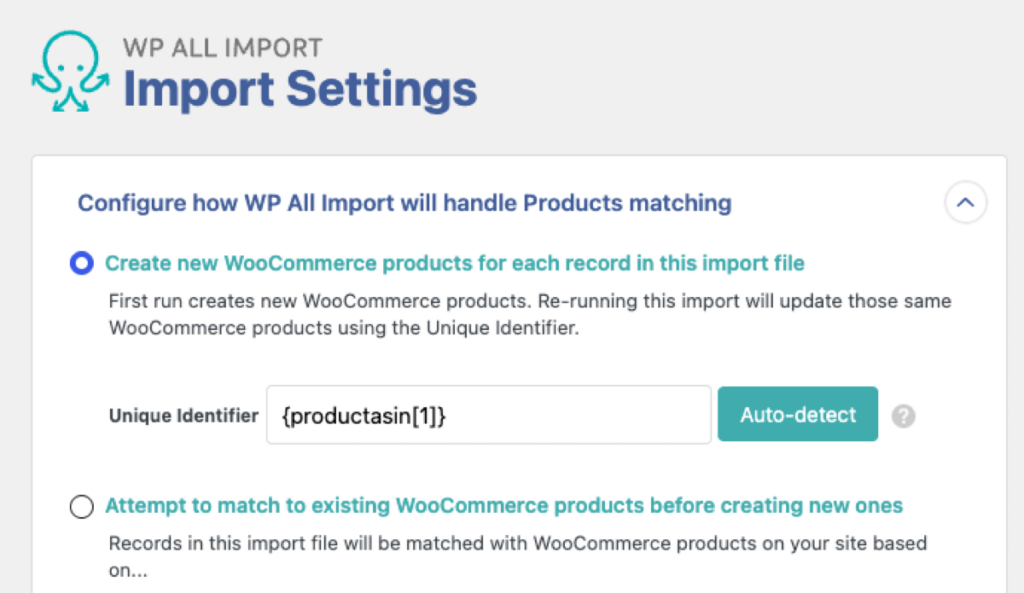
That single setting is what turns a one-time import into a syncable catalog.
With these four checks done, click Confirm & Run Import at the bottom of the template editor. The plugin processes the file in background batches, downloading images and creating products without timing out, then shows a summary of what was created.
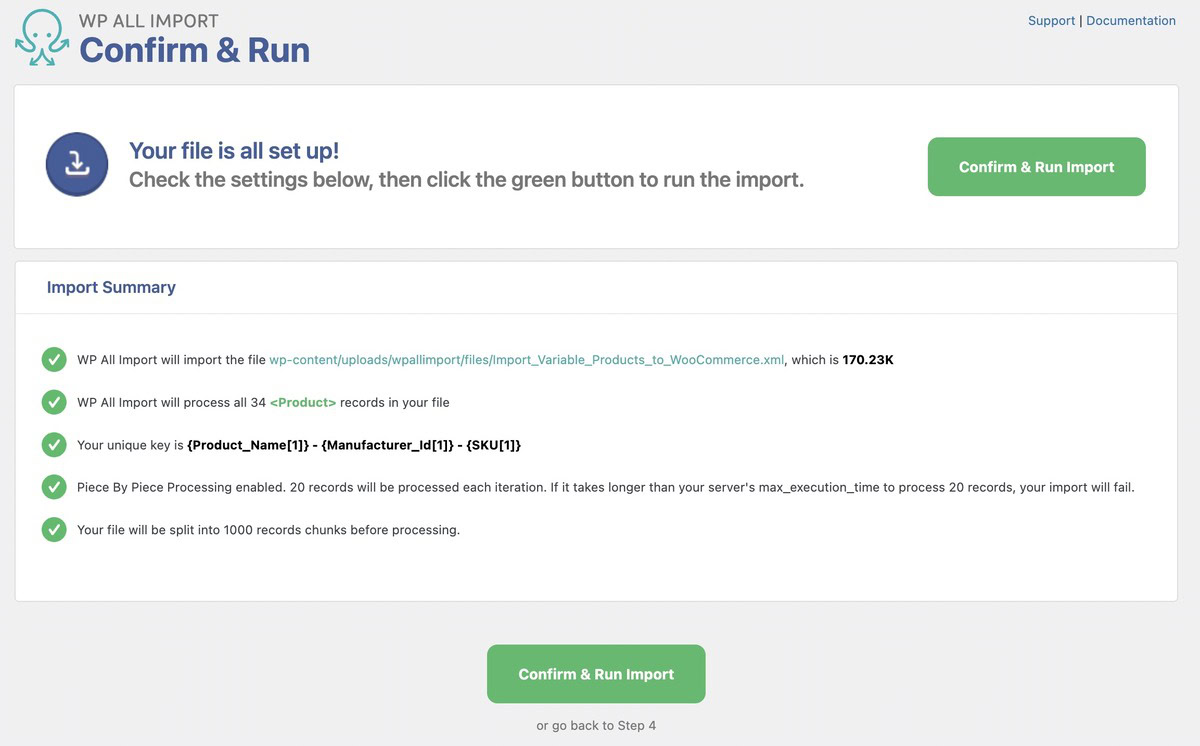
Run the Import and Keep Amazon Prices Current
One import gets the catalog live. Keeping it accurate is a scheduling question.
Because the import is saved, you can rerun it against the same Amazon data feed whenever you like, and the ASIN matching updates prices, sale prices, and stock without touching your descriptions or layout. To automate that, open Scheduling Options on the import and either configure a free server cron job or use the Automatic Scheduling service ($19/month) to run the import daily.
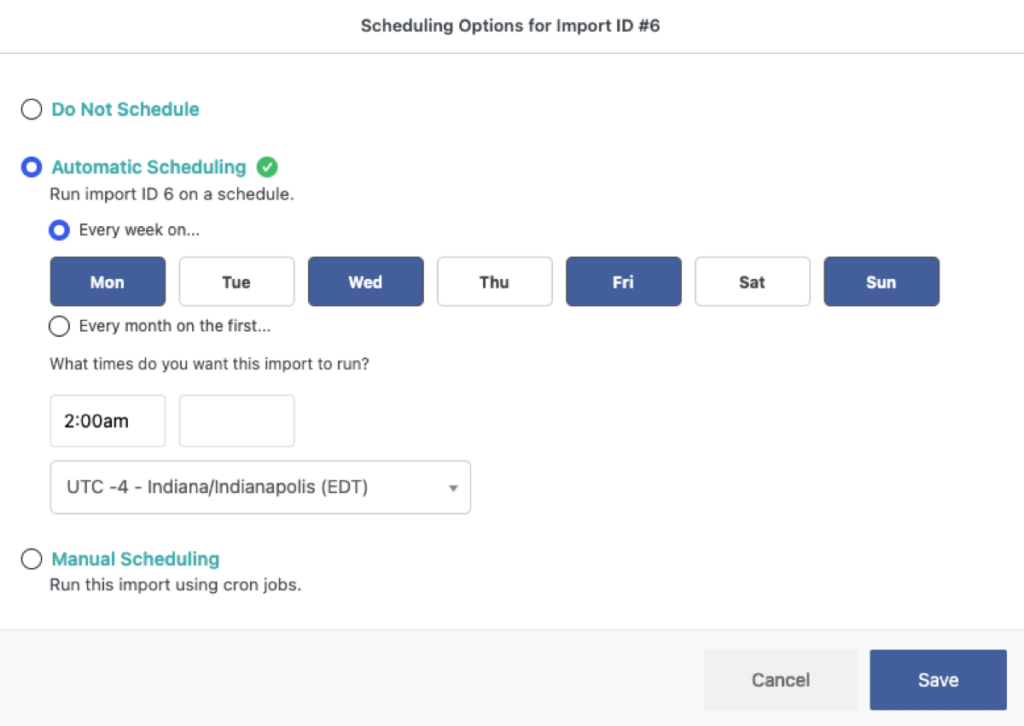
For an Amazon affiliate store, that daily refresh is the difference between a compliant catalog and one showing yesterday’s prices.
Wrapping Up: Importing Amazon Products into WooCommerce
Getting Amazon products into WooCommerce involves more setup than a typical import, and most of that extra work lives in three places: reading the data feed as-is, configuring affiliate and image settings, and keeping prices current after launch. The built-in WooCommerce importer only works if Amazon’s file has been reformatted to match its exact column schema.
WP All Import covers the full list. Its Automatic Setup maps any Amazon CSV or XML feed on upload, the template editor exposes the settings an Amazon listing actually needs (affiliate product type, CDN image downloads, ASIN-based matching), and scheduled imports refresh prices and stock without manual work.
I’d suggest budgeting ten minutes for the initial setup and treating the recurring sync as the real payoff. Once the import runs on a schedule against the same feed URL, your catalog maintains itself, and that’s the point where an Amazon-sourced store becomes genuinely low maintenance.
Common Questions on Importing Amazon Products
Can I import Amazon products into WooCommerce without an API?
Yes. WP All Import works with any CSV or XML file containing Amazon product data, whether it comes from the Amazon Product Advertising API, a third-party data provider, or a manual export. As long as the file includes titles, prices, and image URLs, the plugin maps it automatically.
How do I add my Amazon Associates tag to imported products?
Map Amazon’s detail page URL into the External URL field of an External/Affiliate product. You can append your Associates tag directly within the WP All Import template editor so every imported product link automatically carries your affiliate ID.
Can I import Amazon product images into WooCommerce?
Yes. WP All Import downloads product images from Amazon’s CDN URLs, saves them to your WordPress Media Library, sets the first image as the featured photo, and adds the rest to the product gallery automatically during the import.
How do I keep Amazon prices updated in WooCommerce?
Save your import and rerun it against the same Amazon data feed. WP All Import matches incoming products by ASIN and updates prices, sale prices, and stock without creating duplicates. You can schedule the import to run daily via cron or the Automatic Scheduling service.
Further Reading
Get Oxygen
Build it your way with Oxygen.
Not per year, not per site, not per seat. 60 day money back guarantee.