
How to Use a WooCommerce Product Import Template (CSV & Excel Guide)

When you need to bulk upload a catalog to WooCommerce, your first instinct is usually to search for a template. You want a pre-formatted spreadsheet with the exact column headers WooCommerce expects so your upload doesn’t fail on the first row.
WooCommerce’s built-in importer requires this rigid structure. But in the real world, suppliers almost never send spreadsheets that match WooCommerce’s internal database headers.
In this guide, I’ll break down the WooCommerce product import template schema, examine where rigid spreadsheet templates break down, and show you how to import vendor catalogs without spending hours reformatting them first.
Table of Contents
What Is the Standard WooCommerce Product Import Template Schema?
The standard WooCommerce product import template is a predefined CSV spreadsheet structure where every column header corresponds directly to an internal WooCommerce product property.
If you use WooCommerce’s built-in CSV tool (located under Products › All Products › Import), your spreadsheet must follow this schema. If your column headers match WooCommerce’s recognized terms, the native importer maps the columns automatically; if the headers differ, you are forced to match every column manually using dropdown selectors.
Important Columns in the WooCommerce Template Schema
While a full WooCommerce product export can generate over 40 unique columns, a working product import template only requires a core set of standard headers:
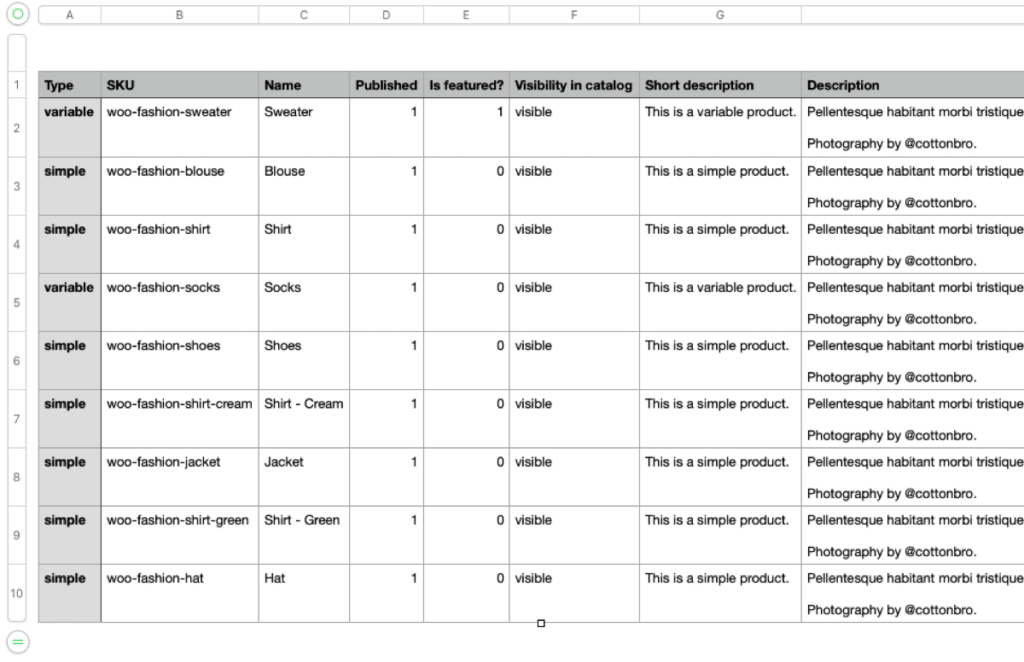
| Field Name | Accepted Values | Description |
|---|---|---|
Type | simple, variable, grouped, external | Defines the product type (defaults to simple if left blank). |
SKU | Text or numbers (e.g., WOO-101) | Unique product identifier used to prevent duplicates and match updates. |
Name | Text (e.g., Classic Leather Jacket) | The public title of the product. |
Published | 1 (published), 0 (private), -1 (draft) | Controls catalog status upon import. |
Regular price | Numeric (e.g., 49.99) | Standard selling price without currency symbols. |
Categories | Comma- or chevron-separated text | Product categories, supporting hierarchy (e.g., Apparel > Jackets). |
Images | Public URLs, comma-separated | Web links to photos; the first image becomes the featured photo. |
In stock? | 1 (in stock), 0 (out of stock) | Controls initial inventory availability. |
Where to Find the Official WooCommerce Sample Template
WooCommerce includes an official sample template file named sample_products.csv inside every standard WooCommerce installation. You can locate this file in two places:
- Your WordPress server directory: Look inside your website files under
/wp-content/plugins/woocommerce/sample-data/sample_products.csv. - The official WooCommerce GitHub repository: The WooCommerce team maintains an up-to-date copy of
sample_products.csvalongside the full technical schema documentation on GitHub.
You can open this sample file in spreadsheet applications like Microsoft Excel, Google Sheets, or Apple Numbers to review sample formatting for simple products, variable products with attributes, and external affiliate links.
Format and Encoding Rules
WooCommerce enforces strict technical requirements on its native template files:
- File format: WooCommerce’s core importer only accepts CSV (Comma-Separated Values) or TXT files. It cannot parse native Excel spreadsheets (
.xlsxor.xls) without a third-party extension. - Character encoding: Your file must be saved in UTF-8 encoding. If your spreadsheet contains special characters (such as accent marks, copyright symbols, or non-English alphabets) and is saved in standard ANSI or ASCII encoding, the import will corrupt your product titles.
- Multiple values: Fields containing multiple values—such as multiple category tiers or several gallery photos—must use specific delimiters. Categories generally use chevrons (
>) for subcategories, while multiple image URLs must be separated by commas.
Why Fixed Product Import Templates Fails for Real WooCommerce Stores
Conforming every catalog file to a fixed template is manageable for a one-off upload of a dozen products, but it quickly breaks down once you start dealing with real-world supplier feeds. External vendors and drop-shippers format their spreadsheets using their own conventions like labeling column headers item_number, wholesale_cost, and main_pic instead of WooCommerce’s required database names. Forcing those files into a rigid schema means spending hours copying, pasting, and restructuring columns in Excel before every import, which frequently introduces human errors, mangles special characters during CSV exports, and causes variable products to break. Instead of making product updates faster, maintaining a manual spreadsheet template turns into an ongoing administrative chore.
Importing Products Without a Template Using WP All Import
Instead of spending hours restructuring your supplier files to fit a rigid schema, you can let your import plugin adapt to your file. WP All Import’s Automatic Setup removes the need for fixed spreadsheet templates by analyzing your incoming columns dynamically, regardless of how headers are labeled or how columns are arranged.
Here is how the automated import workflow works from upload to live store:
Step 1: Upload Your Product File via Automatic Setup
From your WordPress dashboard, navigate to All Import › New Import. Click the Set up automatically banner at the top of the page to launch the automated wizard.
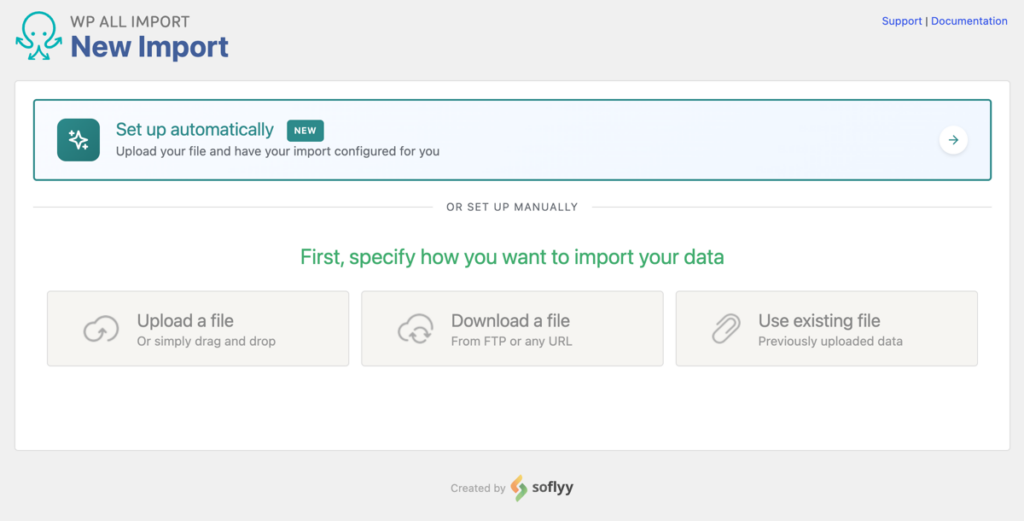
WP All Import accepts catalog files in any standard layout. You can upload raw CSV, Excel (.xlsx and .xls), XML, or ZIP archives up to 256 MB, or even paste a live Google Sheets link.

Once uploaded, under Choose What to Import, select WooCommerce, then choose Products (Simple, Variable, Grouped).
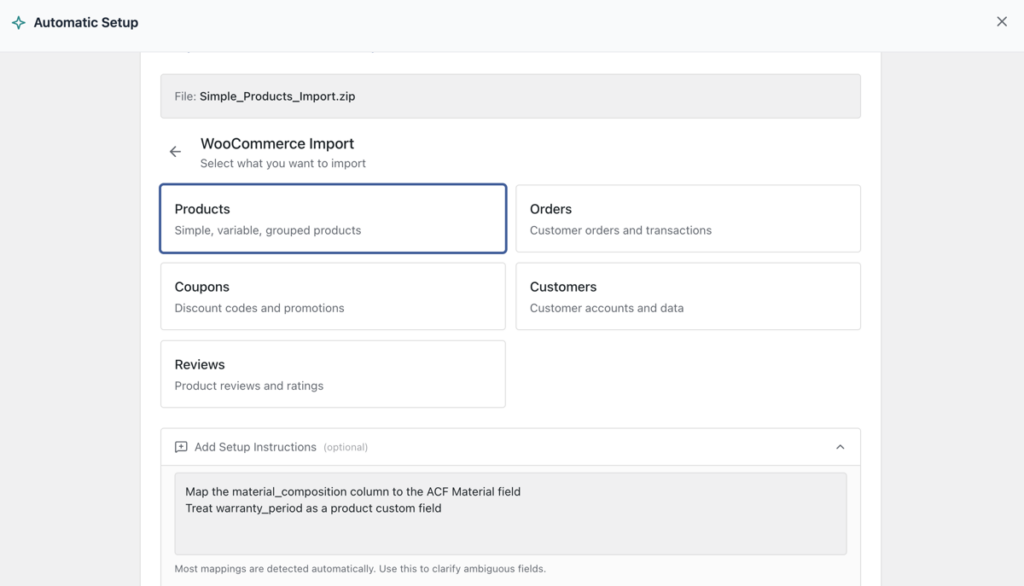
If your supplier uses unusual column names or custom currency abbreviations, expand the Add Setup Instructions field to give the wizard extra context (for example, “Use item_cost as regular price” or “Columns are pipe-separated”).
Click Start Automatic Setup. WP All Import examines the spreadsheet rows, detects whether items are simple or variable products, identifies variation attributes like size and color, and maps your product fields automatically.
Step 2: Review the Mapped Product Fields on the Summary Card
Once analysis completes, the wizard displays the Your Import Is Ready summary card. This card provides a quick overview of the parsed data, showing the detected product type, total record count, number of mapped fields, and an overall confidence score.
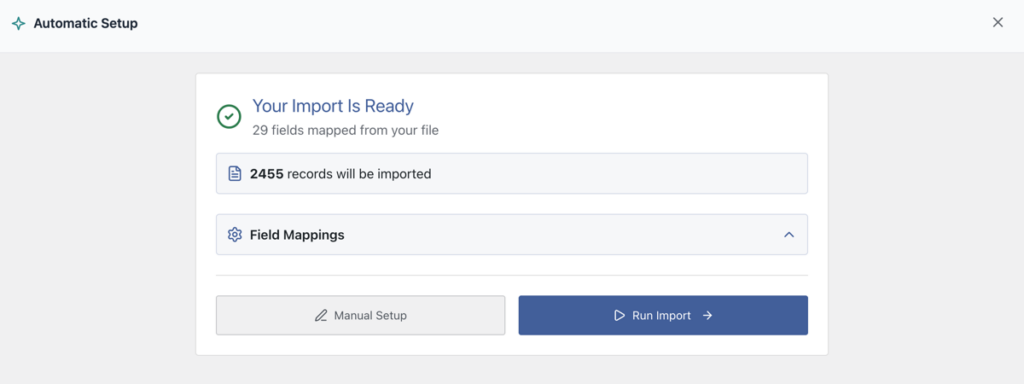
Scroll down the Field Mappings list below the card to verify the assignments. The wizard pairs standard columns (like product titles, prices, SKUs, inventory counts, and category paths) directly with their corresponding WooCommerce database fields.
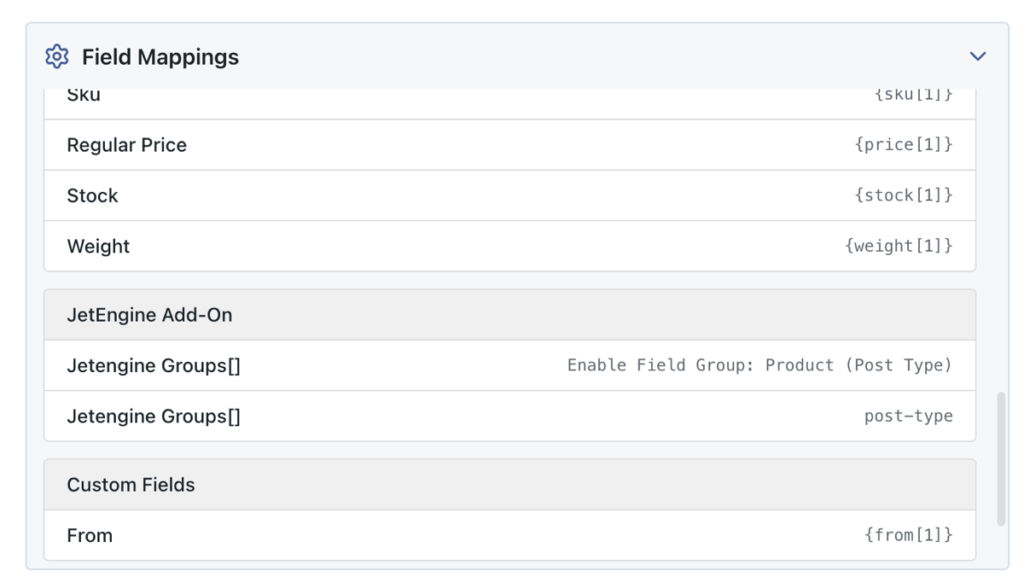
If the confidence score is high and the fields look correct, your setup is complete. You can proceed directly to running your import without manual template configuration.
Step 3: Preview Live Products Before Running the Import
Before publishing records to your live catalog, verifying how your data renders is good practice.
Click Manual Setup at the bottom of the summary card. This opens the template editor, which is already pre-filled with the mappings the wizard created.
Click Preview in the top header.
The preview modal opens with two different views:
- WP Admin View: Confirms how backend fields—like regular price, SKU numbers, stock status, and custom post meta—are populated in WooCommerce.
- Frontend View: Renders an interactive product page showing your full-resolution images, thumbnail galleries, descriptions, and functioning variation dropdowns exactly as customers will see them.

Use the navigation arrows to cycle through individual items and spot-check edge cases like multi-image galleries or out-of-stock variations.
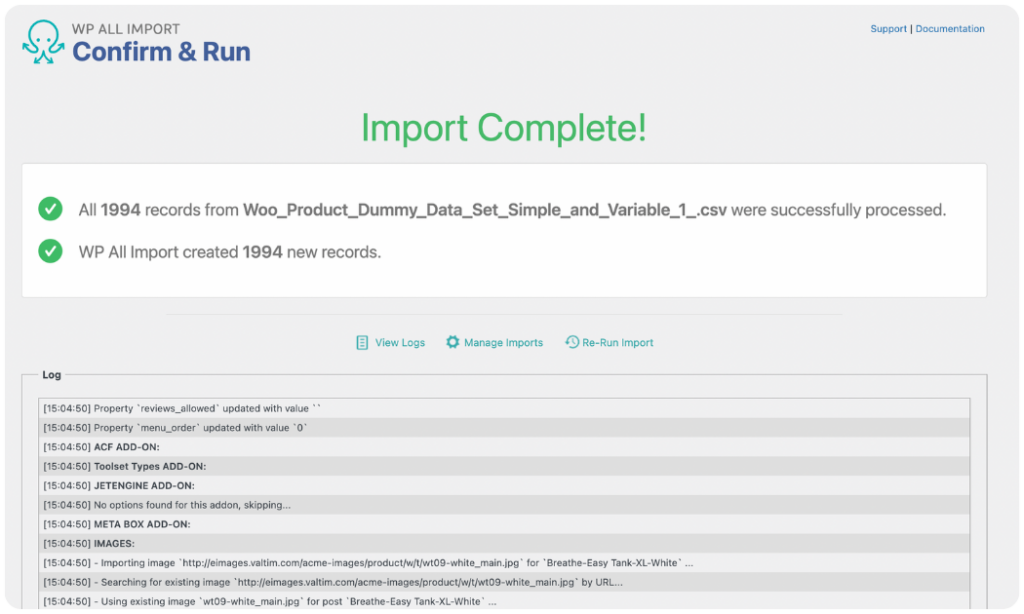
Once everything looks accurate, close the preview and click Run Import. WP All Import processes your file, attaches images, links child variations, and displays an Import Complete summary showing created, updated, and skipped records.
How to Save and Reuse Import Templates for Automated Feeds
When people talk about a WooCommerce product import template, they usually picture a static spreadsheet file on their desktop. But in WP All Import, an import template works differently: it is a saved configuration that remembers how a specific supplier’s columns should be handled.
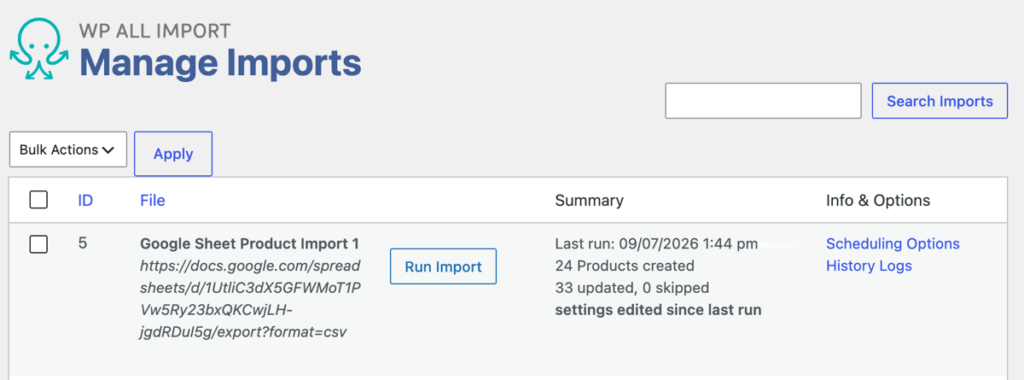
Once you run an import with Automatic Setup, the plugin saves that entire configuration under All Import › Manage Imports. If your vendor provides an updated catalog next week, you don’t need to rebuild anything. You simply upload the new file into the existing import, and the saved template applies the exact same field relationships, pricing calculations, and category rules automatically.
Saving a Configuration as a Reusable Template
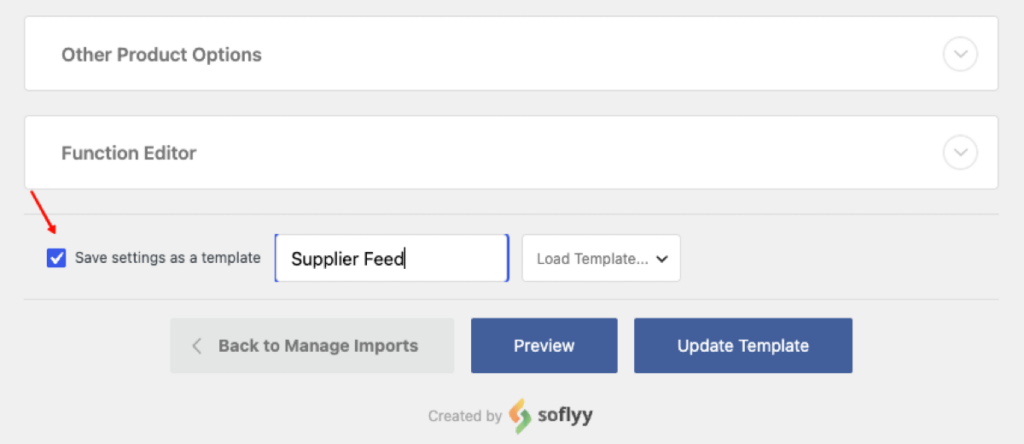
If you receive files from the same distributor across multiple WooCommerce stores, you can also save your setup as a named template:
- Inside the template editor, scroll down to the bottom of the page.
- Check the Save settings as a template box.
- Enter a descriptive title (such as Acme Supplies Product Feed).
- For future imports with similar files, simply select that name from the Load Template dropdown to populate every field instantly.
Automating Scheduled Updates
A saved import template becomes even more practical when paired with automated scheduling. If your supplier hosts inventory feeds on an external server or updates a live Google Sheet, you can set the import to run in the background on a daily or weekly schedule.

WP All Import checks the remote link at your chosen time, matches existing products by SKU or product ID, and updates stock counts and prices while keeping your custom descriptions and SEO titles untouched. That transforms catalog management from an ongoing manual task into a completely hands-free background process.
Which Approach to WooCommerce Product Import Templates Is Best?
Choosing the right approach comes down to where your product data originates and how frequently it updates.
WooCommerce’s native CSV template (sample_products.csv) is free, lightweight, and perfectly adequate for small, one-time catalog migrations. If you are launching a new store with fifty simple products and you have the time to copy and paste your details into standard column headers, using the core CSV importer does the job without extra tools.
However, the native template approach breaks down as soon as you manage an active store. If your inventory comes from external suppliers, contains variable products with multiple attributes, or arrives as an Excel spreadsheet, forcing that data into a rigid schema wastes valuable time and introduces costly formatting mistakes.
For real-world catalog operations, WP All Import is the better solution. Its Automatic Setup eliminates the need for manual spreadsheet reformatting entirely, while its saved import templates and scheduling tools allow you to process vendor feeds on your terms.
Frequently Asked Questions About WooCommerce Product Import Templates
Where can I download the official WooCommerce product import CSV template?
You can access the official WooCommerce sample template file, sample_products.csv, directly inside the WooCommerce plugin directory under /wp-content/plugins/woocommerce/sample-data/. The WooCommerce team also maintains the latest version of this file in their public repository on GitHub.
Can I use an Excel spreadsheet (.xlsx) as a WooCommerce product import template?
The built-in WooCommerce importer cannot read native Excel files (.xlsx or .xls) and requires you to convert your spreadsheet to CSV format before importing. WP All Import supports Excel files natively, allowing you to upload .xlsx spreadsheets directly without converting them or losing formatting.
Do column headers need to match the WooCommerce import template exactly?
If you use the built-in WooCommerce importer, yes. Column headers must match WooCommerce’s internal database names (such as post_title or regular_price), or you must map every unmatched column manually using dropdown menus. WP All Import’s Automatic Setup removes this requirement by analyzing column contents dynamically, meaning headers can be named anything.
How do you import variable products using a WooCommerce template?
To import variable products using the native WooCommerce template, your CSV must include separate rows for the parent product and each variation, linked together using the Parent SKU column. WP All Import handles variable products automatically during Automatic Setup, linking variations to parents by SKU, ID, or group values in a single import pass.
Get Oxygen
Build it your way with Oxygen.
Not per year, not per site, not per seat. 60 day money back guarantee.