
How to Update the Product Price in WooCommerce

Manually updating WooCommerce prices one product at a time works for a small catalog, but updating hundreds or thousands of products requires some form of automation.
WooCommerce’s built-in CSV importer can handle simple bulk price updates, but these cannot be scheduled in advance. For recurring or more complex updates, third-party plugins offer greater control and flexibility.
In this guide, we’ll show you how to update WooCommerce product prices using WP All Import, whether you’re working with supplier files or editing prices in a spreadsheet.
Table of Contents
- Common Scenarios When Updating Product Prices in WooCommerce
- Updating WooCommerce Product Prices Using a New Supplier File
- Updating WooCommerce Product Prices Using an Updated Supplier File
- Updating WooCommerce Product Prices Using Bulk Edit
- Final Thoughts
Common Scenarios When Updating Product Prices in WooCommerce
WooCommerce store owners run into three common situations when updating product prices:
- A supplier sends a product file with a structure you haven’t imported before, containing updated prices.
- A supplier sends an updated version of a file you’ve already imported, with new prices in the same fields.
- You need to update prices across a large number of products without a supplier file, using the fastest method available.
I cover all three below.
Updating WooCommerce Product Prices Using a New Supplier File
This scenario assumes the products already exist in your store, either imported previously or created manually. WP All Import handles it by matching incoming rows to existing products via SKU or product ID, then writing new values only to the price fields you map.
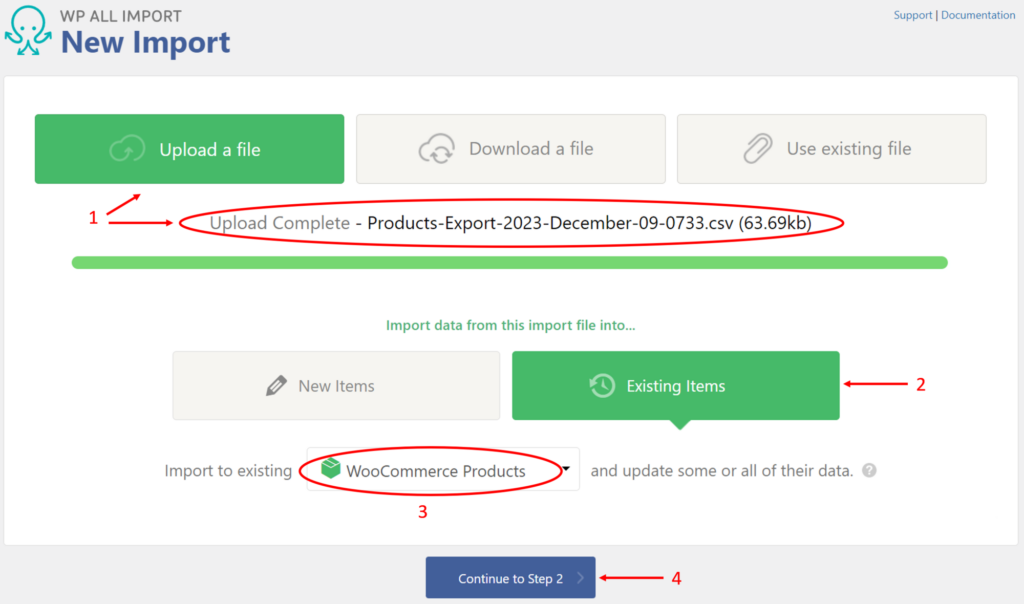
Step 1: Create a New Product Import
Go to All Import › New Import and create a new product import:
Step 2: Review the Import File
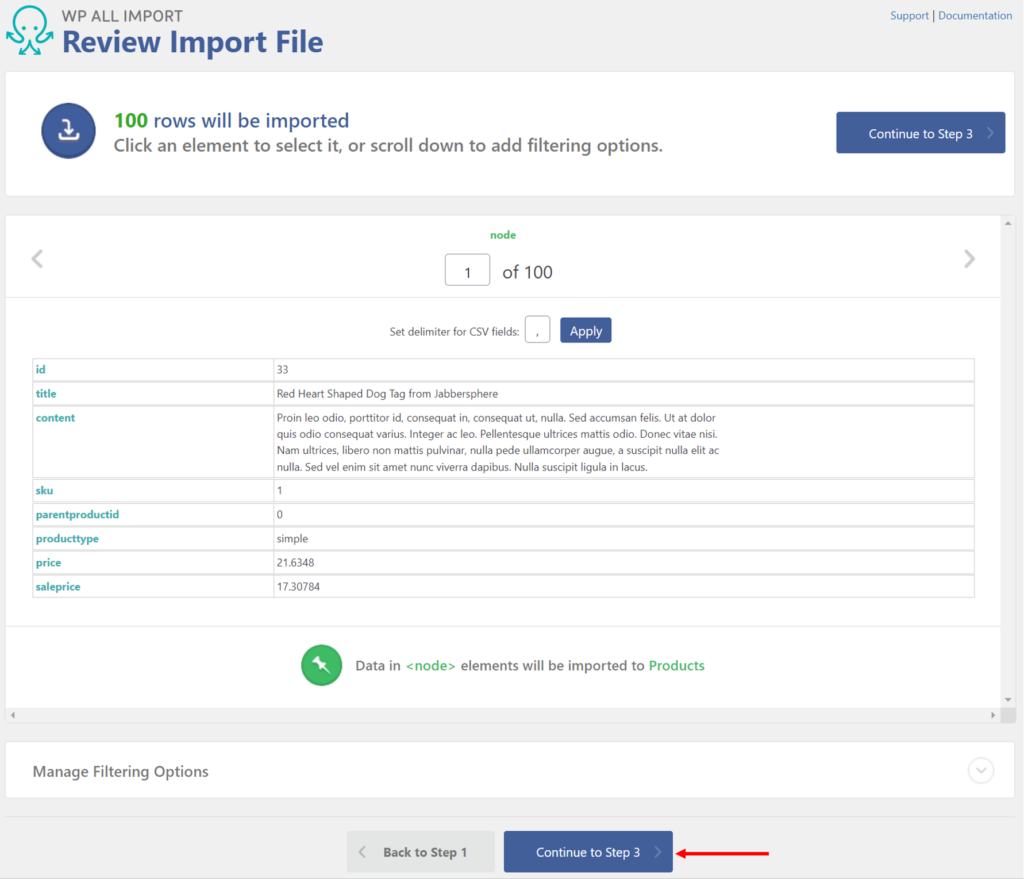
In this step, you are merely checking the structure and content of the import file. As you can see from the image below, the file is very simple, containing only a few product identifier fields along with new price and sales price data:
Step 3: Map the New Price Data to the Product Price Fields
In the WooCommerce Add-On section of the Drag & Drop screen, map the incoming price data to the product price fields that you want to update:
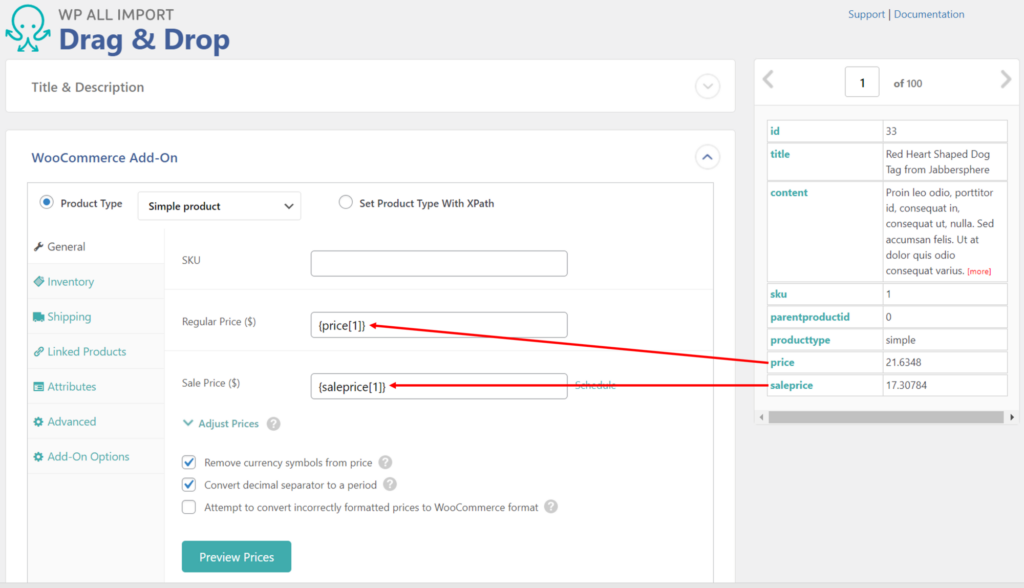
Make sure to click the blue Continue to Step 4 button at the bottom (not shown).
Step 4: Match Existing Products and Update Price Fields Only
The next screen to appear is the Import Settings screen. Here, you want to instruct WP All Import on how to match the incoming products to the products in your store, which you do in actions 1 and 2 below:
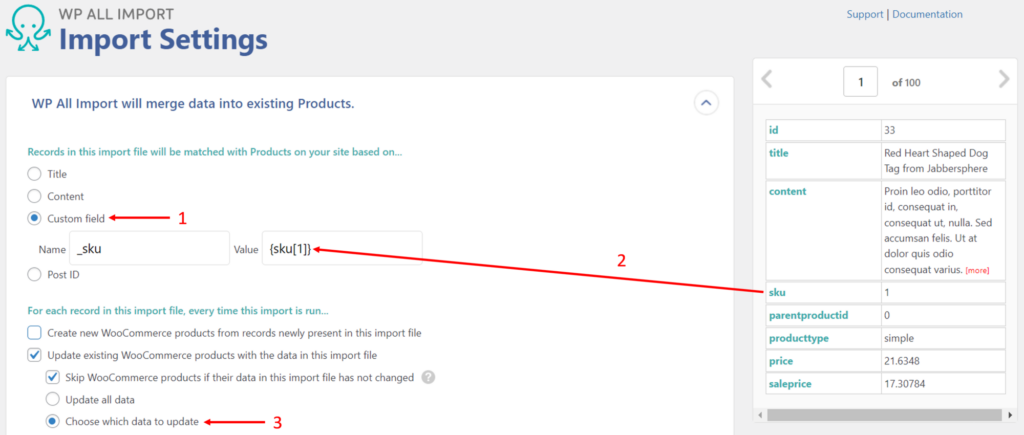
Action 3 allows you to tell WP All Import exactly which fields to update, which you do a little further down the screen:
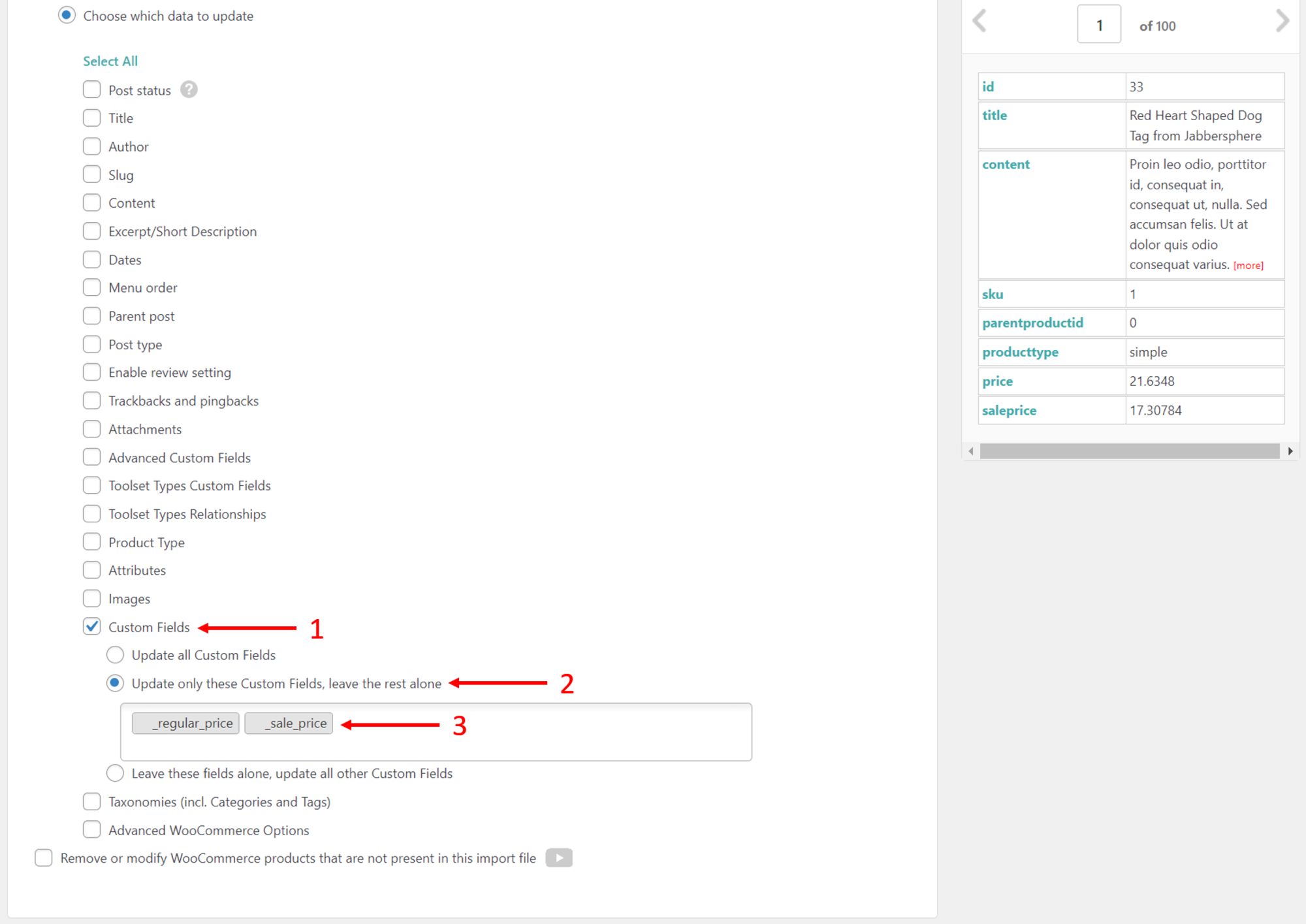
Click the blue Continue button at the bottom (again, not shown).
Step 5: Complete the Update
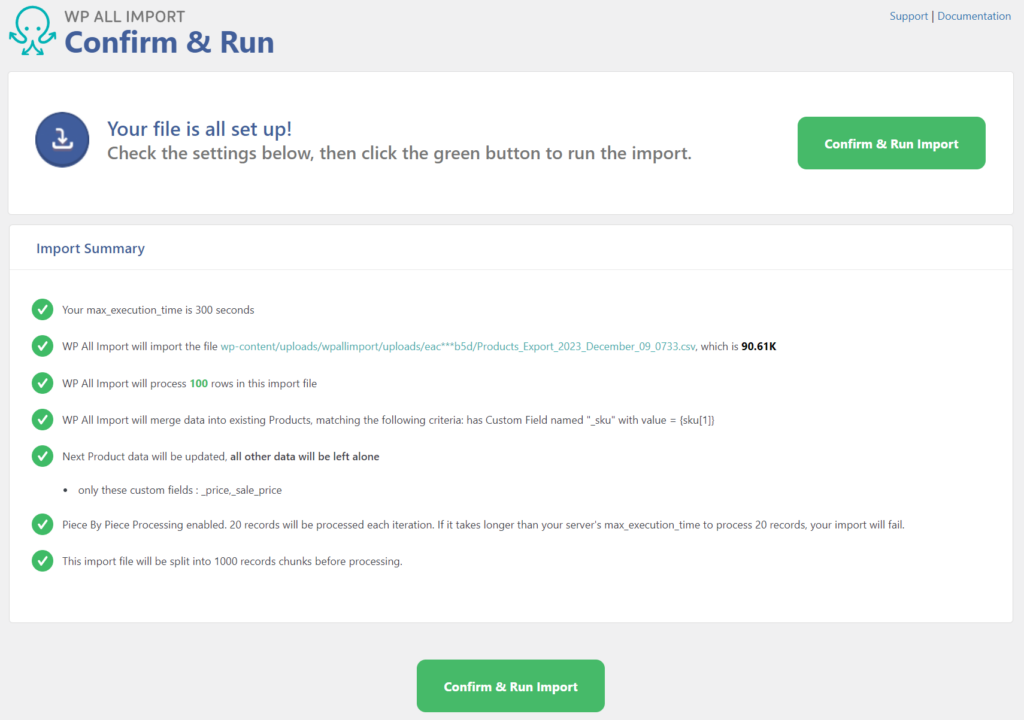
At this point, all you have to do is click the Confirm & Run Import on the next screen, and, voila, you have updated your Woocommerce product price data and only that data!
Updating WooCommerce Product Prices Using an Updated Supplier File
WP All Import saves the mapping and matching settings from every import. To apply an updated supplier file that has replaced the previous one but retains the same structure, open All Import › Manage Imports, find that import, and click Run Import. The new prices are written using the original configuration.

Updating WooCommerce Product Prices Using Bulk Edit
Bulk-editing WooCommerce prices without a supplier file uses WP All Export and WP All Import together: export the target products to a spreadsheet, edit the prices directly in that file, then reimport it using the same field mappings the export already created.
Step 1: Export the Target Products
Go to All Export › New Export and create a new product export:
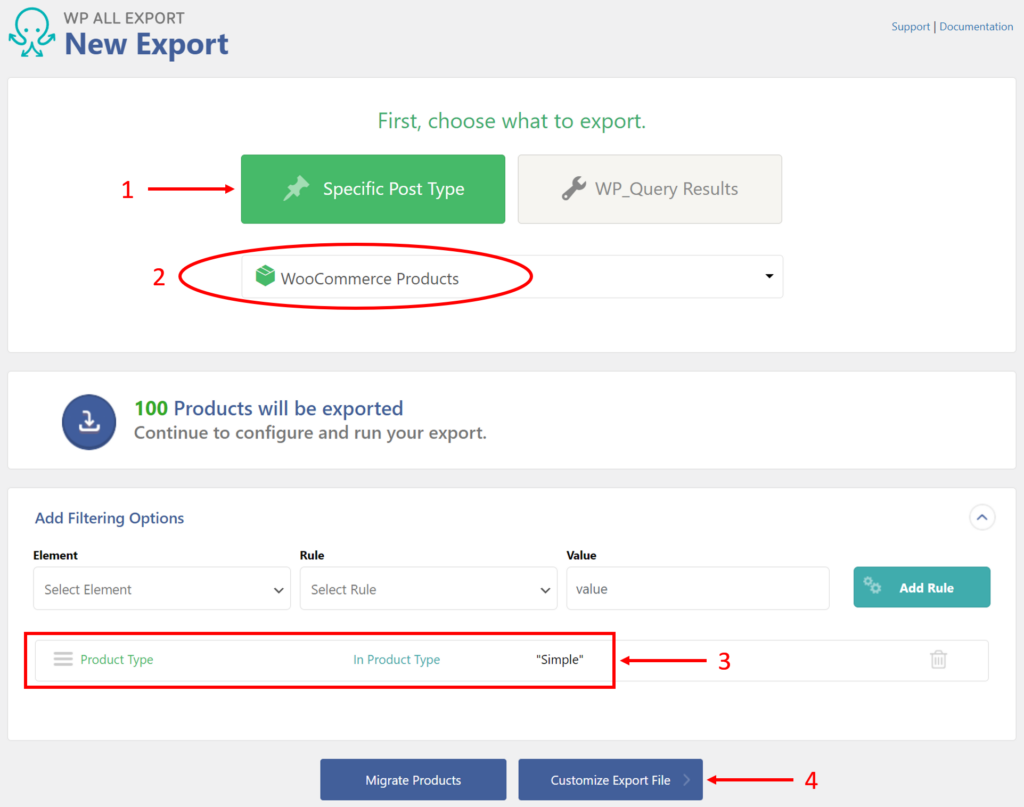
Note the filter that we created in Action 3, which restricts the product export to simple products only. You can create incredibly complex filters with WP All Export. To read about these, see Filtering Import Data with XPath.
After you click the Customize Export File button, you’ll be brought to the Drag & Drop interface. Here, you simply drag and drop your export columns from the available fields on the right:
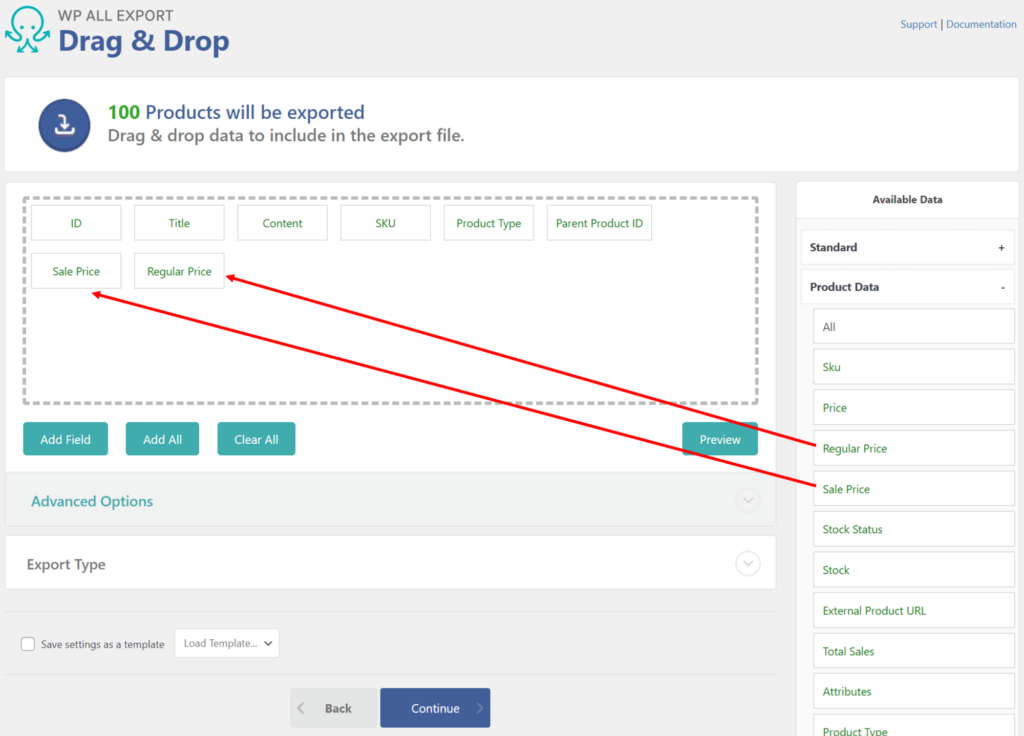
Since we want to modify price data, you must export the price fields.
You then click the Continue button, followed by the Confirm & Run Export button on the next screen. The export will then run, at which point you will see this screen:

Just click the CSV button, and WP All Export will download your CSV file to your computer.
Step 2: Modify the Product Prices in a Spreadsheet
Next, open the product CSV file in your favorite spreadsheet and change the prices as you wish. Using features like copy-and-paste, search-and-replace, and formulas should be substantially more efficient than making the same changes through the WooCommerce interface.
Make sure to save your changes.
Step 3: Reimport the Updated Prices
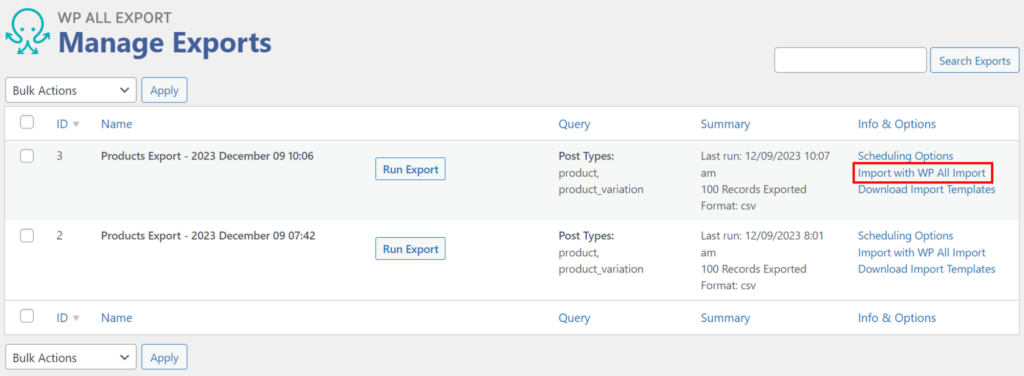
Now, we get to the beauty of how WP All Export and WP All Import work together. If you navigate to All Export › Manage Exports, you will see your recent product export. To import your changed file, simply click the Import with WP All Import option on the right:
This will launch a new import:
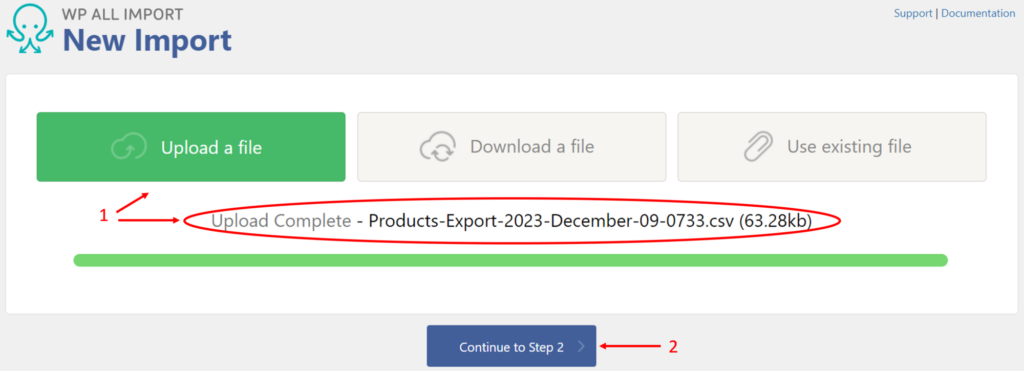
Upload your changed file, then click Continue to Step 2, which brings you to the Drag & Drop screen:
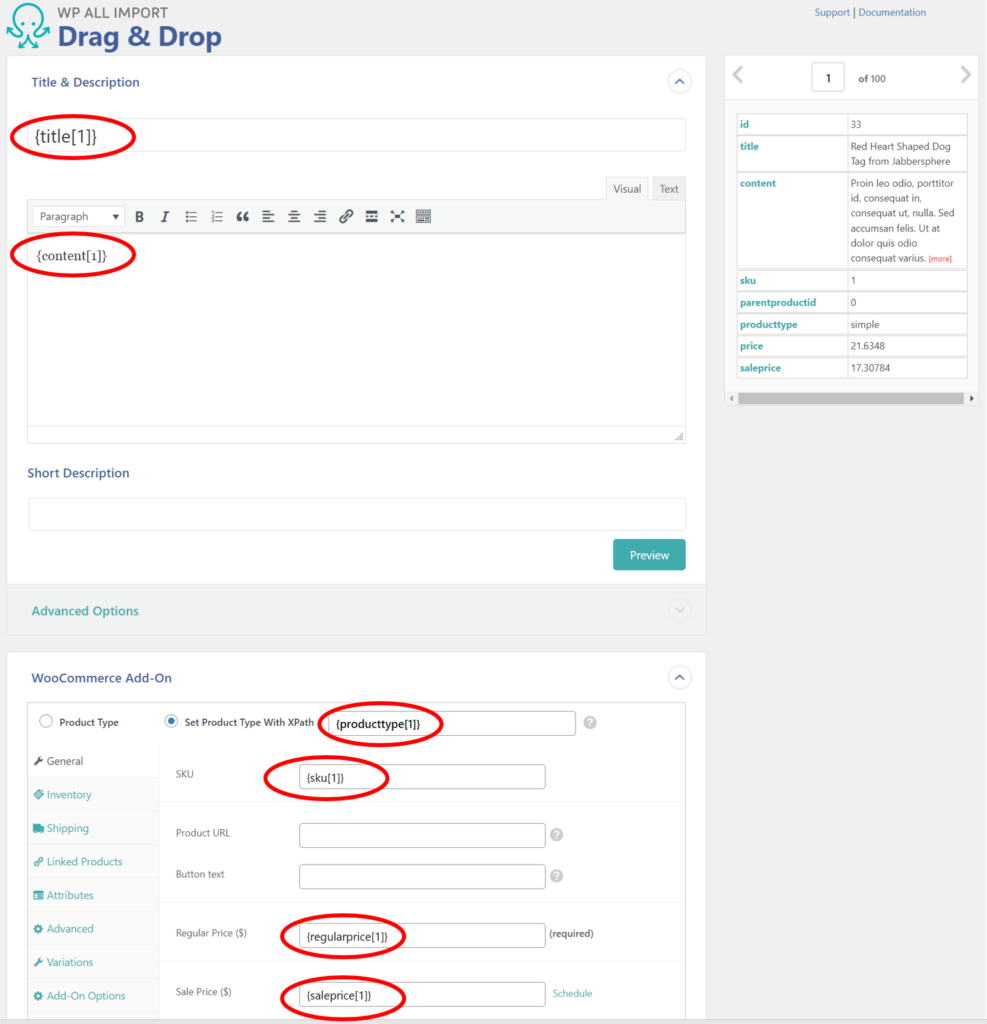
This is where the magic occurs. Because WP All Import has access to the settings used by WP All Export during the product export process, it already knows how to map the incoming data.
It even knows which fields need to be updated:
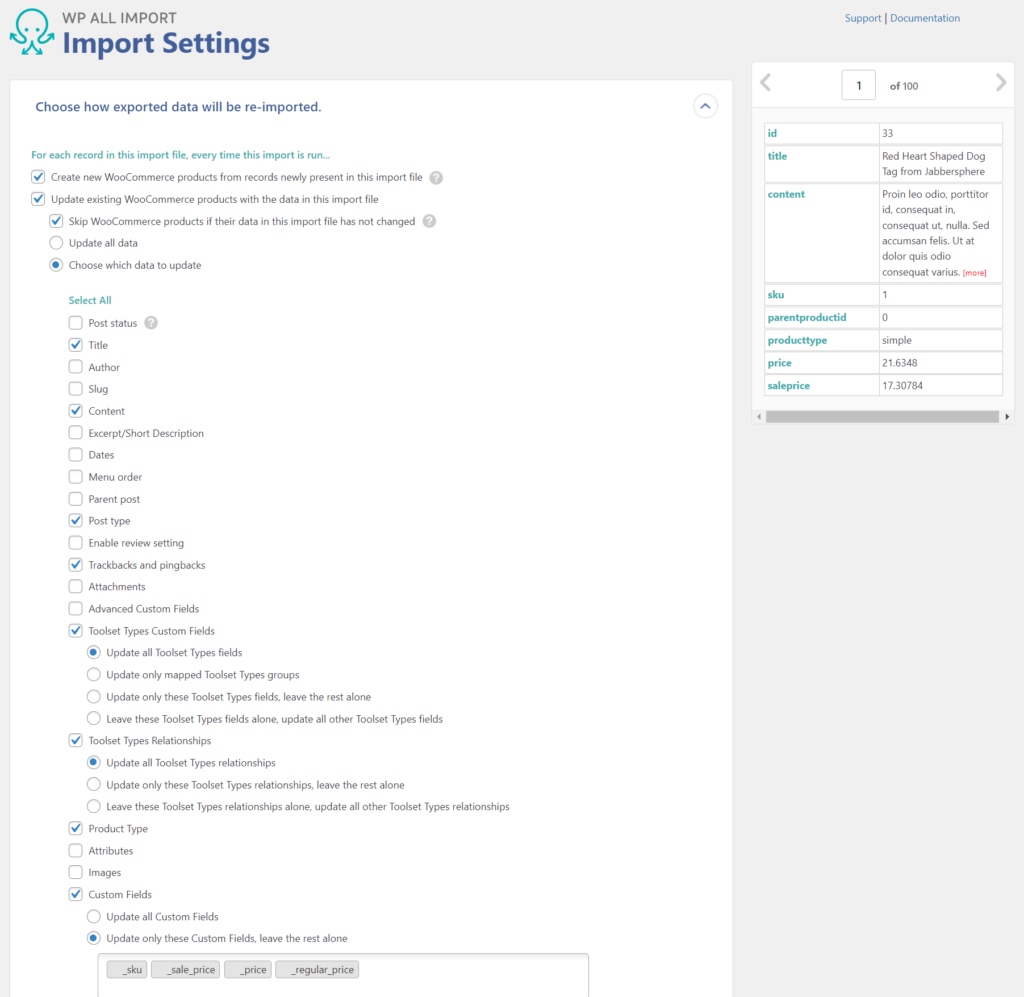
You can simply ignore all other settings, complete the import, and your changes will be applied.
Final Thoughts
The risk in any bulk price update is touching data you didn’t mean to change: overwriting a description, resetting stock, or breaking a product’s category assignment along with its price. WP All Import avoids this because the fields you map are the only fields that change; everything else on a matched product stays exactly as it was before the import ran. That’s true whether the source is a first-time supplier file, a repeat file, or a spreadsheet built from your own store’s export.
How to Update Product Price in WooCommerce – FAQs
How do I bulk update WooCommerce product prices?
To bulk update WooCommerce product prices, WP All Import matches each row in a file to an existing product by SKU or product ID, then writes new values to the price fields you map, leaving every other field on the product unchanged. This applies the same update to any number of products in a single import, whether the source is a supplier file or your own store’s export.
How do I update WooCommerce prices from a CSV file?
To update WooCommerce prices from a CSV file using WP All Import:
- Go to All Import › New Import and upload the CSV file.
- Choose WooCommerce Products as the import type.
- In the WooCommerce Add-On section, map the file’s price column to the Regular Price field (and Sale Price, if included).
- Set WP All Import to match existing products by SKU or product ID.
- Select Update existing products and restrict the update to price fields only.
- Click Confirm & Run Import.
The same steps work with an XML file in place of CSV.
Can I schedule automatic WooCommerce price updates?
Yes. WP All Import can download a price file from a URL on a set schedule and rerun the import automatically, applying the updated prices without manual intervention each time. This uses the same matching and field-mapping settings configured during the import’s initial setup.
What’s the difference between updating WooCommerce prices manually and by import?
Updating WooCommerce prices manually means opening each product’s edit screen and changing the regular and sale price fields one at a time. Updating by import means matching an entire file of products to your store at once and writing new prices to every matched product in a single run, which scales to any catalog size without added manual steps per product.
How to Update Product Price in WooCommerce — Related Info
- Official Documentation: Updating Prices to Existing Products
- Official Documentation: How to Import WooCommerce Products from CSV and XML
- Official Documentation: How to Export WooCommerce Products to CSV, Excel, and XML
- Official Documentation: How to Bulk Edit WooCommerce Products
- The 5 Best WooCommerce Product Import Plugins
- The 5 Best WooCommerce Product Export Plugins
How to Update Product Price in WooCommerce — Related Videos

Get Oxygen
Build it your way with Oxygen.
Not per year, not per site, not per seat. 60 day money back guarantee.