Variables
Variables are a powerful tool in Oxygen that allow you to maintain consistent design across your website. With variables, you can define colors, numbers, units, font families, and image URLs to ensure every detail matches your vision.
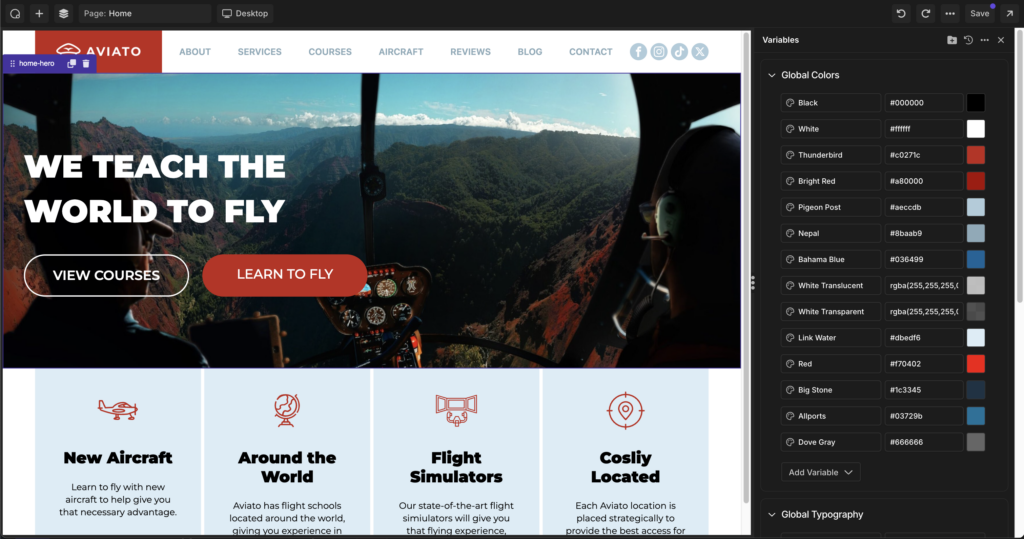
Variable Collections
Before creating variables, you need to create and name a collection. Collections help organize your variables by purpose, such as Global Colors, Global Spacing, or Global Typography.
- Go to Oxygen > Variables in the WordPress admin panel.
- Click Add Collection.
- Name your collection (for example, “Brand Colors” or “Typography Scale”).
- Click Save Collection.
After creating a collection, you can add individual variables to organize your design system.
Variable Types
Oxygen supports five variable types:
- Color: The Color variable type allows you to add hex-based solid colors or gradient colors. These variables can be used for any color controls throughout Oxygen.
- Number: The Number variable type lets you input numeric values. Number variables can be used in any standard number control.
- Unit: The Unit variable type lets you input both the number and unit, such as “16px” or “100vh”. Unit variables work with any unit size controls, including padding, margin, and font size.
- Font Family: The Font Family variable type allows you to select a registered font as the variable’s value. This variable can be used for any font family control.
- Image URL: The Image URL variable type lets you add a URL for an image. You can use this variable for any image inputs.
Assigning Variables
To use a variable in Oxygen:
- Hover over any control in the Editor.
- Look for the purple “+” icon in the top left corner of the control.
- Hover over the “+” icon until it changes to a “$” icon.
- Click the “$” icon.
- Select a variable that matches the control type.
The control will now use the variable’s value instead of a manual input.
Overriding Variables
You can override variable values for individual elements without affecting other elements that use the same variable.
To override a variable:
- Select the element you want to override.
- Select the class for the element.
- Click the “$” icon to open the Override Variables menu.
- Click Add Variable.
- Select the variable you want to override from the list.
- Enter your new value (you can use manual values, other variables, or dynamic data).
The selected element will now use the new value instead of the original variable value.
Examples for Overriding Variables
Dynamic Background Image
To create a dynamic background image, such as using a post’s featured image, follow these steps:
- Create a new Image URL variable.
- Enter a default value for the Image URL variable.
- Assign the variable to a class’s background image control.
- On a specific element, override the variable with dynamic data such as the featured image.
This allows you to have a default background image that can be dynamically replaced on individual posts or pages.
Alternate Grid Layout
To create grid variations without creating new classes:
- Create a new Number variable called “Grid Columns”.
- Set the default value to “3”.
- Create or update your grid class to use the Grid Columns variable in the Grid > Columns control.
- For containers that need different column counts, select the container and override the Grid Columns variable with a new value.
This approach maintains consistency while allowing for necessary variations across your site.