Components
Components are crucial building blocks within Oxygen. With Components, you can create designs that can be used across your entire website. Additionally, with Component Properties, you can decide what content can be updated for each Component when it is used.
After you’ve designed a Component, any design changes you make to the Component will be applied to all instances of that Component on your site.
Editing Components
You can add any content you’d like to a Component. This can include static elements (like text or images) or dynamic elements using Dynamic Data (such as post content, custom fields, or items inside a Loop).
Components also support Component Properties, which let you define editable options for each instance of the Component. For example, you might create a card Component where the layout and styles remain consistent, but the title, image, and link can be customized through Component Properties.
Previewing Content
When working on a Component, you can use the preview settings in the Quick Navigator to control what content is displayed inside the Component while editing.
Preview Size Options
While editing a Component, you can use the Preview Size control to adjust how you view its content. These settings are only for the editing experience and do not affect how the Component appears on the live site.
- Constraint Preview Size: Set the width and height of the previewed content.
- Background Color: Add a background color to the area surrounding the previewed content.
- Vertically Center: Center the previewed content within the canvas.
Component Properties
Use Component Properties to define content that can be modified when adding the Component to a page and what can and cannot be modified for each Component you create.
Creating a Component Property
You can turn any Element control into a property using the + symbol next to the control.
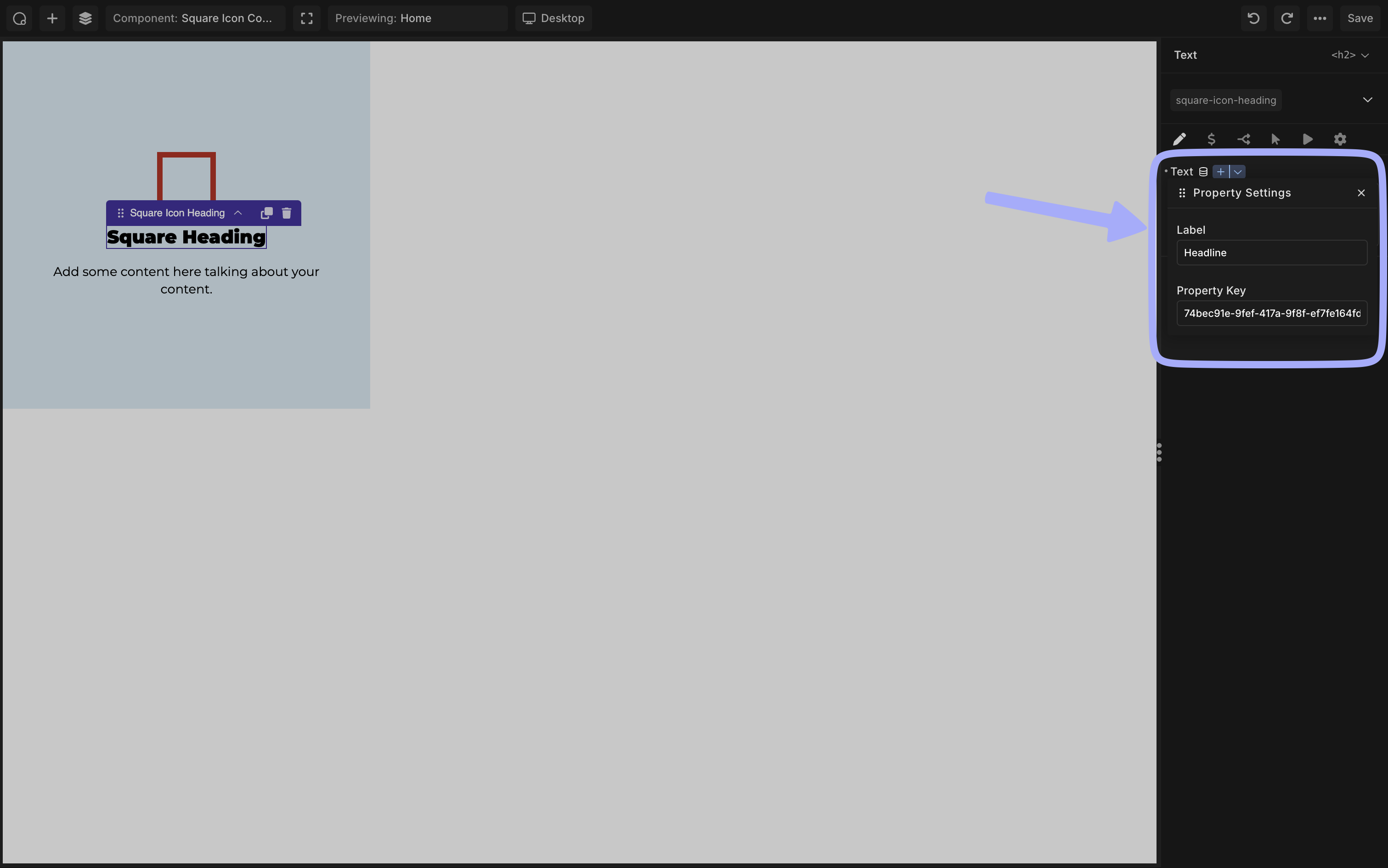
- Click the + symbol next to the control’s input.
- Then, click the ∨ symbol to open the Property Settings.
- Set a Label for the Property. This is what will be seen when setting the values for the property when using the Component elsewhere in Oxygen.
- Set a Property Key. Set the Key for the Property that will be used for store and retrieve Property values. By default, Oxygen will generate a random string for you, but you can define your own key for greater control.
Using Component Properties
After creating Component Properties, when you use that Component elsewhere in Oxygen, you’ll be able to set the values for those Properties.
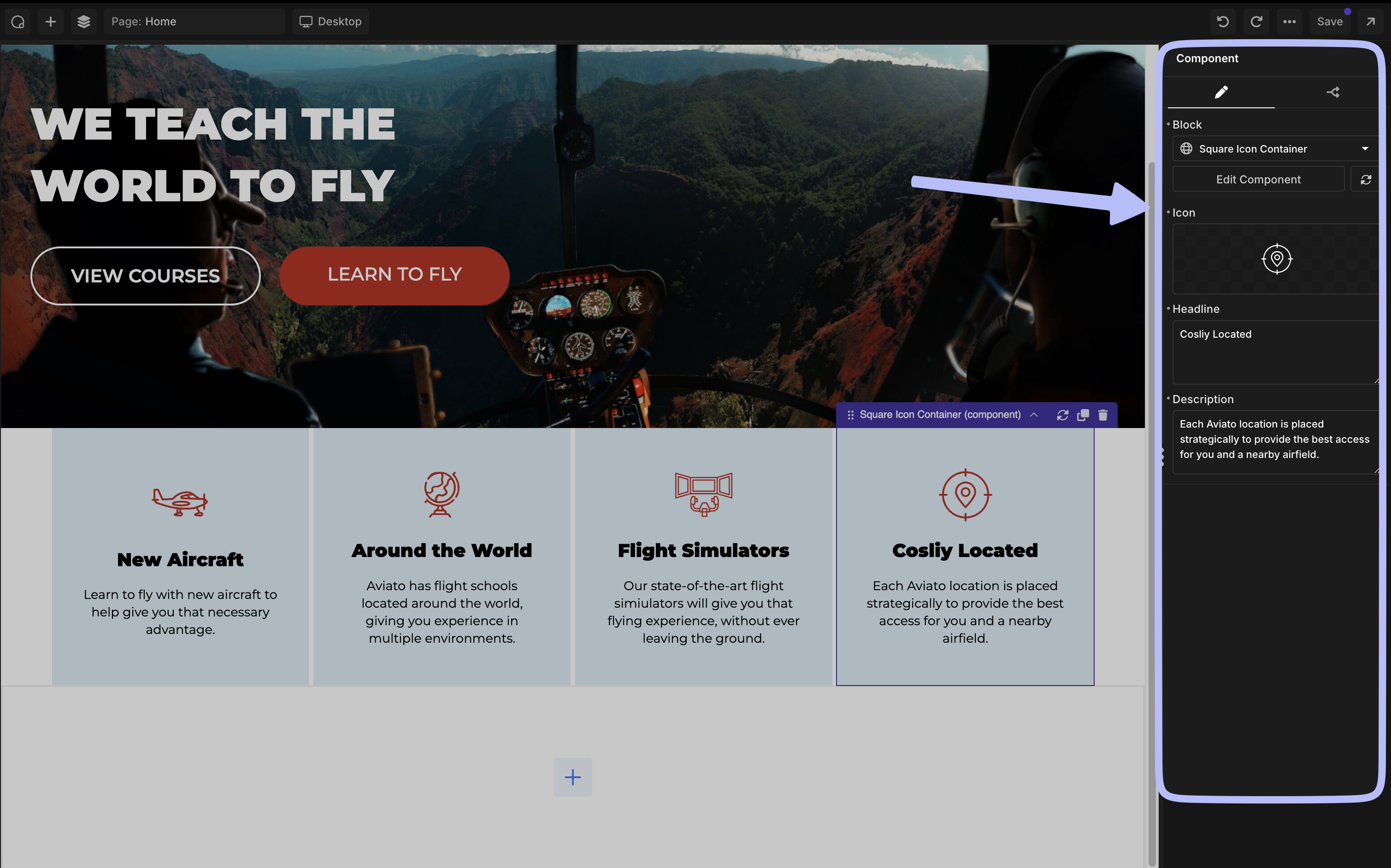
- Add a Component element to the Builder.
- In the Properties Panel, edit the available Component Properties.
- Save the Builder.
Inline Editing
When working on a page or template, you can edit a Component inline. This makes it simple to create new Components or update existing ones without interrupting your workflow.
There are two ways to begin inline editing:
- Click the Edit Component button found inside the Component control for the element you’re working on.
- Double-click the Component in the Canvas to start editing it directly.
To exit inline editing, you can do one of the following:
- Click the Stop Editing button in the Component control.
- Double-click anywhere on the canvas outside of the Component.
- Click the back button in the Quick Navigator.
When you exit inline editing, your changes are saved automatically and will update across every instance of that Component.
Note: While editing Components inline, you won’t be able to use Preview Size settings, since the Component is already shown in the correct design context.